10 Image Tools Every Designer Needs in Their Workflow
From resizing to format conversion, these essential image tools will streamline your design workflow without any software installation.
Why Designers Need Quick, Reliable Image Tools
Design is fundamentally creative work, but a surprisingly large portion of every designer’s day is consumed by repetitive, non-creative image tasks. Resizing assets for multiple screen breakpoints, converting formats to meet developer requirements, compressing images for a slow-loading page — these tasks add up to 15–25% of a typical design working day, according to workflow productivity research.
Modern browsers are now powerful enough to handle all of these tasks without any software installation. Browser-based tools use hardware-accelerated APIs like the HTML5 Canvas for image manipulation, delivering results in seconds without occupying disk space or requiring license keys. Here are 10 tools every designer should keep bookmarked, and how to chain them into a complete workflow.
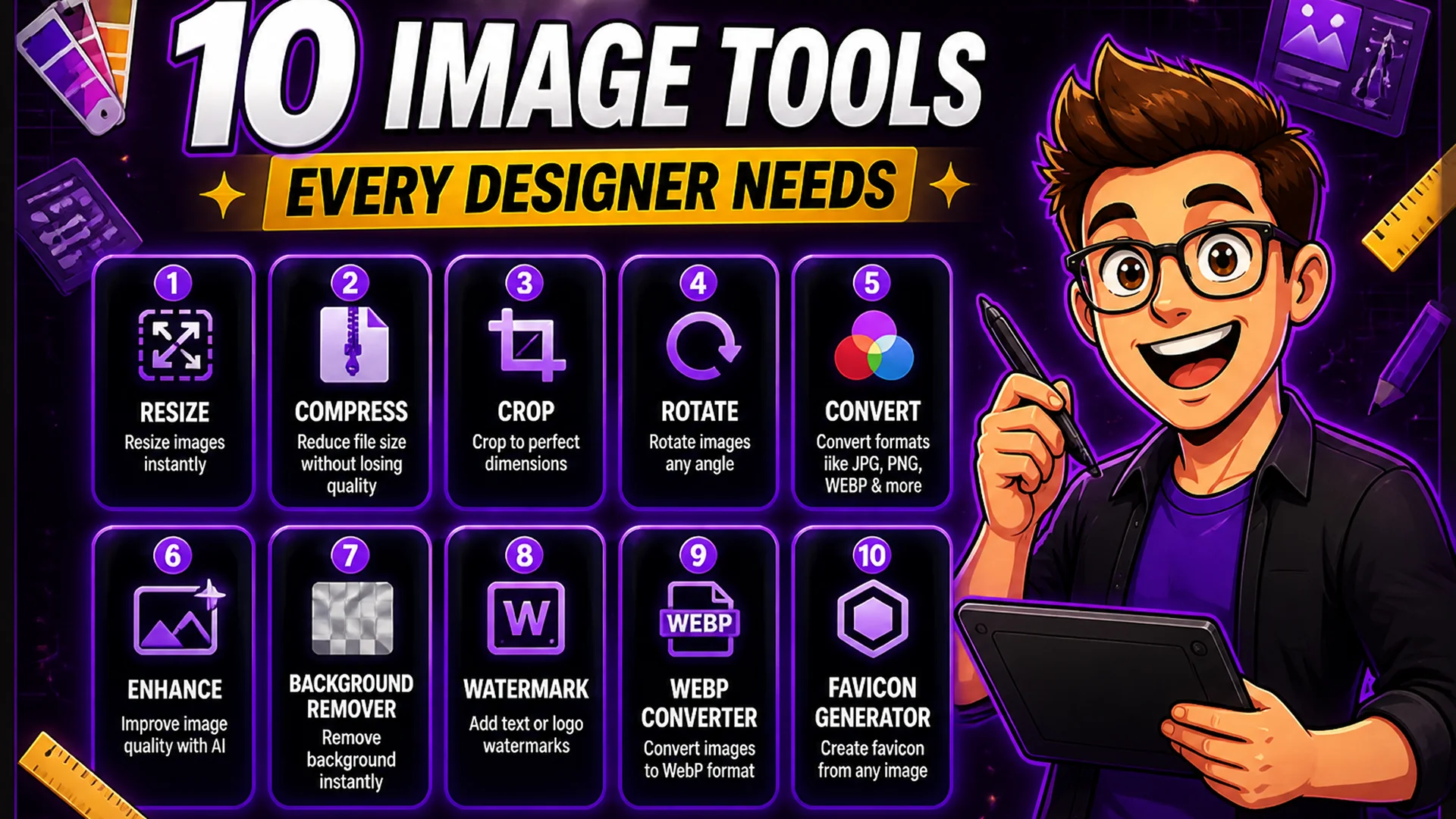
1. Image Resizer — Control Exact Dimensions Instantly
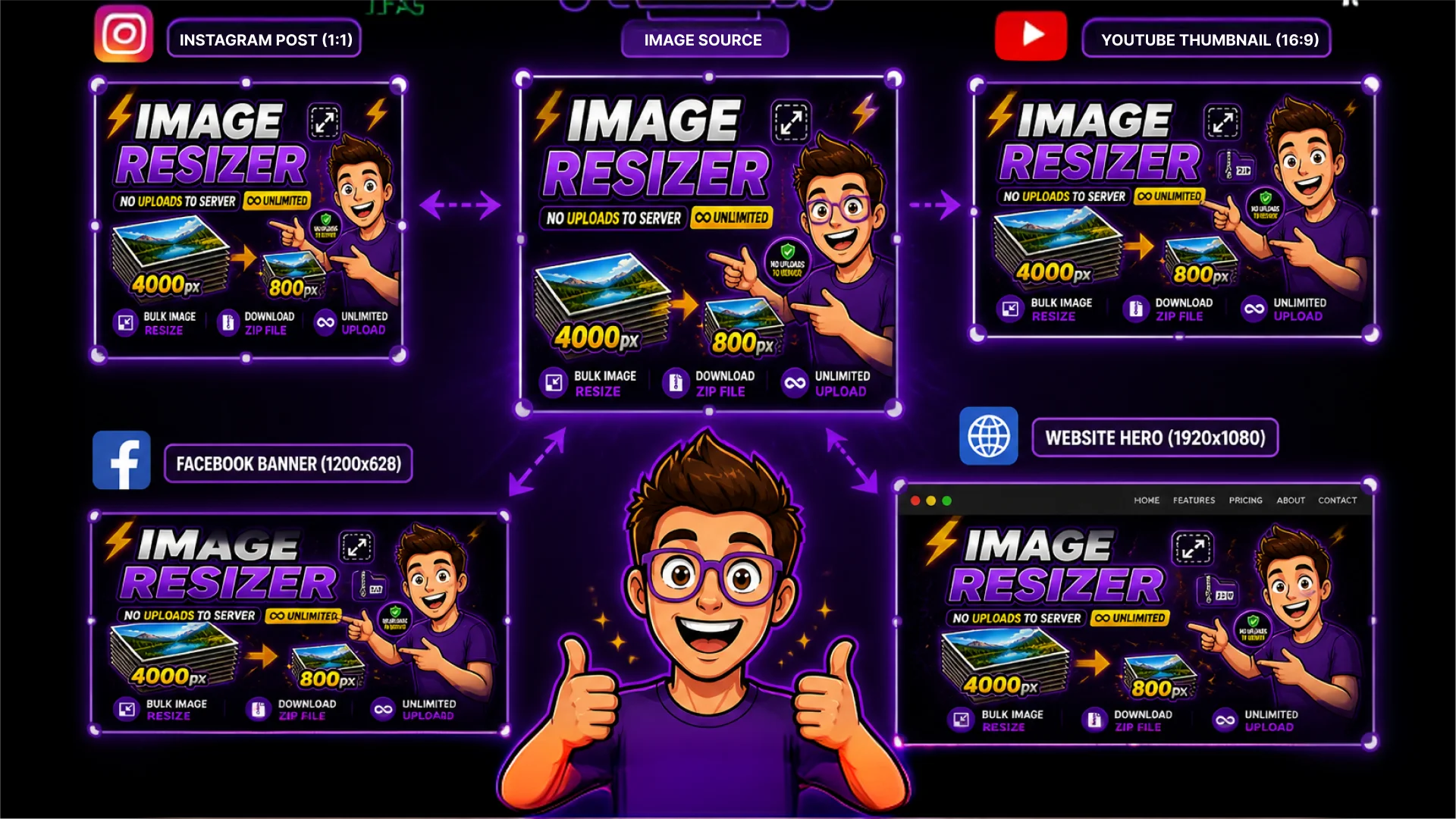
The Image Resizer lets you specify exact pixel dimensions or percentage scaling for one image or an entire batch. It preserves aspect ratios by default, so you never accidentally stretch content.
Reach for this when a client needs a 1200x628 Open Graph image, a developer needs product photos at exactly 800x800 pixels, or a presentation requires images at a fixed slide size. Upload multiple images at once, set your dimensions once, and download everything as a ZIP. The Canvas API handles scaling using bicubic interpolation, preserving edge sharpness when downscaling — results are virtually indistinguishable from Photoshop output.
2. Image Compressor — Reduce File Size, Preserve Quality
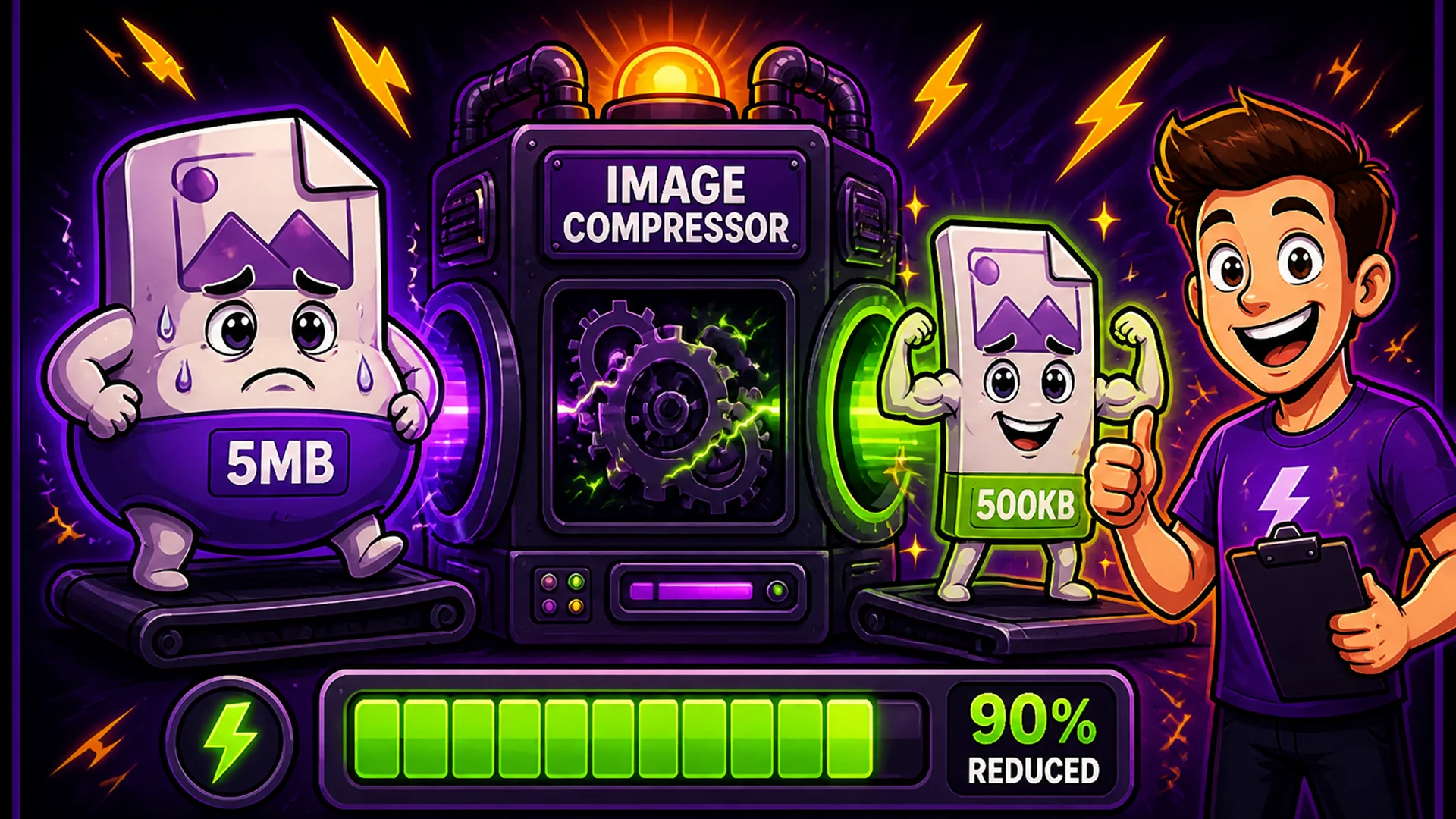
Unoptimized images are the leading cause of slow web pages. The Image Compressor supports JPG, PNG, and WebP, reducing file sizes by 60–90% at settings that are invisible to viewers on screen.
The quality slider defaults to 80 — delivering 40–70% size reductions while maintaining perceived sharpness on retina and standard displays. You can also set a specific target file size (100 KB, 200 KB, 500 KB) and the tool automatically finds the best quality setting that hits your limit using a binary-search algorithm. This is essential for profile photo uploads, email attachments with size caps, and government portals with strict file limits.
3. Image Converter — Switch Formats Without Software
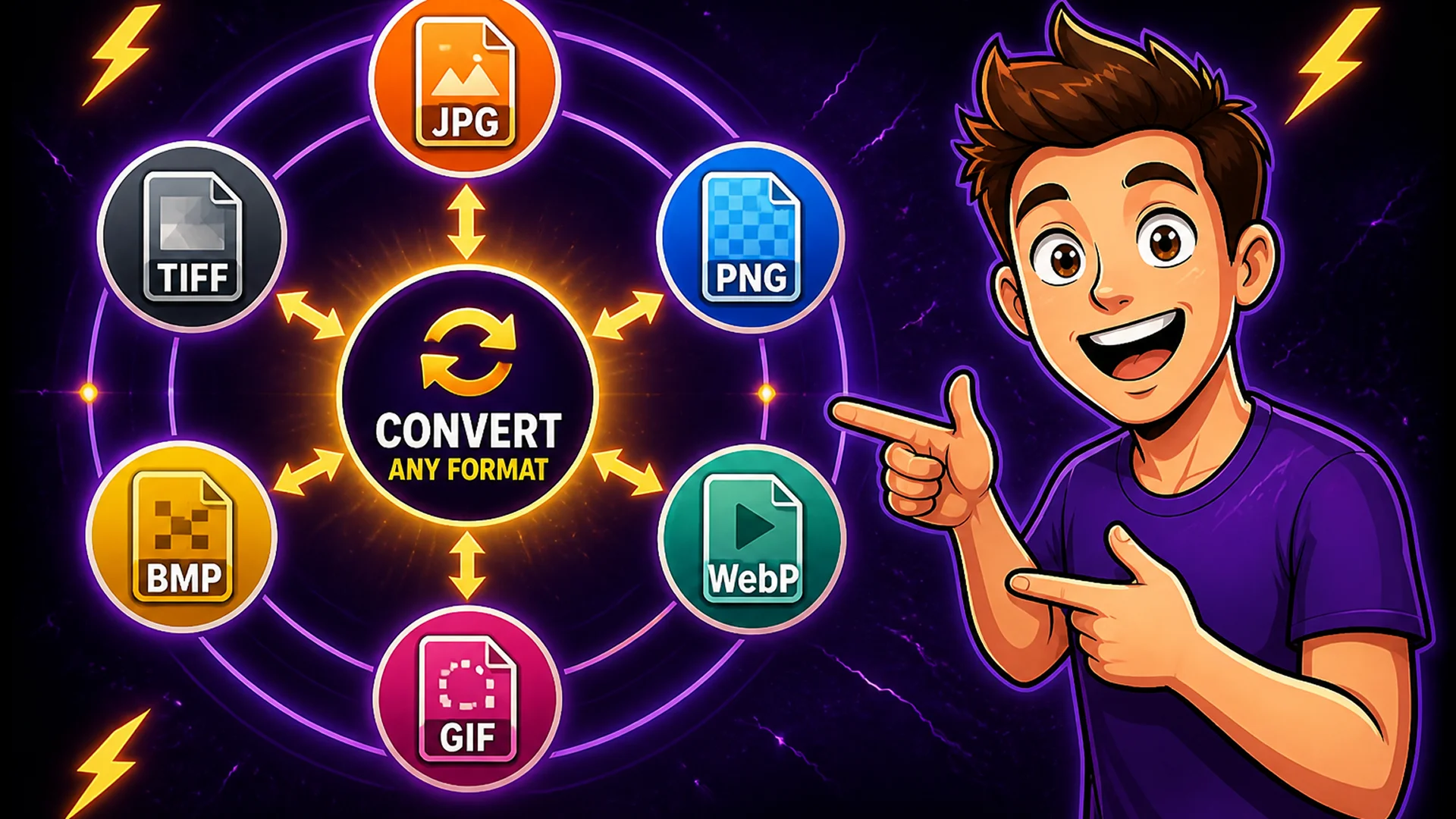
The Image Converter converts between JPG, PNG, WebP, GIF, BMP, and TIFF in bulk, entirely in the browser. No format is locked behind a premium tier.
Format conversion is needed more often than designers expect. Clients send files in formats their tools output natively — TIFF from Lightroom, BMP from legacy Windows apps, GIF from marketing platforms — and these need converting before entering a web workflow. The batch converter handles entire folders at once, preserving filenames and just changing the extension and encoding. Drop in 40 TIFFs, get 40 JPGs in seconds.
4. PNG to WebP Converter — Modern Format for Faster Pages
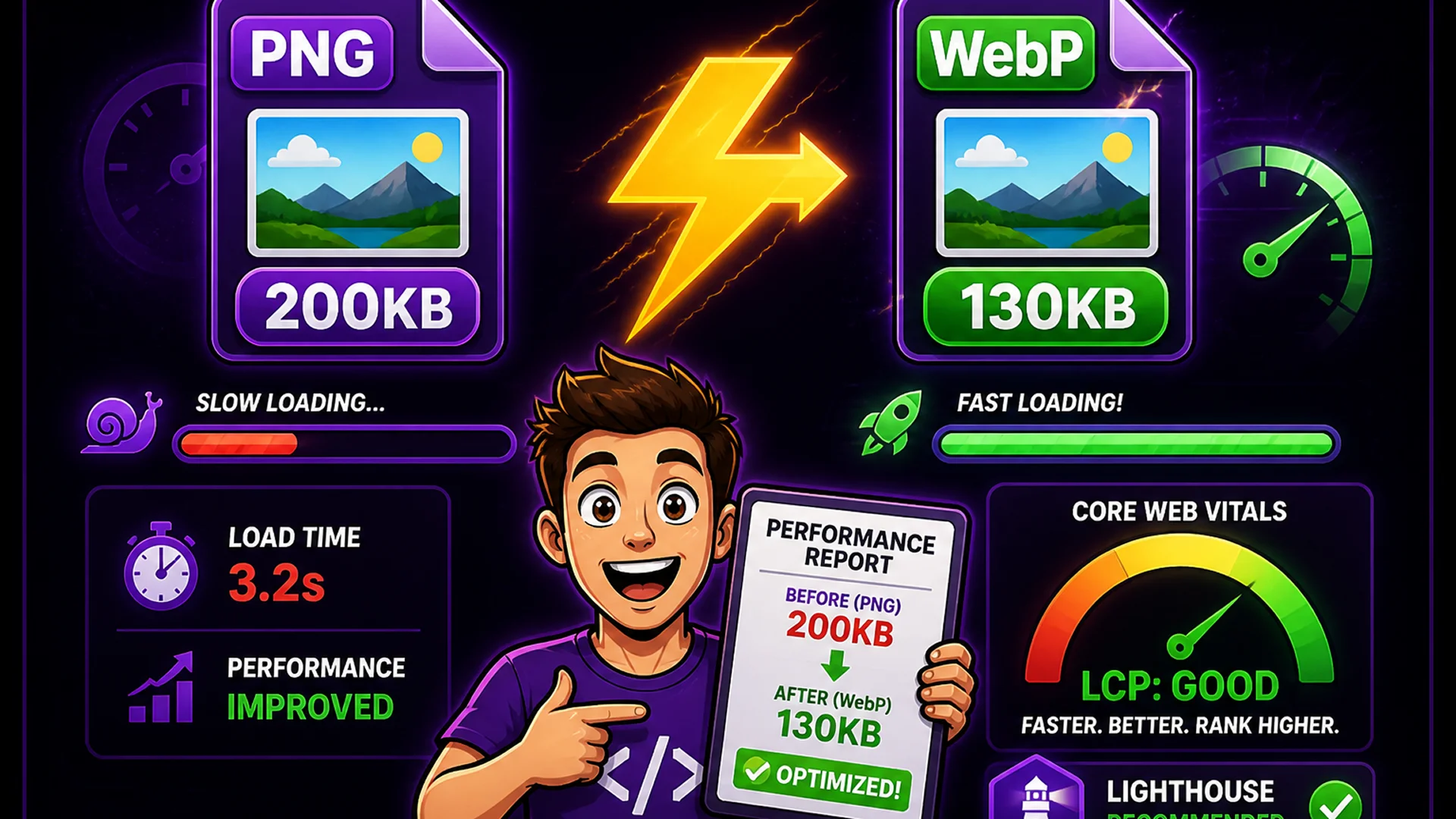
WebP is the format Google engineered for web performance. The PNG to WebP Converter converts PNG files to WebP at any quality level, with batch processing for entire folders at once.
WebP files are typically 25–35% smaller than equivalent PNG files and 20–30% smaller than equivalent JPG files, with comparable or better visual quality. All modern browsers — Chrome, Firefox, Safari 14+, Edge — support WebP natively. If your design system still outputs PNG by default, batch converting to WebP is one of the highest-impact performance optimizations you can apply to any website.
5. WebP to JPG Converter — Maximum Compatibility When Needed
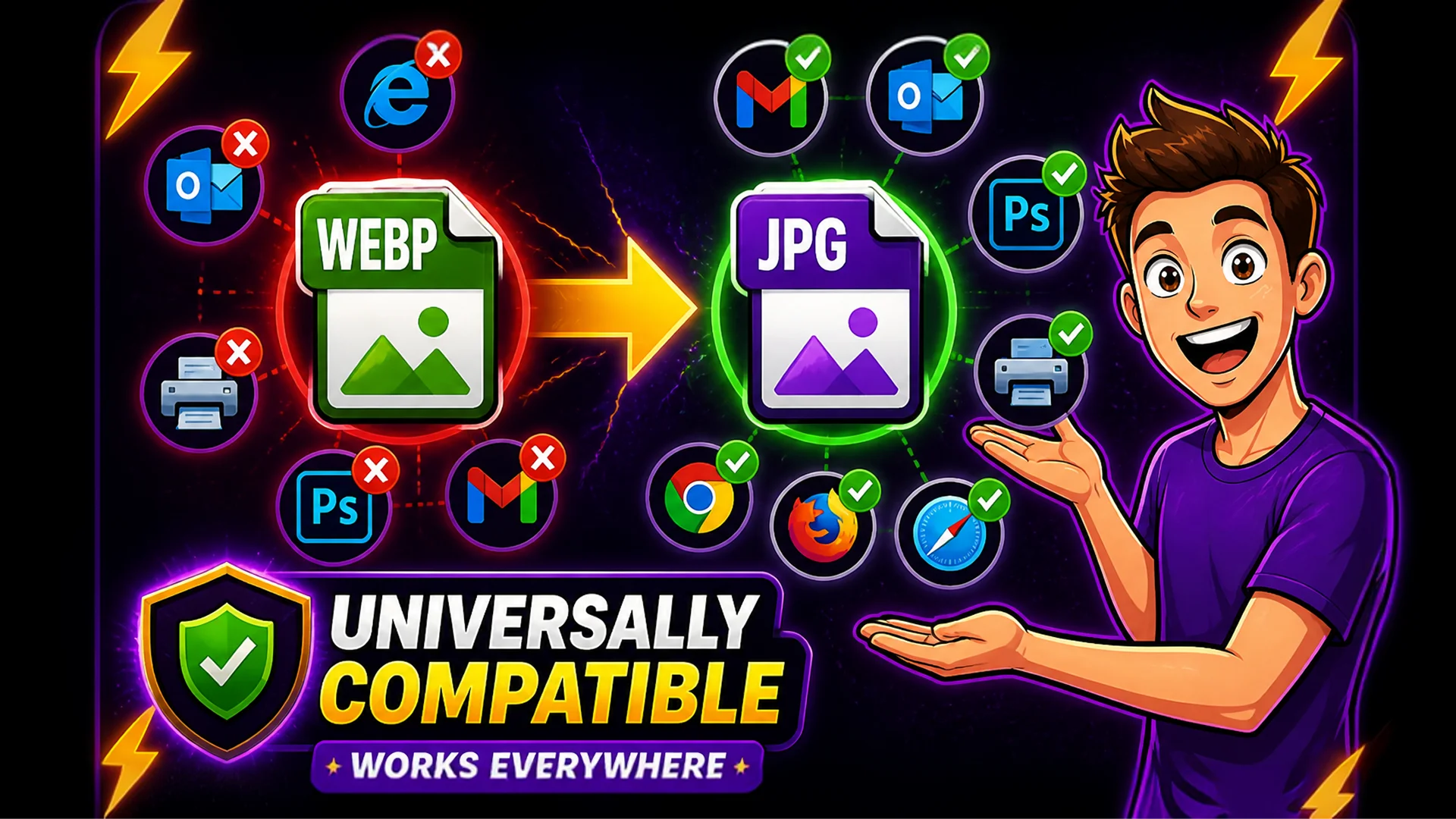
When you need images to work everywhere — email clients, older CMS platforms, print workflows, or clients who specify JPG — the WebP to JPG Converter converts WebP files back to the universally supported JPG format. Quality is configurable, and batch conversion handles multiple files simultaneously.
Particularly useful when you receive WebP screenshots from modern browsers or WebP exports from design tools, but need to deliver JPG files to clients or upload to platforms that do not yet support WebP.
6. Image Cropper — Precise Framing Without Photoshop
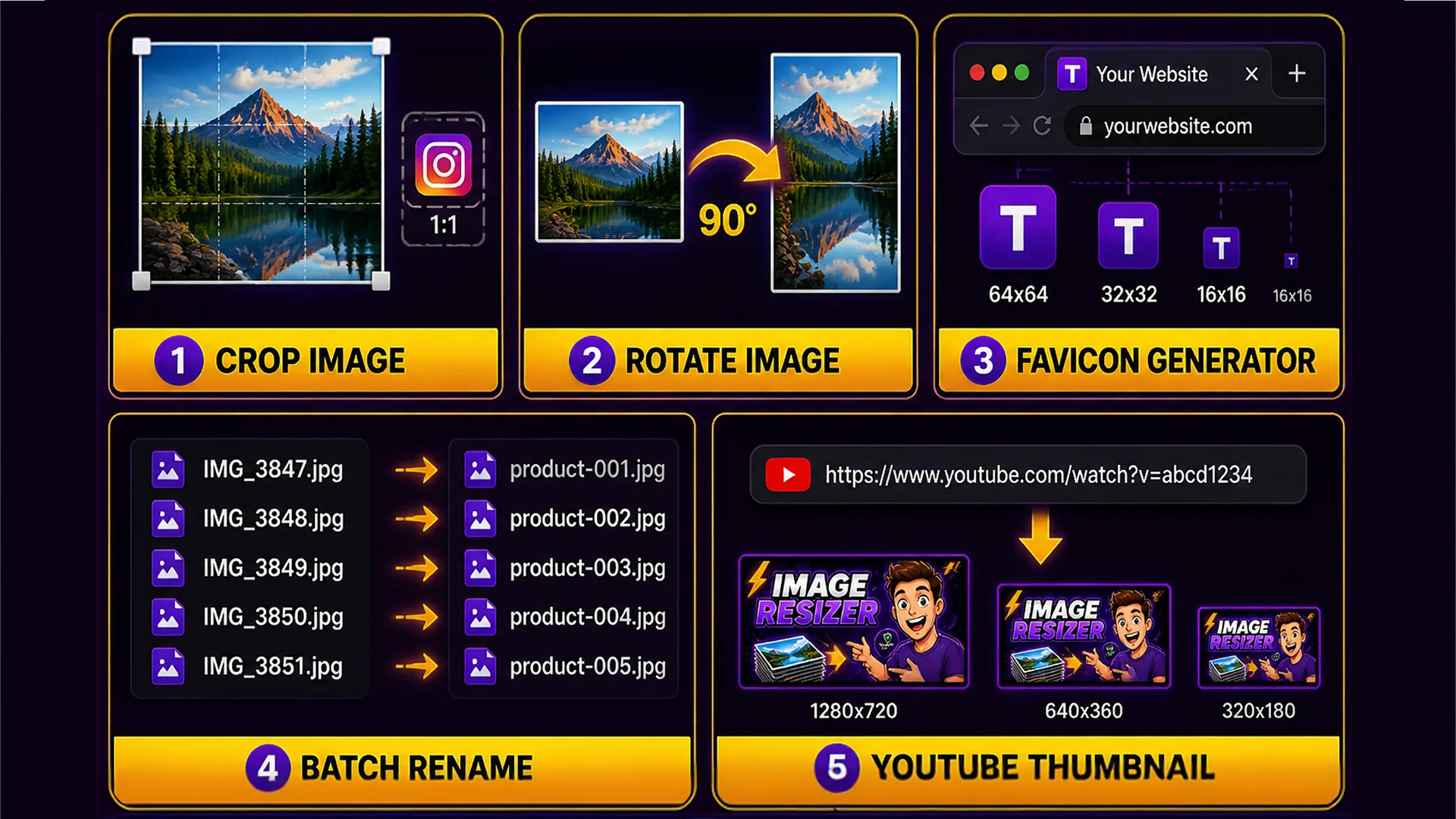
The Image Cropper offers both a visual drag-and-drop interface and exact pixel coordinate input for pixel-perfect crops. Preset aspect ratios cover the most common needs: 1:1 for Instagram, 16:9 for YouTube thumbnails, 4:3 for blog featured images, and custom ratios for any other requirement.
The live preview updates in real time as you drag the crop handles. Ideal for creating thumbnail variants of hero images, extracting product shots from lifestyle photography, or preparing profile pictures across different platform size requirements — all without opening any desktop software.
7. Image Rotator — Fix Orientation in One Click
EXIF metadata controls image orientation and it is not always respected by every platform. The Image Rotator lets you rotate images 90°, 180°, or 270°, and flip horizontally or vertically — with a real-time preview before download.
Indispensable when photos from phones arrive with incorrect orientation in a CMS, when scanned documents need rotating, or when a design asset needs mirroring. Supports multiple images and corrects orientation across an entire batch consistently.
8. Favicon Generator — All Sizes from One Source Image
A favicon requires at least six different sizes to work correctly across browsers, operating systems, and mobile home screens. The Favicon Generator takes a single high-resolution image and produces the complete set: 16x16, 32x32, 48x48, 64x64, 192x192, 512x512 in PNG, plus an ICO file and Apple Touch Icon at 180x180.
The tool also generates the HTML link tags to paste into your document head. Upload your logo or icon at 512x512 or larger, and everything is handled automatically. A task that typically requires a plugin or dedicated service becomes a 10-second operation.
9. Bulk Image Renamer — SEO-Friendly Naming at Scale
Naming consistency is essential for SEO, CMS organization, and handoff to developers. The Bulk Image Renamer renames hundreds of images at once using patterns: sequential numbering, date stamps, prefix and suffix text, and original filename preservation.
Convert a disorganized batch of camera-roll filenames like IMG_3847.jpg to product-photo-001.jpg in a single operation. Critical for eCommerce product photography, stock photo organization, and any project where SEO-friendly filenames matter for image search visibility.
10. YouTube Thumbnail Downloader — Reference and Inspiration
The YouTube Thumbnail Downloader extracts thumbnails from any YouTube video in all available resolutions: maximum quality (1280x720), high quality (480x360), medium quality (320x180), and the default quality variant.
Useful for competitive analysis, design inspiration, client presentations where you need reference thumbnails, or when you need the thumbnail from a video you uploaded yourself for use in a report or deck. Paste the YouTube URL and download any or all resolutions instantly.
How to Build a Complete Image Workflow
The real power of these tools comes from chaining them in sequence. Complete image optimization workflow for a web project: start with the Image Resizer to produce variants at correct dimensions for desktop, tablet, and mobile. Run them through the Image Compressor to reduce file sizes without visible quality loss. Convert the compressed files to WebP using the PNG to WebP Converter for maximum web performance. Finally, use the Bulk Image Renamer to apply SEO-friendly filenames before developer handoff.
This four-step workflow — resize, compress, convert, rename — typically reduces a set of raw photography exports by 80–90% in total file size. The entire process takes under five minutes regardless of how many images are in the batch. Compared to doing this manually in Photoshop, this workflow saves hours on every project.
Final Thoughts
Design is about creativity, not repetitive file wrangling. With these 10 browser-based tools bookmarked, you can handle every image preparation task in seconds rather than minutes, without installing anything, and without your files leaving your device.
Start with the Image Resizer for your next project and see how much time browser-based tools can recover from your workflow.