Background Remover — Free & Private
Remove image backgrounds with AI models that run on your own device. Transparent PNG, solid colour or blurred backgrounds, in bulk, with nothing uploaded.
Remove a Background Free, Right in Your Browser
To remove the background from an image for free, open the Toolsnests Background Remover, drop in your photo, and download the cut-out as a transparent PNG. The AI model runs on your own device, so your photos are not uploaded, and there are no credits, watermarks or sign-ups. You can drop a whole folder and download every result as one ZIP.
Why Remove a Background?
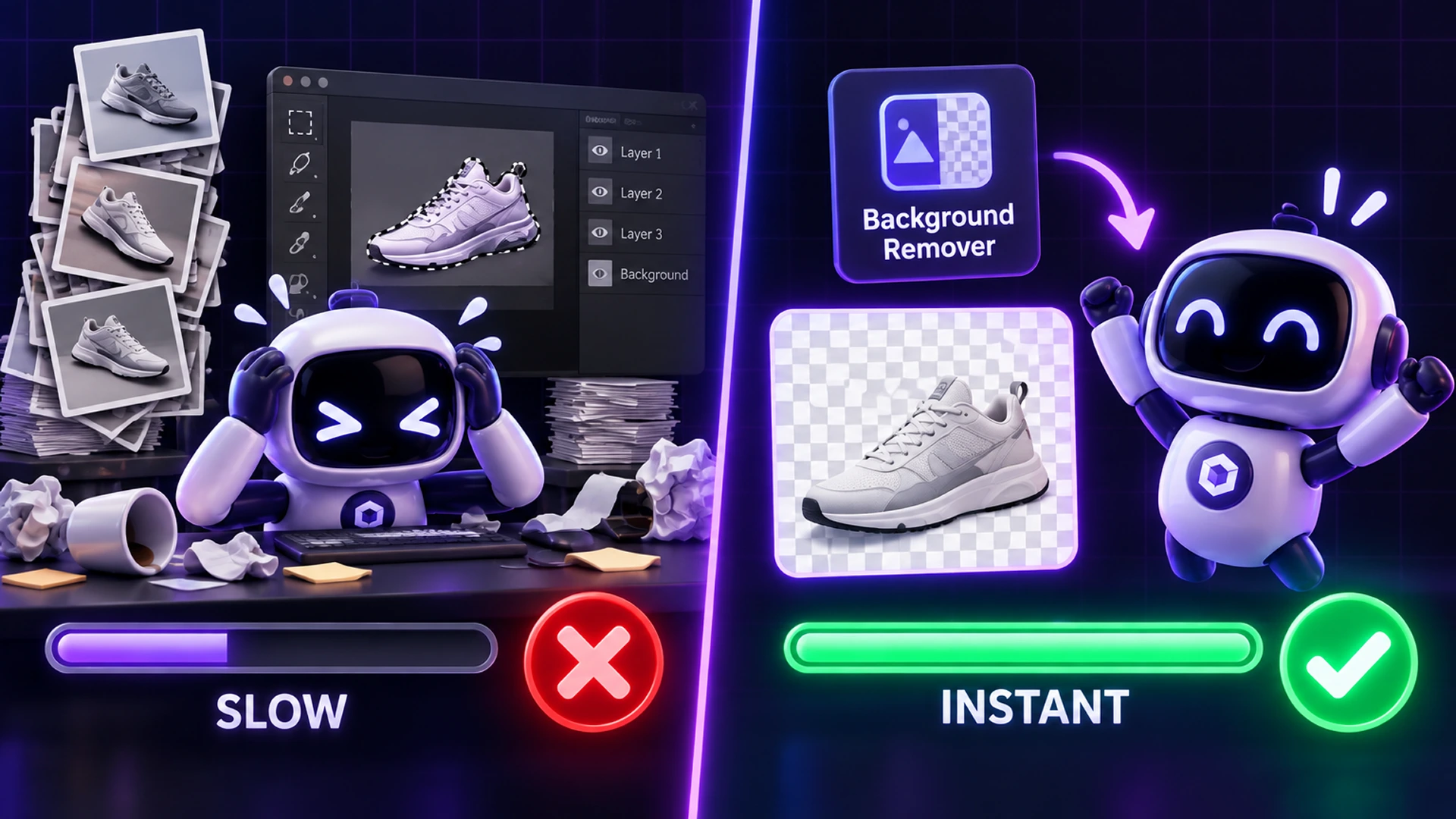
- Product photos: marketplaces and online stores often want plain white or transparent backgrounds.
- Profile pictures: a clean background makes LinkedIn, CV and team-page photos look professional.
- Design work: cut-outs for thumbnails, social posts, presentations and stickers.
- ID and document photos: replace a busy background with a plain one (always check your country's official rules, or use the Passport Photo Maker).
How AI Background Removal Works in Your Browser
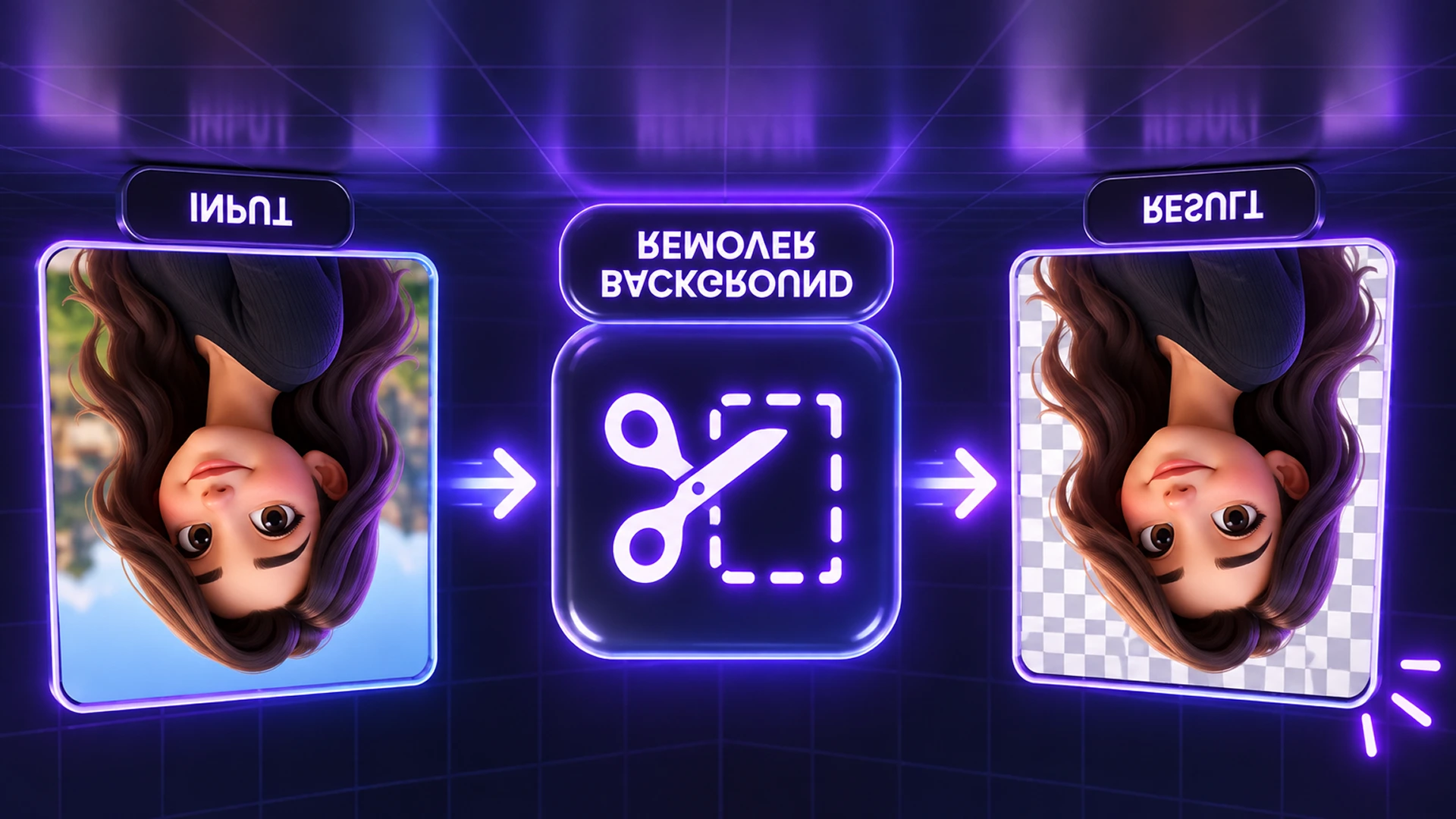
Background removal uses an image segmentation model that predicts, pixel by pixel, which parts of the photo belong to the subject. Most online tools send your photo to a GPU server to do this. Toolsnests downloads the model once and runs it locally through ONNX Runtime Web, on WebGPU where your browser supports it and on WebAssembly otherwise. That is why it is private and unlimited, and why the first run takes longer.
The matte is applied to your original image at full resolution, so a 12-megapixel photo comes back at 12 megapixels rather than as an upscaled preview.
Choosing a Model
The tool offers nine models. Start small and move up only if the edges are not clean enough. Once a model is downloaded, switching back to it is instant. All are free for commercial use except RMBG-2.0, which BRIA licenses for non-commercial use only.
| Model | Best for |
|---|---|
| MODNet (about 13 MB) | Fast first try; good on people |
| Open RMBG / BiRefNet Lite | General photos |
| BiRefNet Full | Fine hair, fur and foliage |
| BiRefNet HR (max quality) | The finest hair at high resolution (large download) |
| BiRefNet Portrait | High-quality headshots |
| BiRefNet Objects | Product shots with intricate outlines |
| BiRefNet Low-contrast | Subjects a similar colour to the background |
| RMBG-2.0 (BRIA) | An alternative look; non-commercial use only |
How to Remove a Background on Toolsnests (Step by Step)
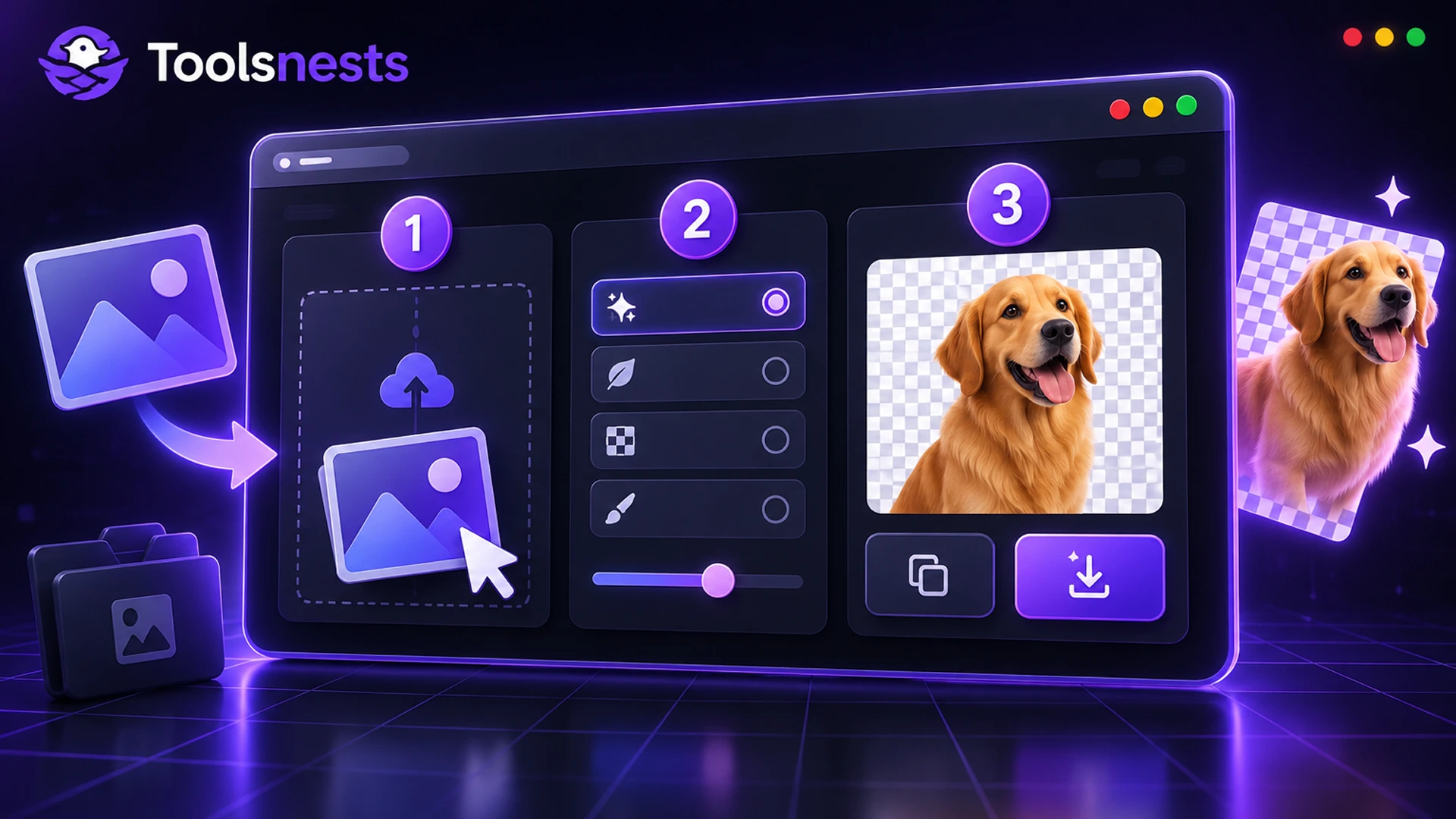
- Open the Background Remover.
- Drop your images (JPG, PNG or WebP), a folder, or a ZIP onto the page.
- Pick a model and click "Download & run". The first time, wait while the model downloads; your browser caches it afterwards.
- Choose the Background: Transparent, Solid colour, or Blurred photo.
- Fine-tune with Edge feather (softens the cut-out edge) and Cut tightness (how much of the soft edge is kept).
- Download each image, or click "Download all as ZIP".
Tips for Cleaner Cut-Outs
- Use photos with good contrast between the subject and the background.
- Even lighting beats harsh shadows, which can be mistaken for part of the subject.
- Higher resolution gives cleaner hair and fur edges; you can resize afterwards.
- Save as PNG or WebP to keep transparency. JPG cannot store it and fills it with a solid colour.
- Fine hair against a busy background is genuinely hard for any automatic tool. Some images will still need a manual touch-up.
What to Do After Removing the Background
| Goal | Next tool |
|---|---|
| Round profile picture | Circle Crop & Rounded Corners |
| Add a frame or shadow | Add Border to Image |
| Exact size for a marketplace | Image Resizer |
| Smaller file for the web | Image Compressor |
| Keep the background but soften it | Blur Image Background |
Private by Design
Photos of people, children, client work and unreleased products are sensitive. Because the image is decoded, segmented and re-encoded inside the page, Toolsnests never receives your images, and nothing is stored after you close the tab.

Background Remover: Frequently Asked Questions
Is the background remover really free?
Yes. No credits, no watermark and no account. Because the model runs on your device, there is no per-image server cost to pass on.
Why is the first image slow?
The model has to download before the first image: from about 13 MB for MODNet up to several hundred MB for the full BiRefNet models. Your browser caches it, so later images and visits start much faster.
Can I make the background white instead of transparent?
Yes. Choose "Solid colour" and pick white (or any colour) before downloading.
Can I process many images at once?
Yes. Drop several files, a folder or a ZIP, and download everything as one ZIP.
Does it work on iPhone and Android?
It runs in modern mobile browsers, but the larger models need a lot of memory. On phones, start with MODNet.
Related Tools
Final Thoughts
Professional cut-outs no longer need Photoshop skills or paid credits. Remove your first background in seconds with the free Toolsnests Background Remover.