Batch Processing Guide: How to Handle Files at Scale with Toolsnests
Learn how to use batch and bulk processing across Toolsnests to handle dozens or hundreds of files in a single session, all from your browser.
Why Batch Processing Is the Most Underused Time Saver
Processing one file at a time is fine when you have one file. In the real world, you often have 20 images to resize for a website redesign, 15 PDFs to merge for a quarterly report, 100 product photos to compress for an email campaign, or thousands of lines of text to clean up from a database export. Doing these tasks individually is not just slow — it is a productivity trap that compounds over time.
Batch processing — applying the same operation to multiple files in a single session — is the difference between spending five minutes on a task and spending two hours on it. Yet most people process files one at a time because they do not realize their tools support batch operations. Toolsnests is built from the ground up with batch and bulk processing support across its most-used tools.
Batch Image Processing
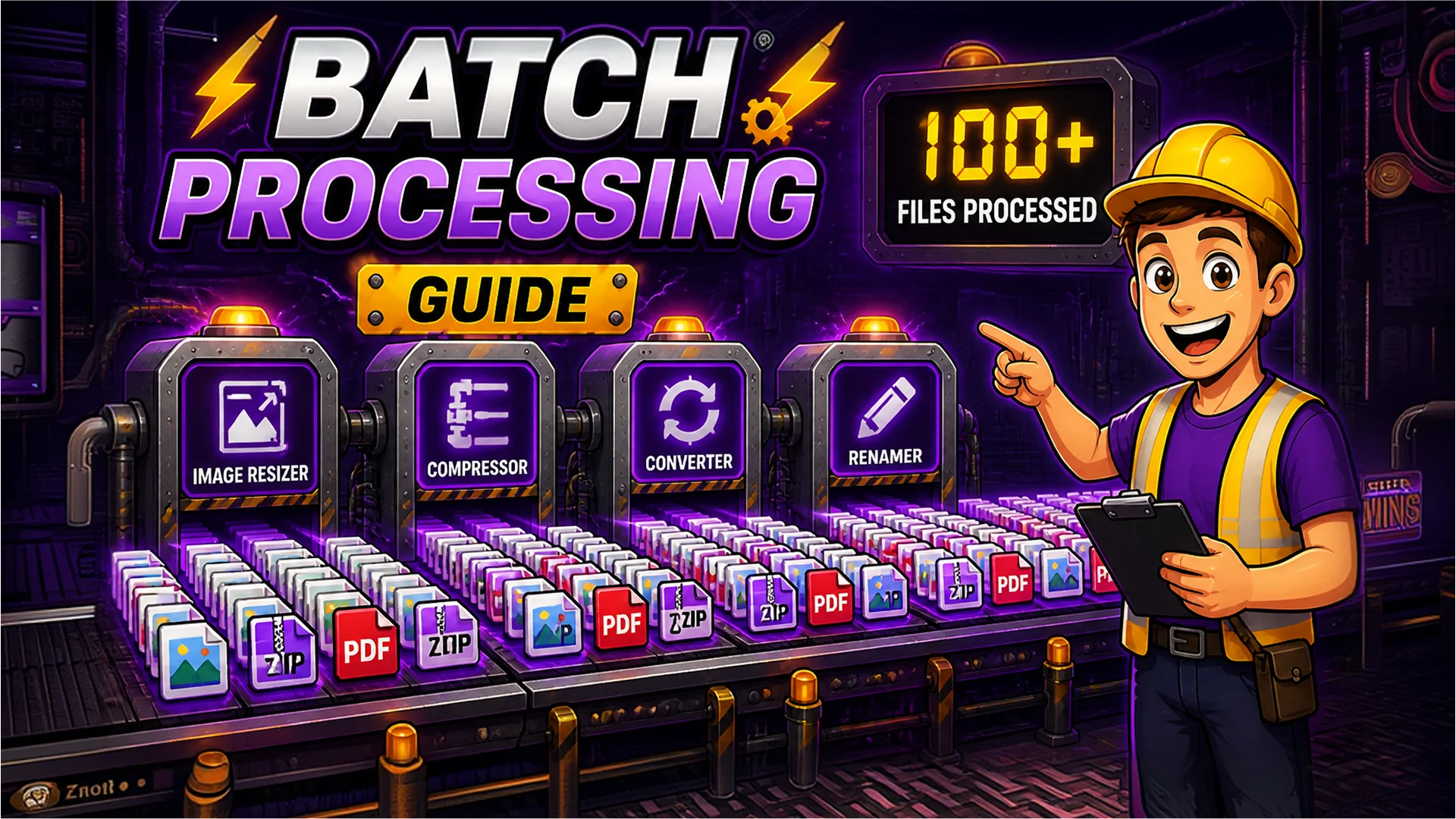
Image tools deliver the most dramatic batch time savings. The Image Resizer, Image Compressor, Image Converter, PNG to WebP, and WebP to JPG tools all accept multiple files simultaneously. Drag and drop an entire folder, configure settings once, and process everything in one click.
Concrete example: you need to prepare 30 product photos for a web launch. They arrived as 4000px camera exports at 8–15 MB each. Workflow: batch resize to 1200x1200, batch compress at quality 80, batch convert to WebP. Three operations, each processing 30 files at once. Total time: under three minutes. The equivalent one-at-a-time Photoshop workflow: 60–90 minutes.
The Bulk Image Renamer extends this to file organization — rename hundreds of images using patterns with sequential numbering, date stamps, and custom prefixes. Convert IMG_3847.jpg to product-photo-001.jpg across an entire batch in one operation.

Batch PDF Operations
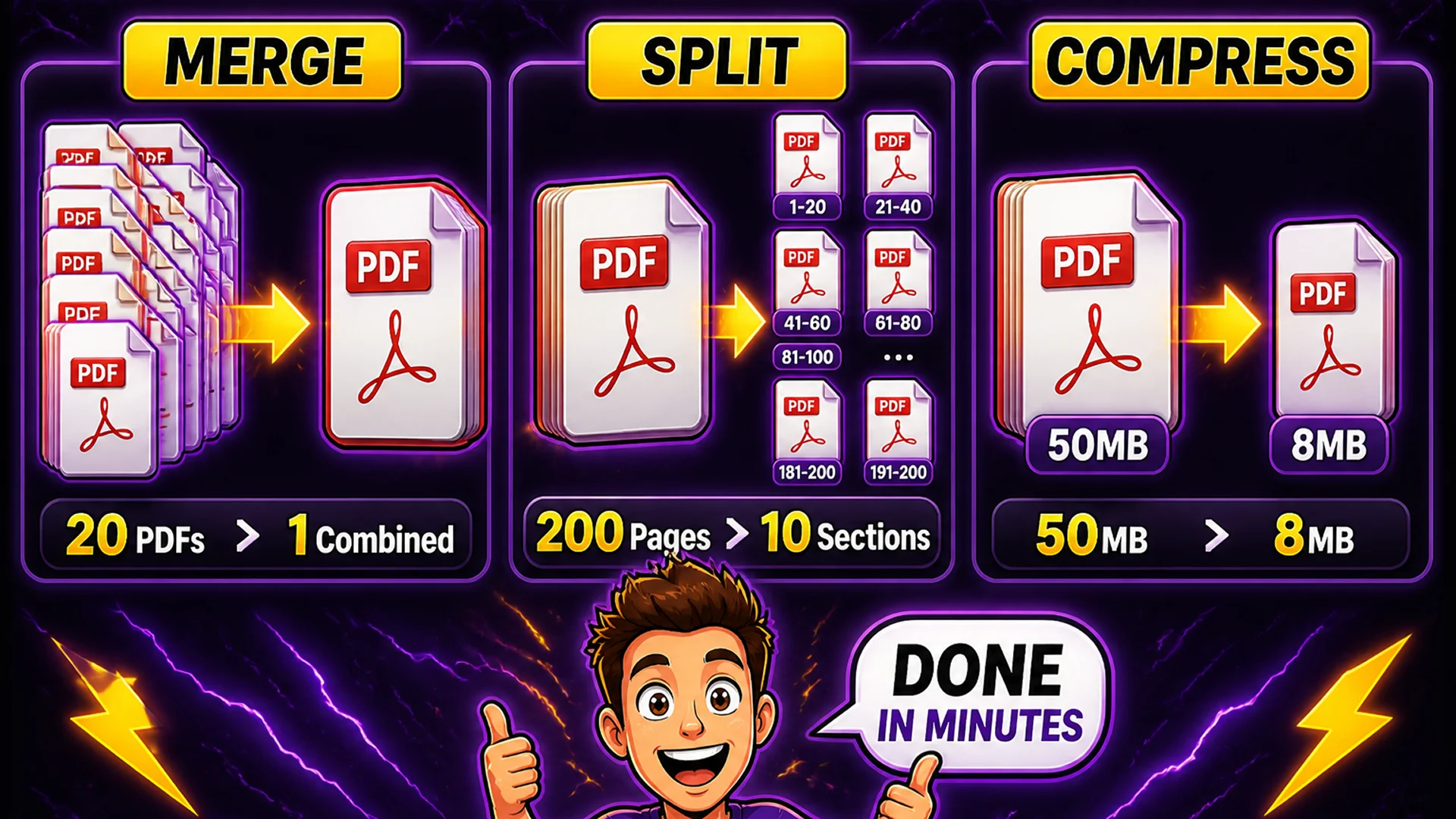
The PDF Merge tool is inherently a batch operation — add multiple PDFs, arrange them with drag-and-drop, and merge into a single document. No practical limit on file count; users regularly merge 20 to 50 PDFs at once for reports, contracts, and portfolios. The PDF Split tool works in reverse: take one large PDF and extract page ranges, individual pages, or fixed-interval splits as separate files — all downloading as a ZIP. The PDF Compressor reduces file sizes by optimizing embedded images, making it practical to batch-prepare documents before portal uploads or email distribution.
Batch Text Processing
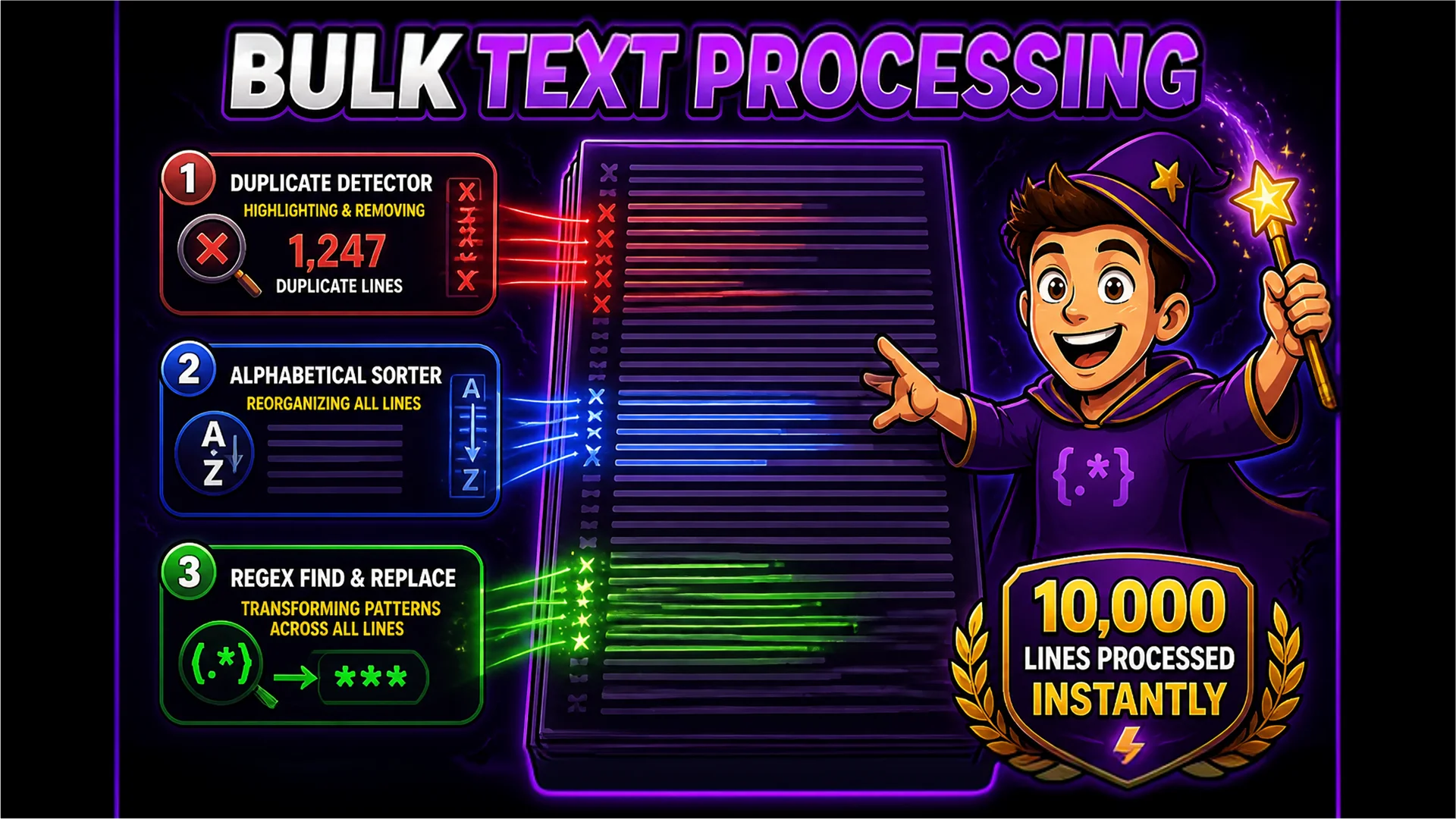
Text utilities are designed for bulk content. The Remove Duplicate Lines tool processes lists with tens of thousands of lines instantly. The Line Sorter sorts massive text blocks alphabetically, numerically, by length, or in reverse. The Find and Replace tool with regex support is a batch text transformer — apply complex patterns across an entire document in one operation.
The Text Case Converter, Whitespace Remover, and Word Frequency Analyzer all operate on the full text you provide, regardless of size. Paste an entire article, a CSV export, or a log dump — the transformation applies to everything instantly.
Batch File Extraction and Verification
The ZIP Extractor includes a Download All button that extracts and downloads every file from an archive simultaneously — essential for archives with dozens or hundreds of files. The File Checksum Generator accepts multiple files at once and generates MD5, SHA-1, SHA-256, and SHA-512 hashes for each simultaneously — efficient when verifying batches of downloaded packages before installation.
Batch Processing Workflow Tips
Tip 1 — Organize before processing: use the Bulk Image Renamer to establish consistent naming conventions before running other operations. Consistent names make it easier to track what has been processed. Tip 2 — Process in stages: for images, resize first (reduces file size that subsequent steps handle), then compress, then convert format. Each stage applies to the full batch, so total time stays in the minutes range.
Tip 3 — Use drag-and-drop: all file-based tools support dropping multiple files or an entire folder onto the upload area. Select all in your file explorer, drag them to the browser tab, and let the tool handle the rest. Tip 4 — Download in bulk: where tools provide a Download All button or ZIP output, use it. Downloading results one at a time negates most of the time saved by batch processing.
Privacy at Scale
One of the most important advantages of Toolsnests batch processing is that privacy scales with volume. Whether you process 1 file or 100 files, nothing leaves your browser. Every file in the batch is processed locally on your device using the same client-side JavaScript that handles individual files.
This is a fundamental difference from server-based batch tools, which upload your entire collection to a remote server. With Toolsnests, your entire batch stays private — the batch size does not change the privacy architecture.

All Toolsnests Tools with Batch Processing
Quick reference of batch-capable tools: Image Resizer (multi-file + ZIP input), Image Compressor (multi-file + folder structure preservation), Image Converter (batch format conversion), PNG to WebP (batch conversion), WebP to JPG (batch conversion), Bulk Image Renamer (batch rename), PDF Merge (multi-file combine), PDF Split (multi-page extraction), ZIP Extractor (bulk download all), File Checksum Generator (multi-file hashing), Remove Duplicate Lines, Line Sorter, Find and Replace, and Text Case Converter (all bulk text operations).