Compress Images Online Free — Reduce File Size Without Losing Quality
Learn how to compress JPG, PNG, and WebP images online for free. Reduce file sizes by up to 90% without visible quality loss, bulk compress, and keep your images private.
Reduce Image File Size in Seconds — Free and No Upload Needed
Every image you put on a website, share on social media, or send by email takes up space. Large files slow down page loads, consume mobile data, and hurt your Google search rankings. Compressing your images is one of the simplest and highest-impact optimisations you can make for any digital project.
The Toolsnests Image Compressor lets you reduce JPG, PNG, and WebP file sizes by up to 90% directly in your browser. There is no account to create, nothing to install, and your images never leave your device. Just open the tool and start compressing.
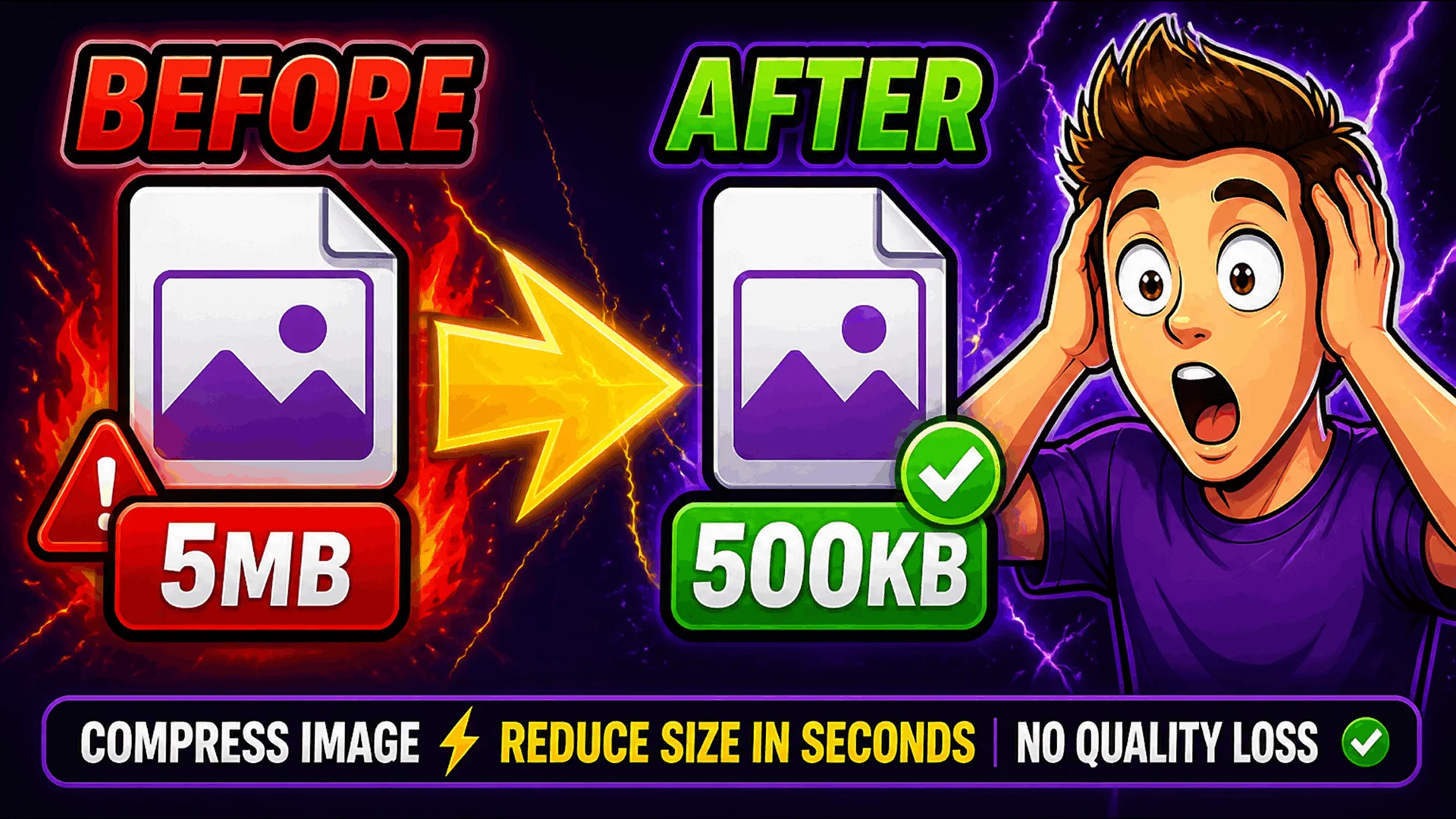
What Is Image Compression?
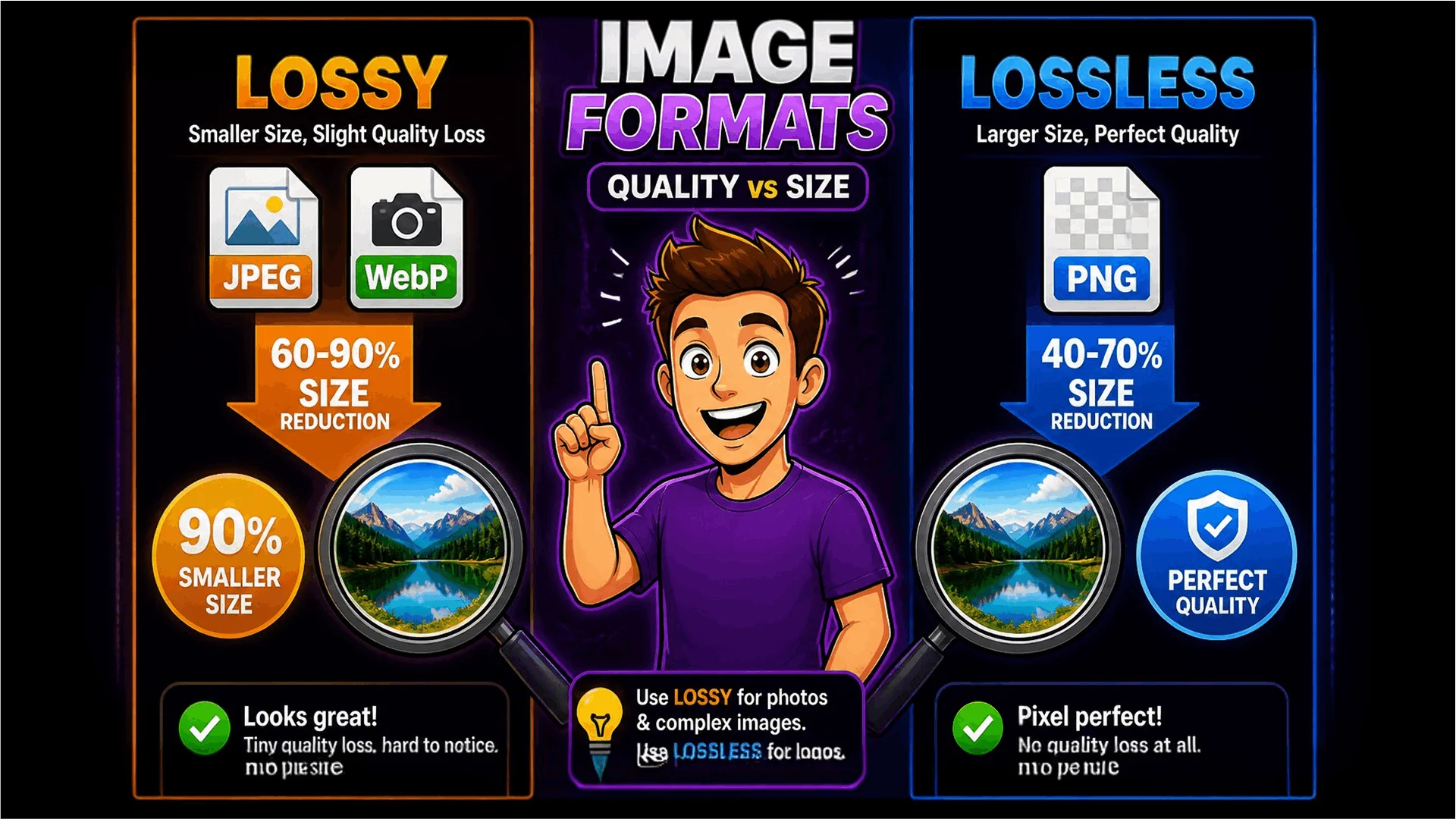
Image compression is the process of reducing the file size of an image while keeping it visually acceptable. There are two main types: lossy and lossless.
Lossy compression — used for JPEG and WebP — removes image data that the human eye cannot easily detect. This achieves dramatic size reductions, often 60–90%, with little to no visible difference on screen. Lossless compression — used for PNG — reorganises data without discarding any of it, resulting in more modest savings but absolutely zero quality degradation.
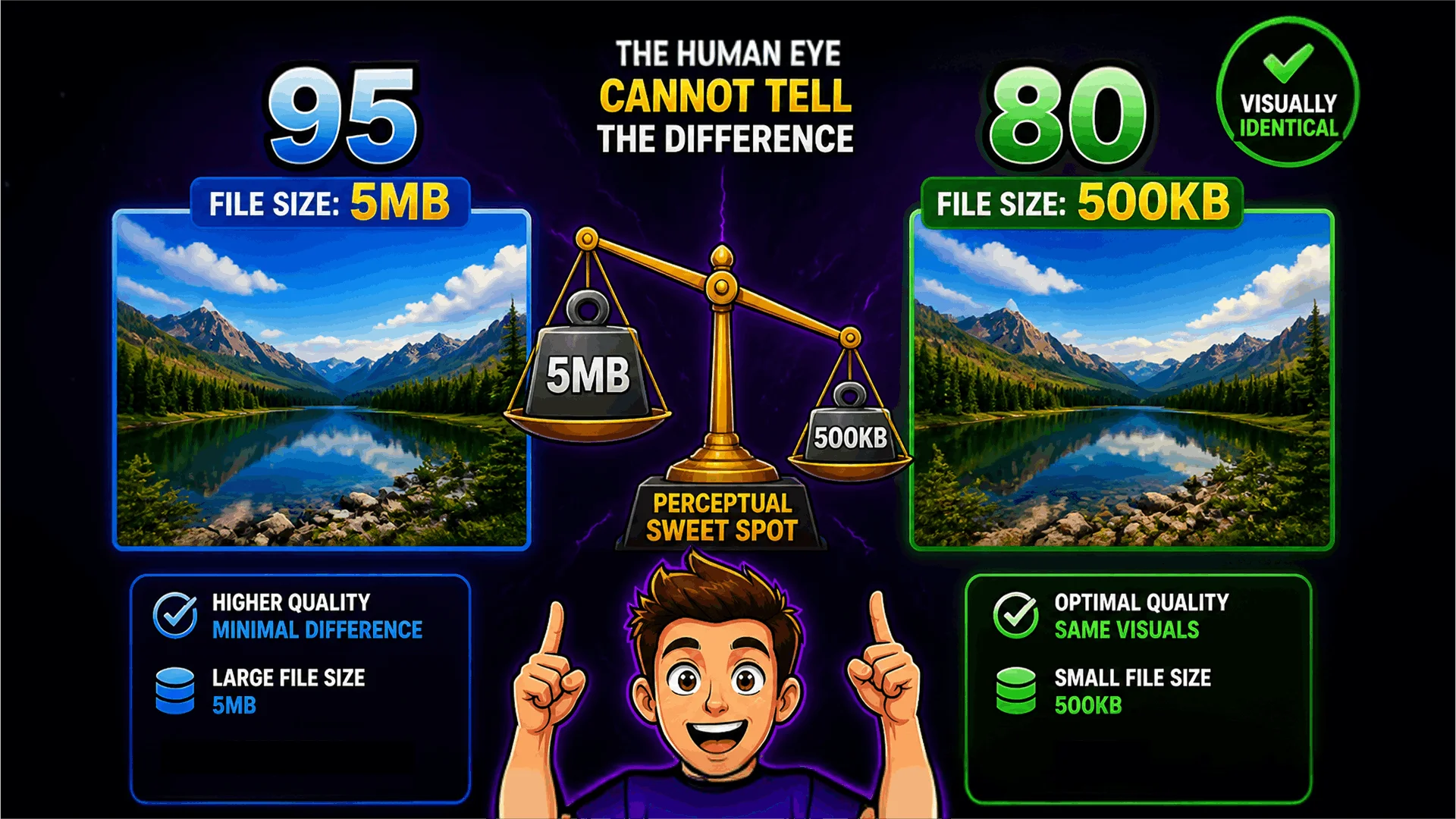
Most images on the web are stored at far higher quality than screens can actually display. A JPEG exported at quality 95 is virtually indistinguishable from one at quality 80, yet the quality-80 version can be 40–60% smaller. Image compression recovers all of that wasted space.
How to Compress Images Using Toolsnests
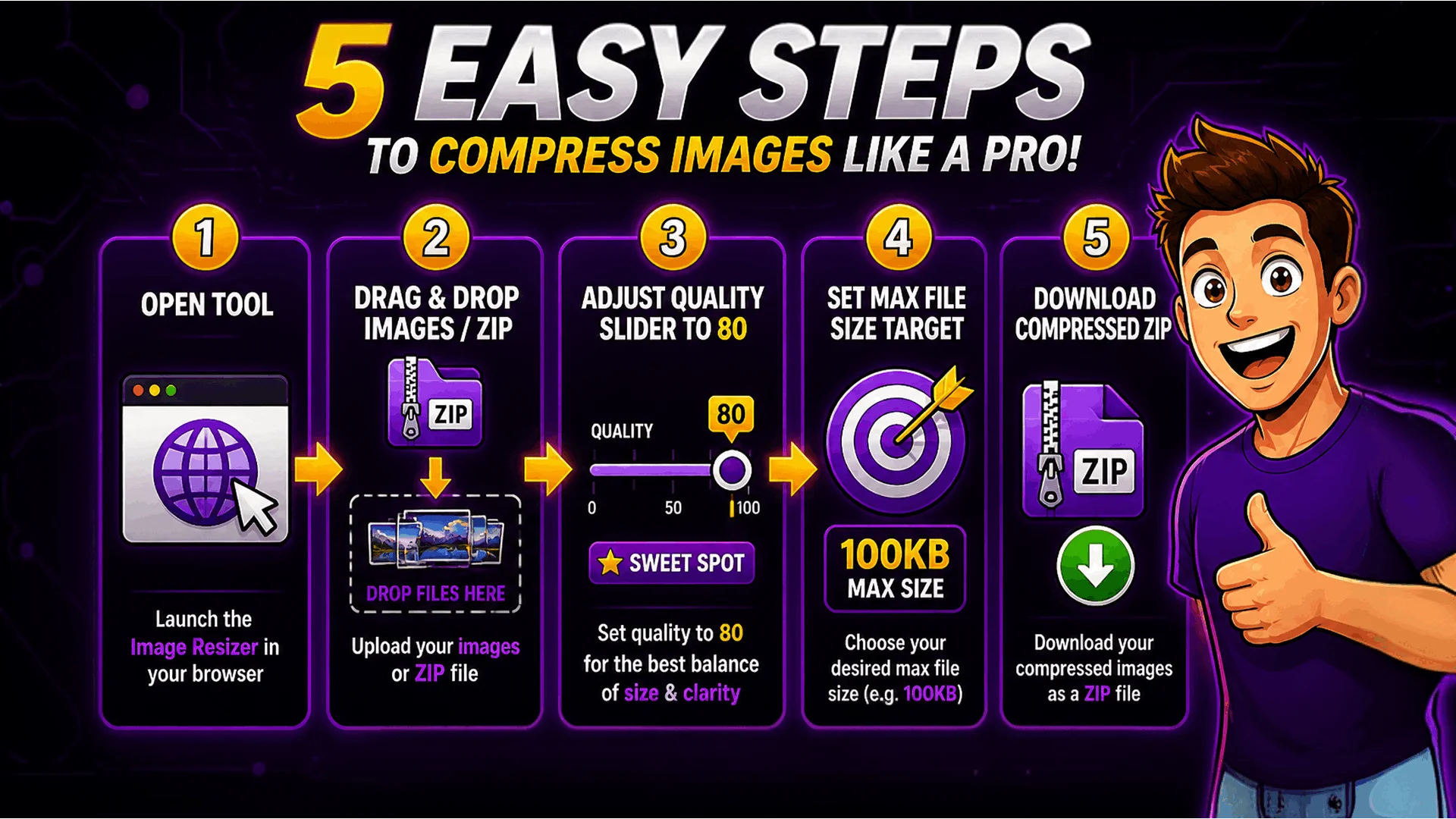
Compressing images with the Toolsnests Image Compressor is simple — no setup or account required.
Step 1: Open the Image Compressor tool. No login, no installation.
Step 2: Drag and drop your images, a ZIP archive containing images, or an entire folder directly into the upload area.
Step 3: Adjust the quality slider (the default of 80 is an excellent balance of size and quality) or choose a quick preset — Low, Medium, High, Best, or Max.
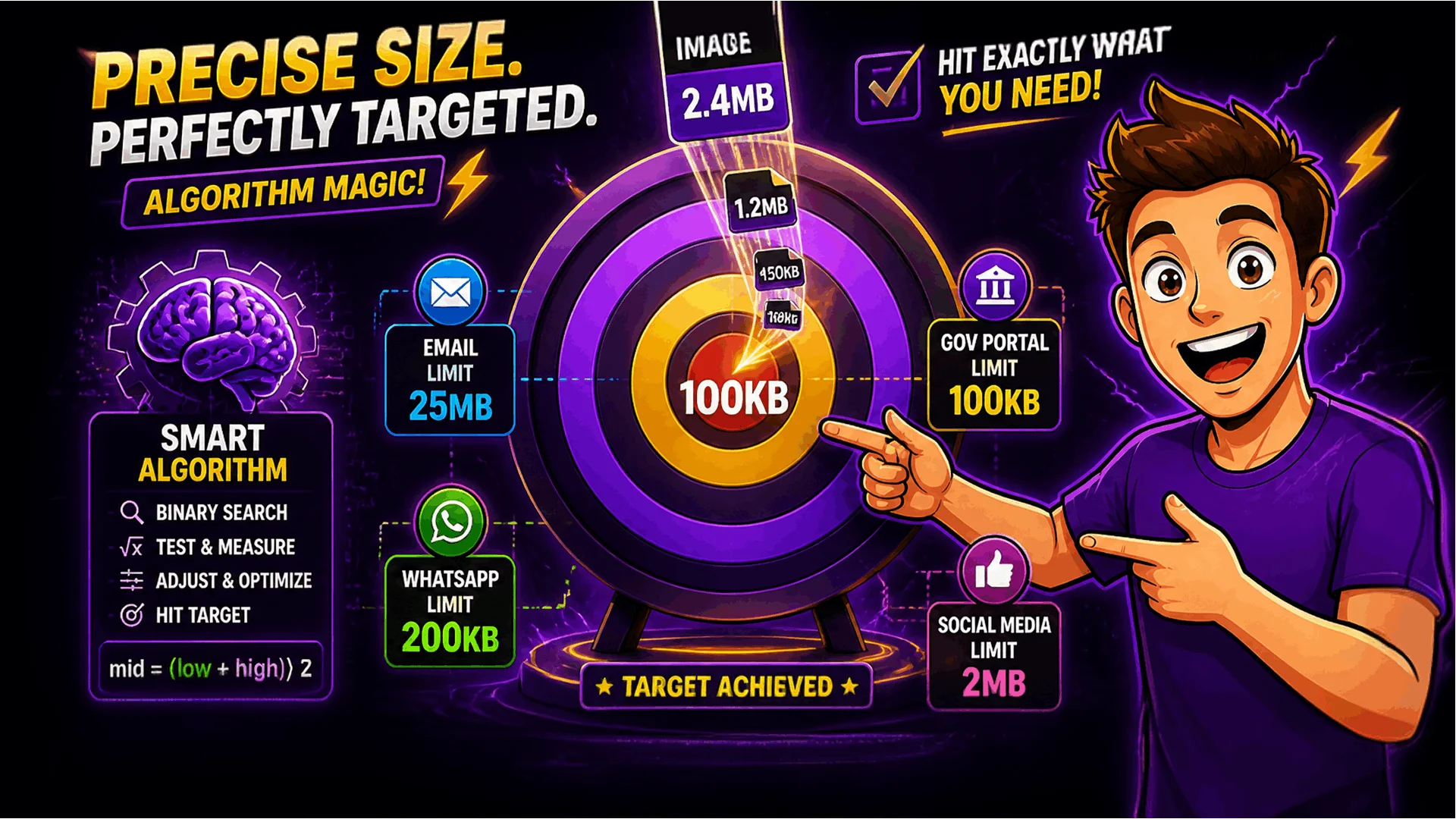
Step 4: Optionally set a maximum file size target such as 100 KB or 500 KB. The tool will automatically find the best quality level to meet your limit.
Step 5: Click Compress All, preview the results in the Original / Compressed / Compare tabs, then download individually or as a single ZIP file.
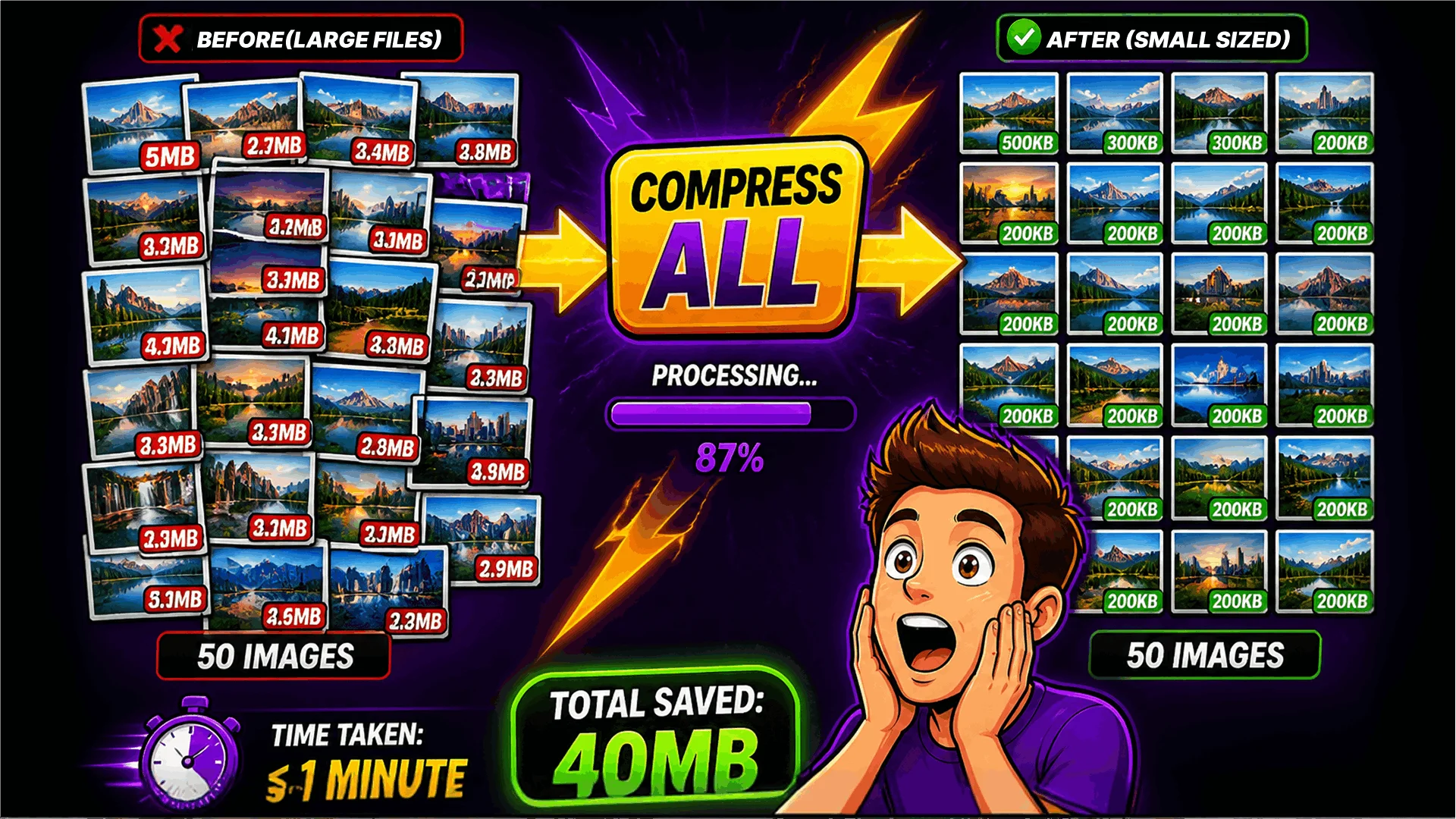
Bulk Image Compression — Process Dozens at Once
Compressing images one at a time is slow and repetitive. The Toolsnests Image Compressor supports full batch processing: upload as many images as you need, apply your settings once, and download all compressed results together in a single ZIP file.
You can even upload a ZIP file that contains organised sub-folders — the compressor preserves your original folder structure in the output ZIP, so nothing needs to be reorganised afterwards.
This makes bulk compression ideal for eCommerce product galleries, photography portfolios, web design projects, and any workflow where dozens or hundreds of images need consistent optimisation.
Smart Maximum File Size Targeting
Many platforms impose strict file size limits: email attachments capped at 25 MB, social media profile photos under 2 MB, job application portals requiring files under 200 KB, or government form uploads restricted to 100 KB. Meeting these limits by trial and error is time-consuming and frustrating.
The Image Compressor solves this with its Maximum File Size setting. Choose your target — 25 KB, 50 KB, 100 KB, 200 KB, 500 KB, 1 MB, or 2 MB — and the tool uses a binary-search algorithm to automatically find the highest quality level that still meets your target. You get the best possible visual result within your size constraint, with zero guesswork required.
Does Compression Reduce Image Quality?
This is the most common concern people have about image compression, and the honest answer is: it depends on the format and the quality level you choose.
For JPEG and WebP, quality above 75–80 is generally imperceptible to the human eye, even on high-resolution screens. The difference between a 5 MB original JPEG and a 500 KB compressed version at quality 80 is real but typically invisible when viewed in a browser. The Toolsnests compressor includes a side-by-side Compare view so you can judge the result yourself before you download anything.
For PNG, the tool uses smart quantisation — similar to what TinyPNG does. It reduces the colour palette from 24-bit (millions of colours) to an optimised 8-bit indexed format. The result is 40–70% size savings with no visible degradation on the vast majority of images, particularly screenshots, illustrations, and graphics with flat colours.
Your Images Stay 100% Private
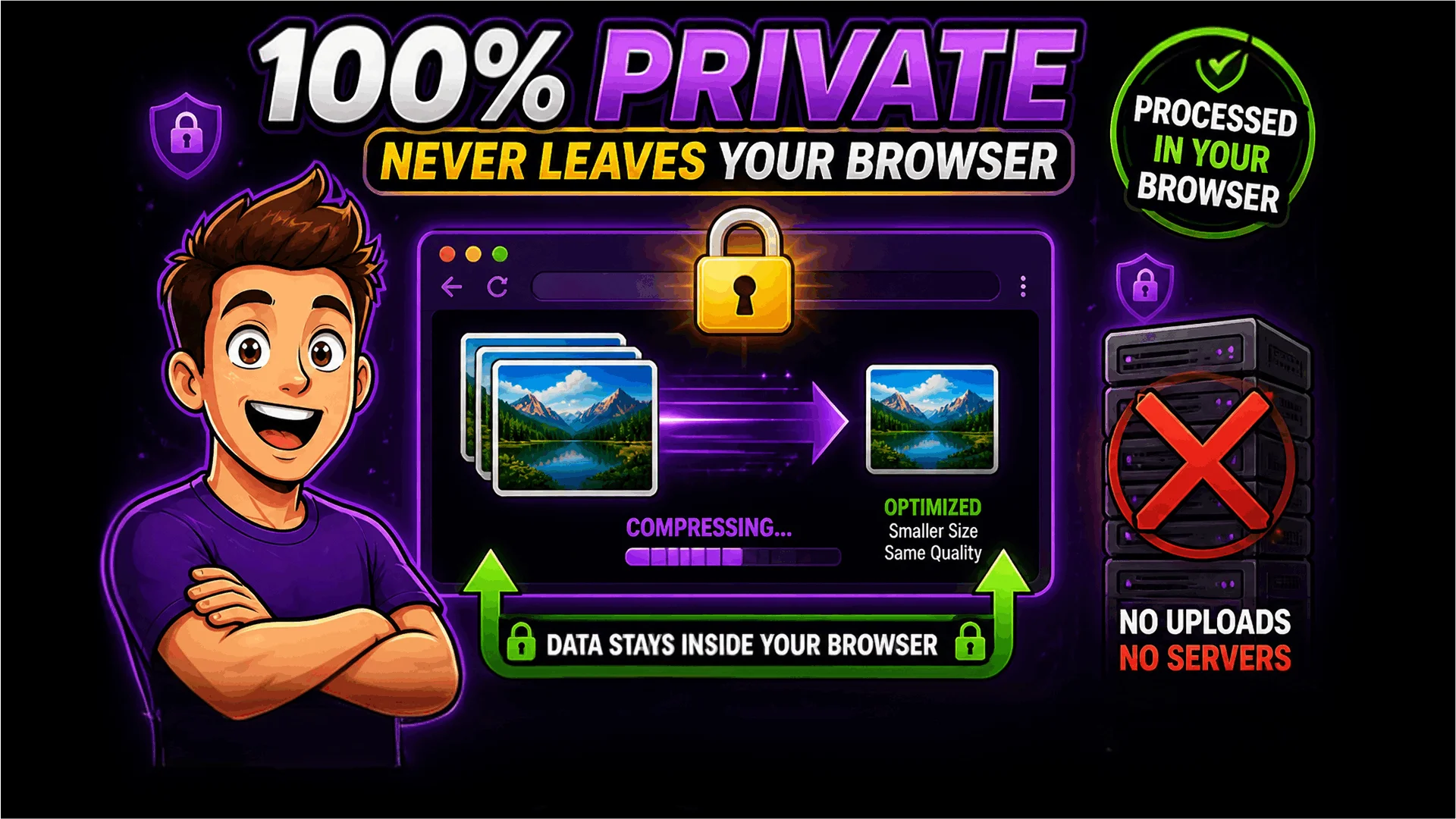
Many online compression services upload your files to a remote server for processing. Your images are handled elsewhere, may be temporarily stored, and are subject to that company's privacy policy. For client photographs, unreleased product shots, or any sensitive imagery, this is a real concern.
Toolsnests works entirely in your browser using the HTML5 Canvas API and JavaScript. Your files never leave your device. There are no uploads, no server-side processing, and no data retention of any kind. The moment you close the browser tab, the images are completely gone.
You get professional-grade compression results with the same privacy as if you were using a locally installed application.
Other Image Tools You Might Need
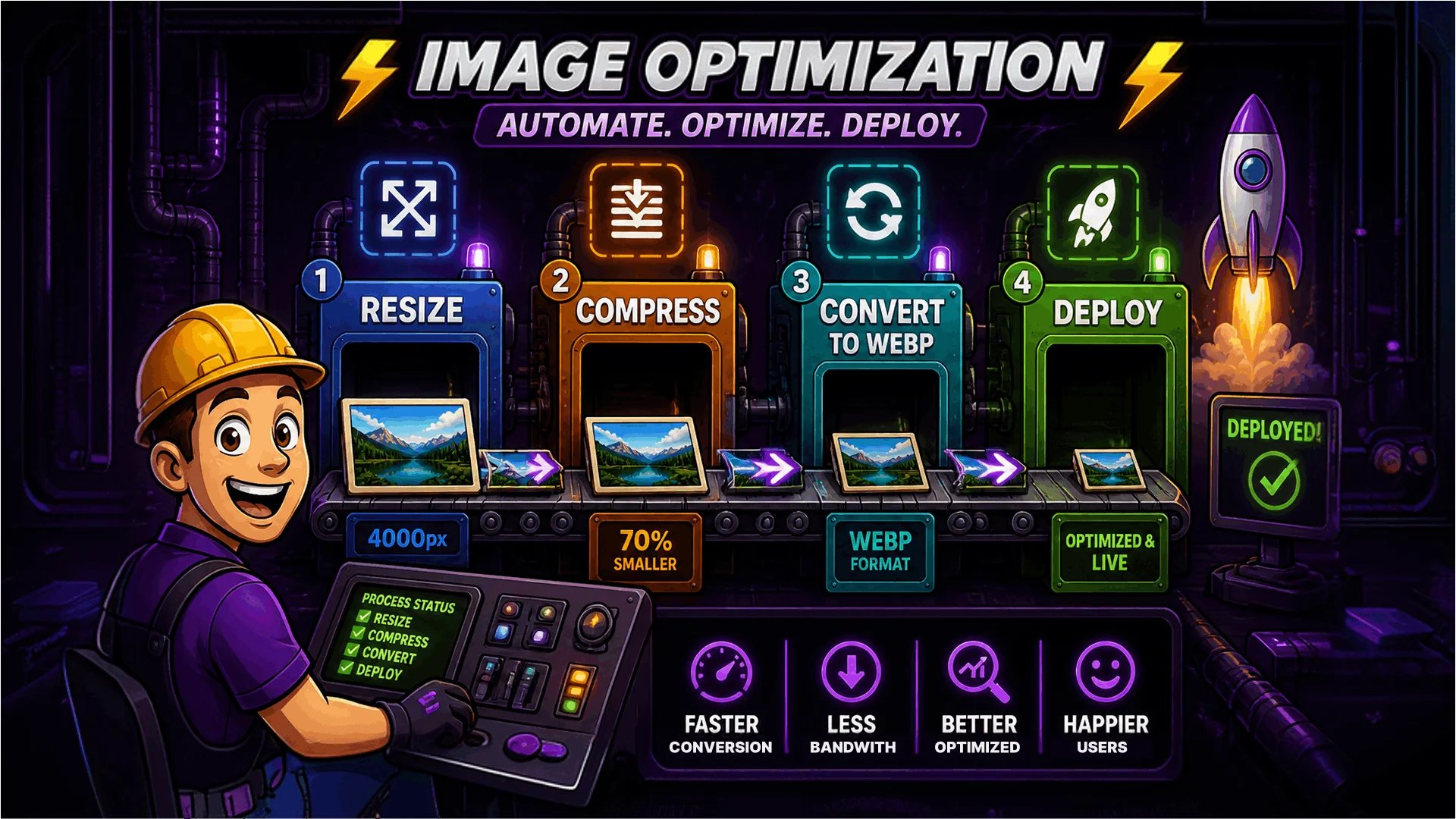
Image compression is often one step in a larger image optimisation workflow. Here are the tools most commonly used alongside the Image Compressor:
Image Resizer — resize images to the exact dimensions you need before compressing, for even smaller output files
PNG to WebP Converter — WebP files are typically 25–35% smaller than PNG at equivalent visual quality
WebP to JPG Converter — convert back to the universally supported JPG format when compatibility matters
Image Converter — convert between PNG, JPG, WebP, and more in a single step
Why Use Toolsnests Image Compressor?
Most free image compression tools come with trade-offs: intrusive ads, daily upload limits, mandatory account registration, or unclear policies about what happens to your files. Toolsnests is built on a different principle — every tool should be fast, focused, and private by default.
Because processing happens locally in your browser rather than on a remote server, the Image Compressor is also faster than server-based alternatives. Large batches complete in seconds without waiting for network round-trips or server queues.
There are no daily limits, no file count restrictions, and no watermarks on your output. Just clean, compressed images — as many as you need.
Final Thoughts
Large images are one of the most common and easily fixed performance problems on the web. Compression is the single most effective way to reduce image file sizes, and it takes under a minute with the right tool.
Whether you are optimising a single hero image or preparing an entire product catalogue, the Toolsnests Image Compressor gives you professional-grade results without leaving your browser — free, private, and unlimited.