Compress PDF to 100KB — Free & Private
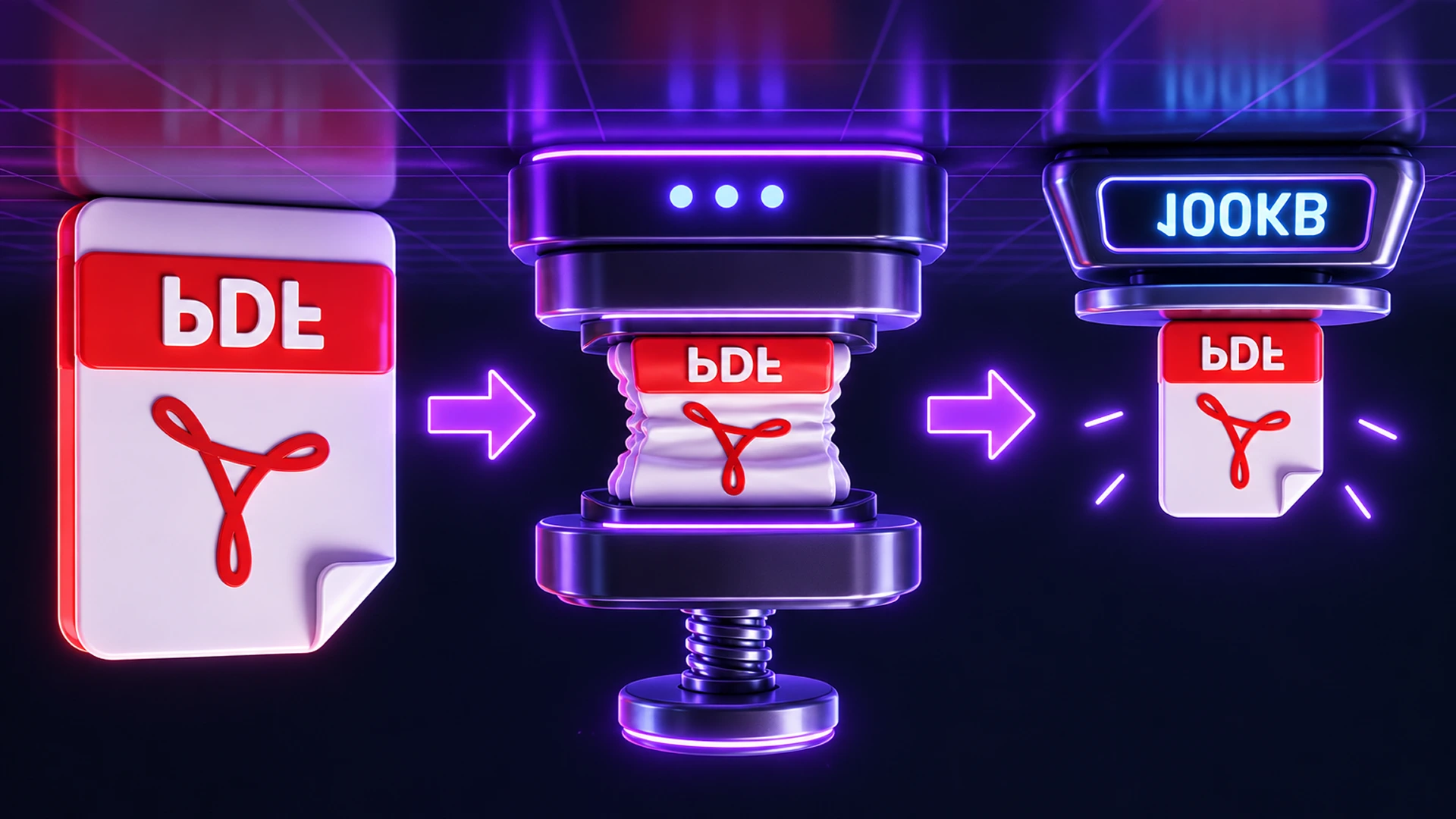
Shrink a PDF to 100 KB, 200 KB, 500 KB or any size an upload portal demands. The tool finds the best quality that fits, without uploading your documents.
Compress a PDF to 100KB in Your Browser
To compress a PDF to 100 KB, open the Compress PDF to Target Size tool, click the 100KB preset (or type any size you need), drop in your PDF and click Process. The tool finds the best quality that still fits under your limit, and it runs in your browser, so your documents are never uploaded.
Government portals, university admissions, job applications and exam forms often cap uploads at 100 KB, 200 KB or 500 KB. A phone scan of a single page can easily be 2–5 MB. Here is how to get under the limit without making your document unreadable.
Why Do Online Forms Limit PDF Size?
Portals that receive thousands of applications a day limit file size to control storage costs and keep uploads working on slow connections. The limit is usually printed next to the upload button, for example "PDF only, max 100 KB" or "less than 200 KB".
| Use | Common limit |
|---|---|
| Job and exam applications | 100–300 KB |
| Government forms | 200 KB–1 MB |
| Visa documents | 500 KB–2 MB |
| Email attachments | 10–25 MB |
What Makes a PDF Large?
Text-only PDFs exported from Word are usually small already. Scanned documents are where the size comes from:
- Scanned pages and photos: each page is a full image, often at 300–600 DPI in full colour.
- Embedded fonts: complete font files can add hundreds of kilobytes.
- Hidden extras: metadata, thumbnails, form data and duplicated resources.
How to Compress a PDF to 100KB on Toolsnests (Step by Step)
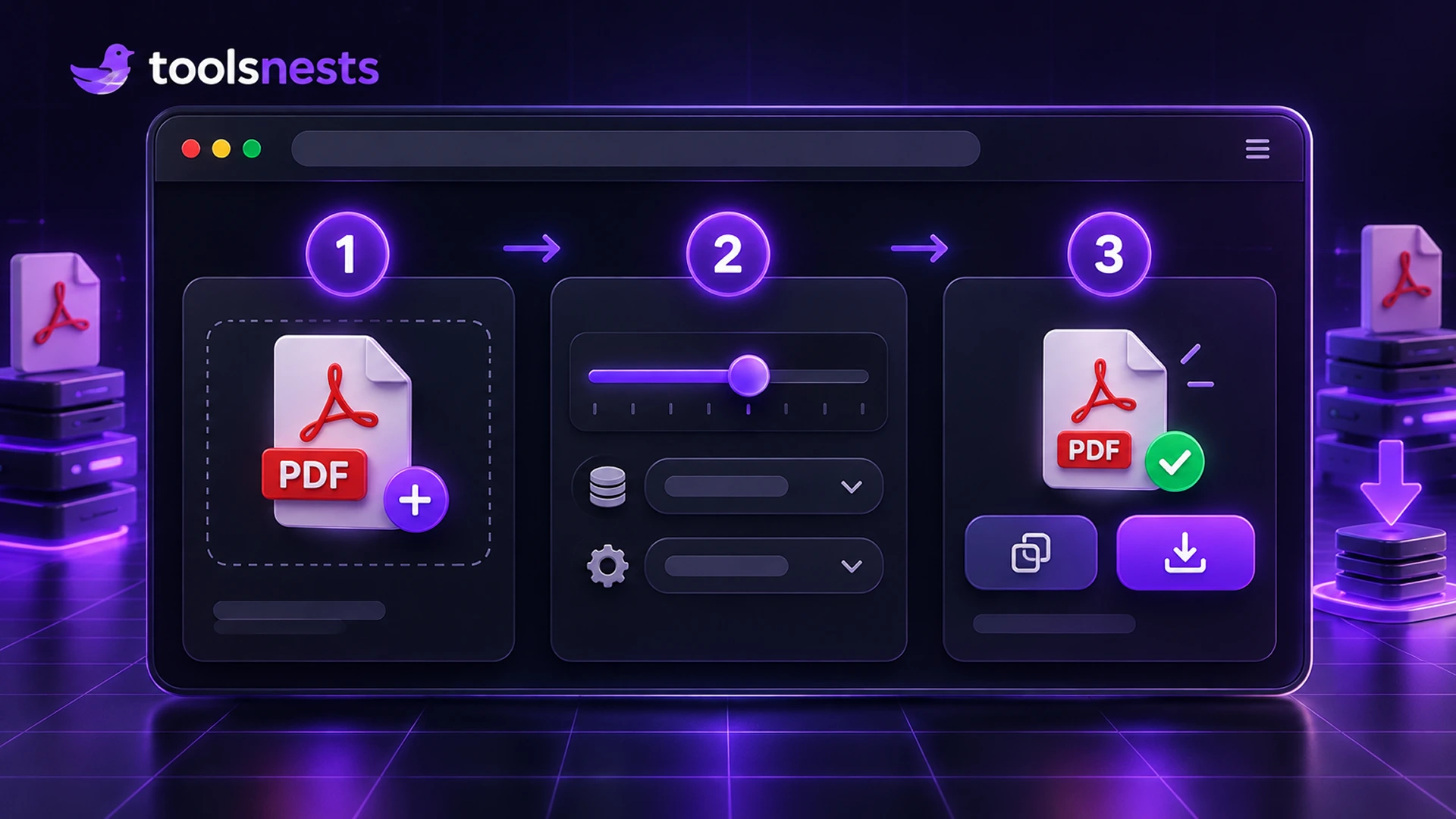
- Open Compress PDF to Target Size.
- Click a preset (100KB, 200KB, 500KB, 1MB or 2MB) or type your own value in the Target size box.
- Turn on "Convert to grayscale" if colour does not matter. It makes scans much smaller.
- Drop one or more PDFs onto the page. Each file is compressed to the same target.
- Click Process, open the result to check the text is still readable, then download it (or all files as a ZIP).
How the Target-Size Search Works
The tool first tries a lossless re-save. If that already fits your target, it is used as-is and the text stays selectable.
If it does not fit, each page is rendered and re-encoded as a JPEG image, and the tool searches a ladder of settings from best-looking (144 DPI at quality 85) down to smallest (36 DPI at quality 30). Because file size falls steadily down that ladder, a binary search finds the highest-quality setting that lands at or under your target after building only a few versions. If even the smallest setting is too big, you get the smallest possible file and its size, so you know where you stand.
One honest limitation: once pages become images, the text is no longer selectable or searchable. Keep your original PDF and use the compressed copy only for the upload.
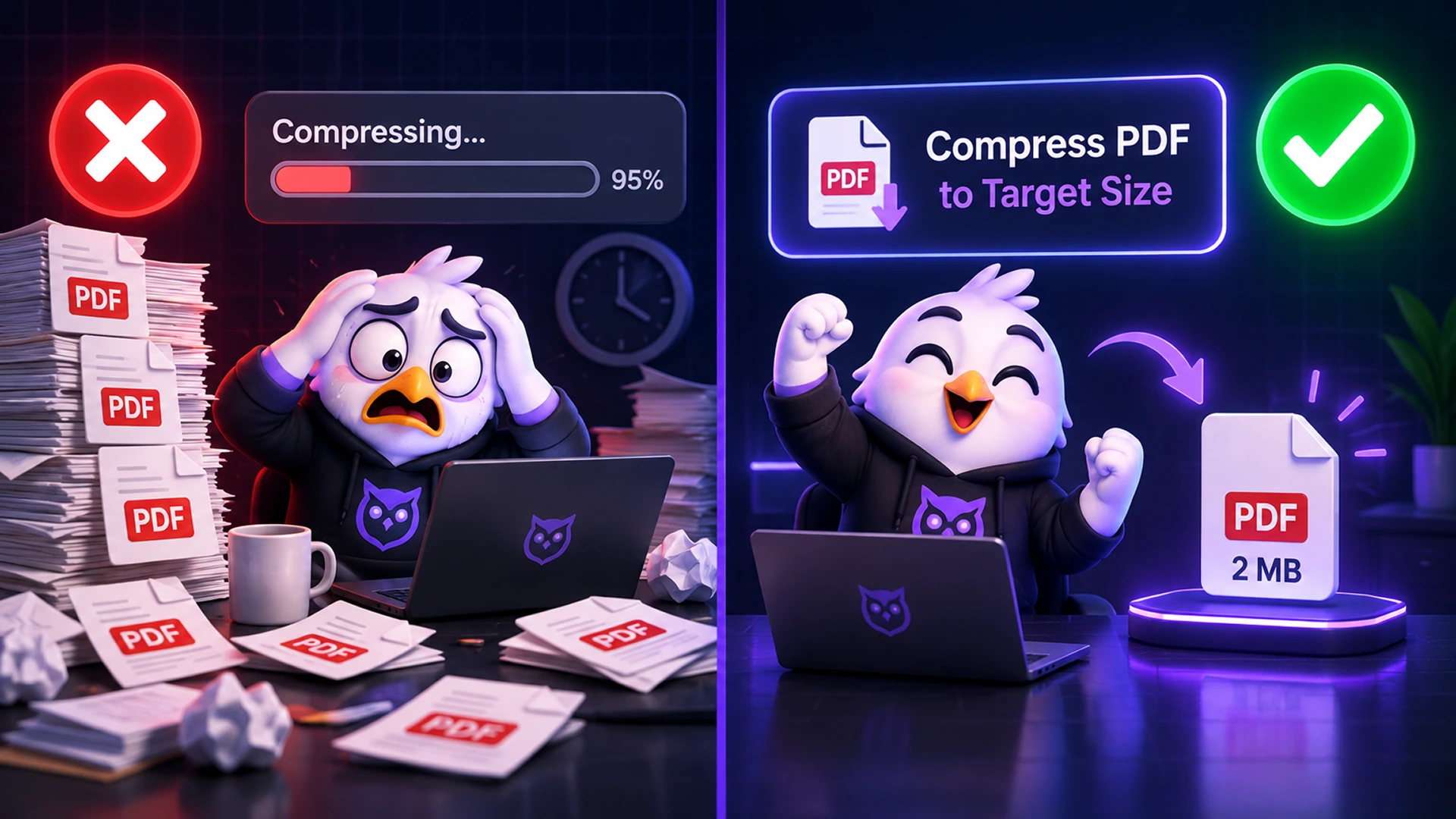
Tips for Hitting 100KB Without Losing Readability
- Scan at 150–200 DPI instead of 300+. That is plenty for forms and ID documents.
- Use grayscale for text documents. Colour carries far more data for the same page.
- Crop away blank margins first with Crop & Resize PDF Pages.
- Remove pages you do not need with Organise PDF Pages.
- If you started from photos, resize them first, then build the PDF with Image to PDF.
- If a long scan will not fit under 100 KB while staying readable, check whether the portal accepts separate uploads per page.
Target Size vs Regular PDF Compression
Toolsnests has two compressors because they answer two different questions.
| Compress to target size | Regular compression | |
|---|---|---|
| You choose | The final file size (e.g. 100 KB) | A quality level |
| Best for | Portals with strict upload limits | Email and general sharing |
| Tool | Compress PDF to Target Size | PDF Compressor |
Is It Safe to Compress Sensitive PDFs Online?
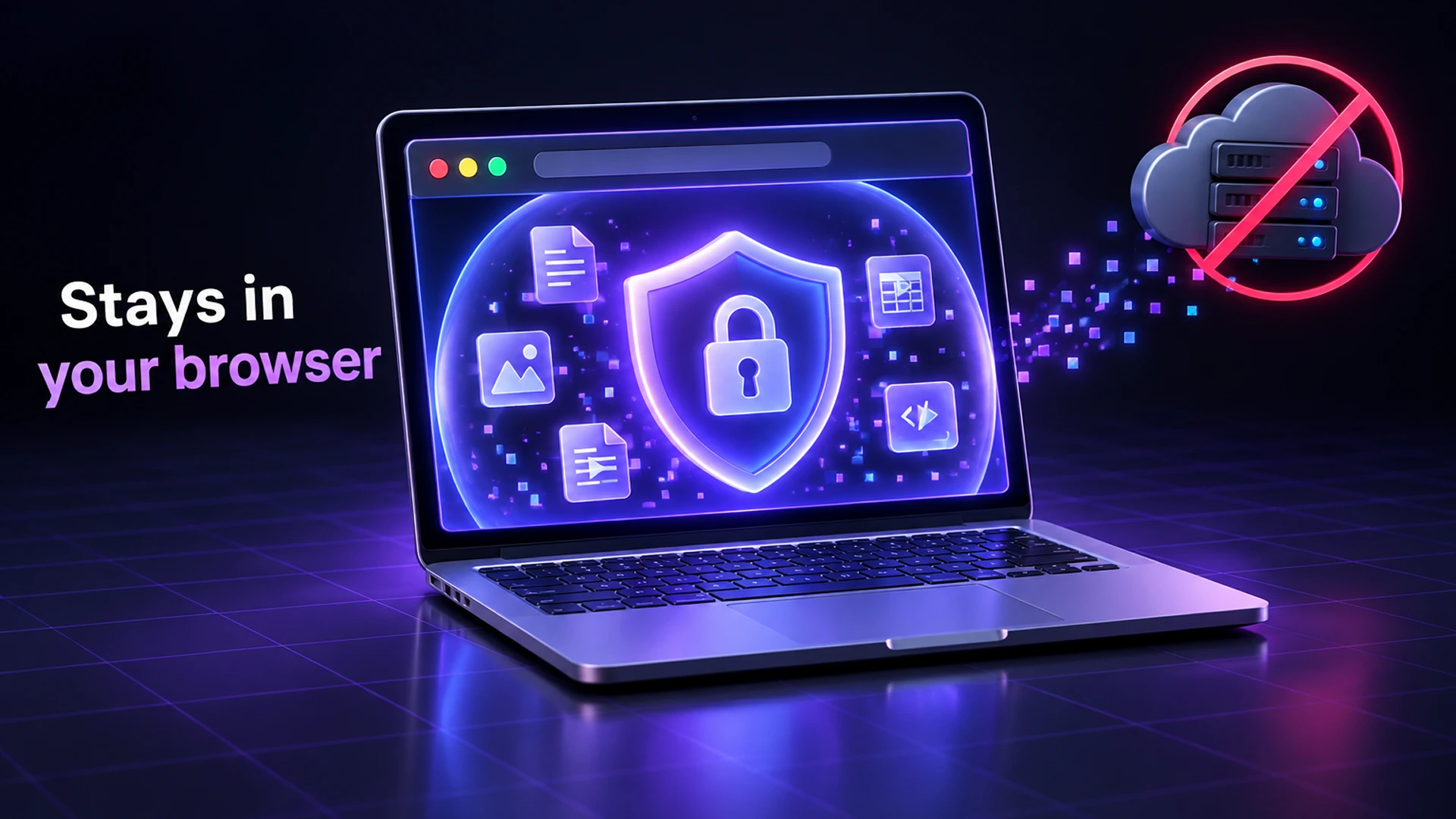
Application forms often include ID cards, certificates and bank statements. Uploading those to an unknown compression server is a real privacy risk. Toolsnests processes the PDF locally in your browser, so the file never leaves your device. You can even disconnect from the internet after the page loads and it still works.
Compress PDF to 100KB: Frequently Asked Questions
Can every PDF be compressed to 100 KB?
Most one- or two-page documents can. Long scanned documents may become hard to read at 100 KB, so always check the result before submitting.
Will my signature or stamp disappear?
No. Pages are re-rendered as images, so everything visible on the page, including signatures and stamps, stays where it was. Only the resolution and JPEG quality change.
Will the text stay selectable?
Only if a lossless re-save already fits your target. Otherwise pages become images, and the text can no longer be selected or searched.
Can I compress a password-protected PDF?
Remove the password first with PDF Password Remover (you need to know the password), then compress.
Does it work on mobile?
Yes. It runs in modern mobile browsers on Android and iPhone.
Related Tools
- PDF Compressor: general-purpose compression by quality.
- Image to PDF: turn photos of documents into one PDF.
- Exam & ID Photo Validator: check photo and signature size rules for application forms.
- PDF Watermark: mark copies before you send them.
Final Thoughts
Upload limits do not have to block your application. Scan sensibly, set your target, and let the compressor do the rest, without sending your documents to anyone. Try the free Compress PDF to Target Size tool now.