Crop Images Online Free — No Software Needed
Crop images to exact dimensions or custom aspect ratios online for free. Visual editor with real-time preview, preset ratios for social media, and batch support.
Crop Images to Any Size Without Installing Software
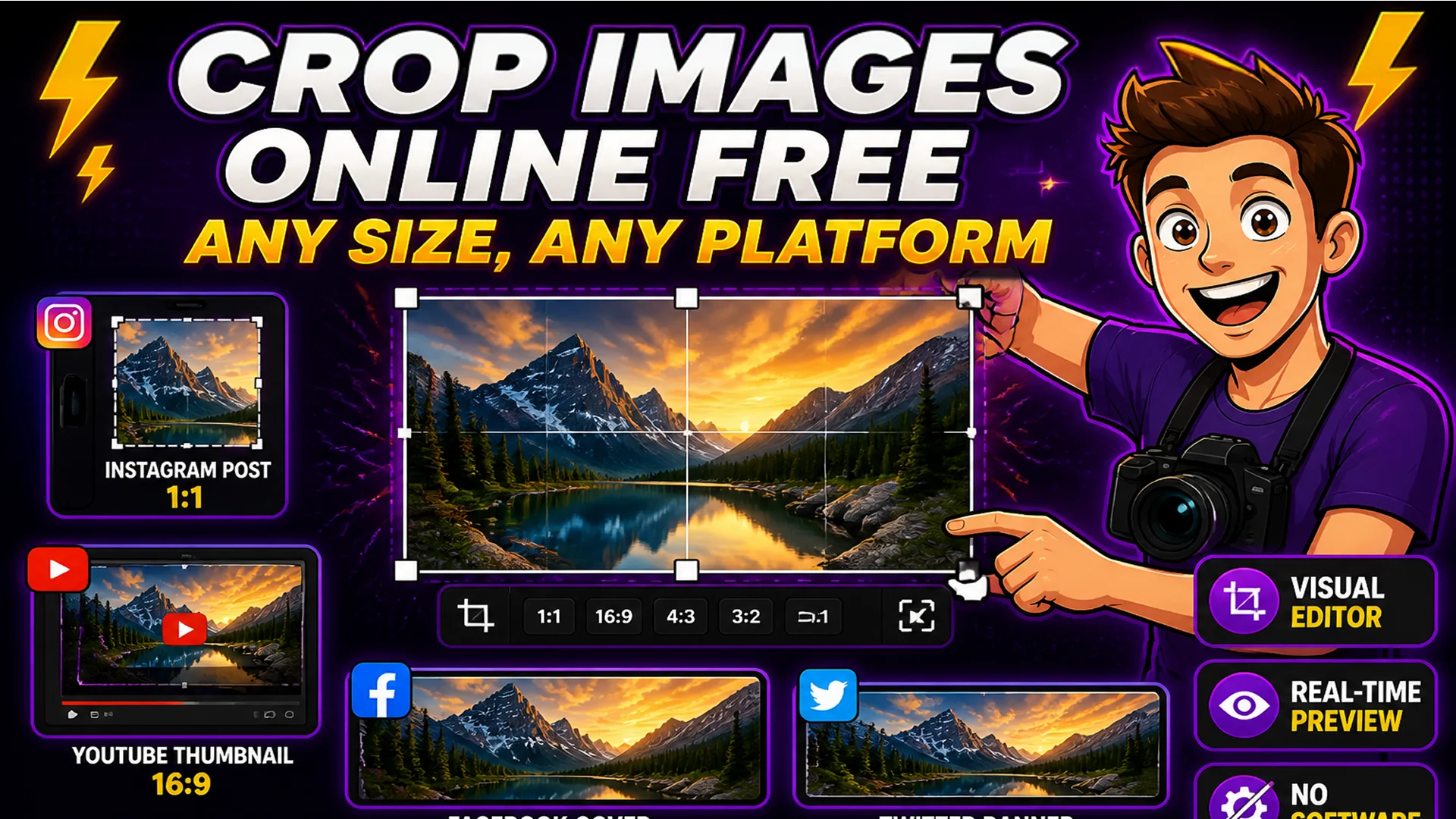
Cropping is one of the most fundamental image editing operations — and one of the most frequently needed. A hero image that needs to be square for an Instagram post. A product photograph that needs the background cropped out before upload. A profile photo that needs to be cropped to a specific 1:1 ratio. A landscape photo that needs to be cropped to 16:9 for a YouTube thumbnail.
Traditionally, every one of these tasks required opening an image editor. The Toolsnests Image Cropper provides a visual crop interface in the browser — drag the crop handles, preview the result in real time, and download the cropped image in under 30 seconds. No installation, no account, no file upload.
What Is Image Cropping?
Image cropping removes the outer portions of an image, keeping only a selected rectangular area. Unlike resizing, which changes the image dimensions while keeping all content (scaling it up or down), cropping changes the image dimensions by removing content — only the selected portion of the original image is retained in the output.
Cropping is non-destructive in the sense that the original file is not modified — the output is a new file containing only the cropped portion. The output dimensions equal the dimensions of the crop selection, not the original image.
How to Crop an Image on Toolsnests
Open the Image Cropper — no login, no installation.
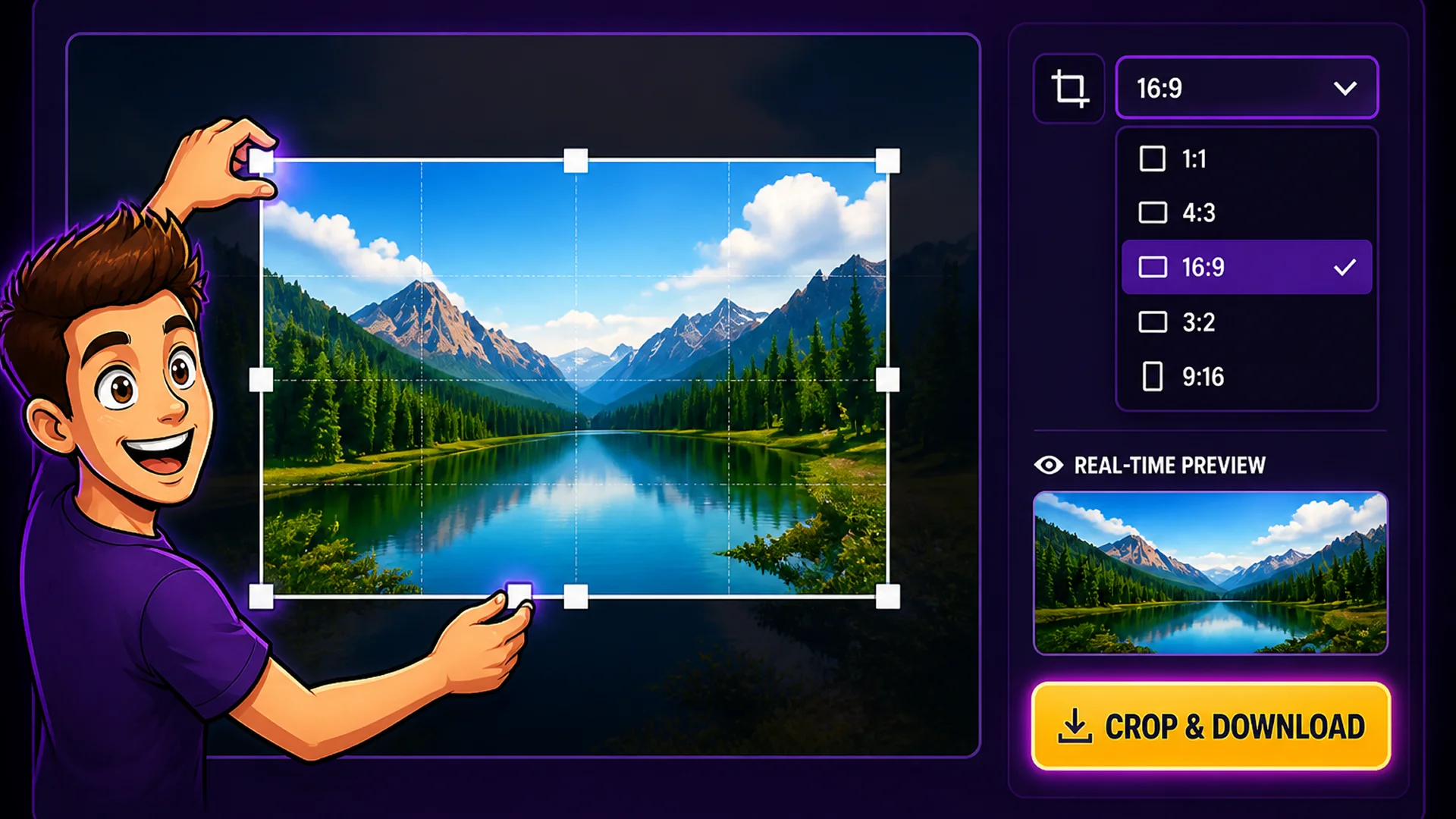
Step 1: Upload your image by dragging it onto the tool or clicking to browse. Step 2: Choose a preset aspect ratio (1:1 for Instagram, 16:9 for YouTube/video, 4:3 for standard landscape, or custom) or enter exact pixel dimensions. Step 3: Drag the crop handles to position and size the selection area. Drag the selection to move it without resizing. Step 4: Preview the cropped result in real time. Step 5: Click Crop and download the output image.
Preset Aspect Ratios for Social Media and Web
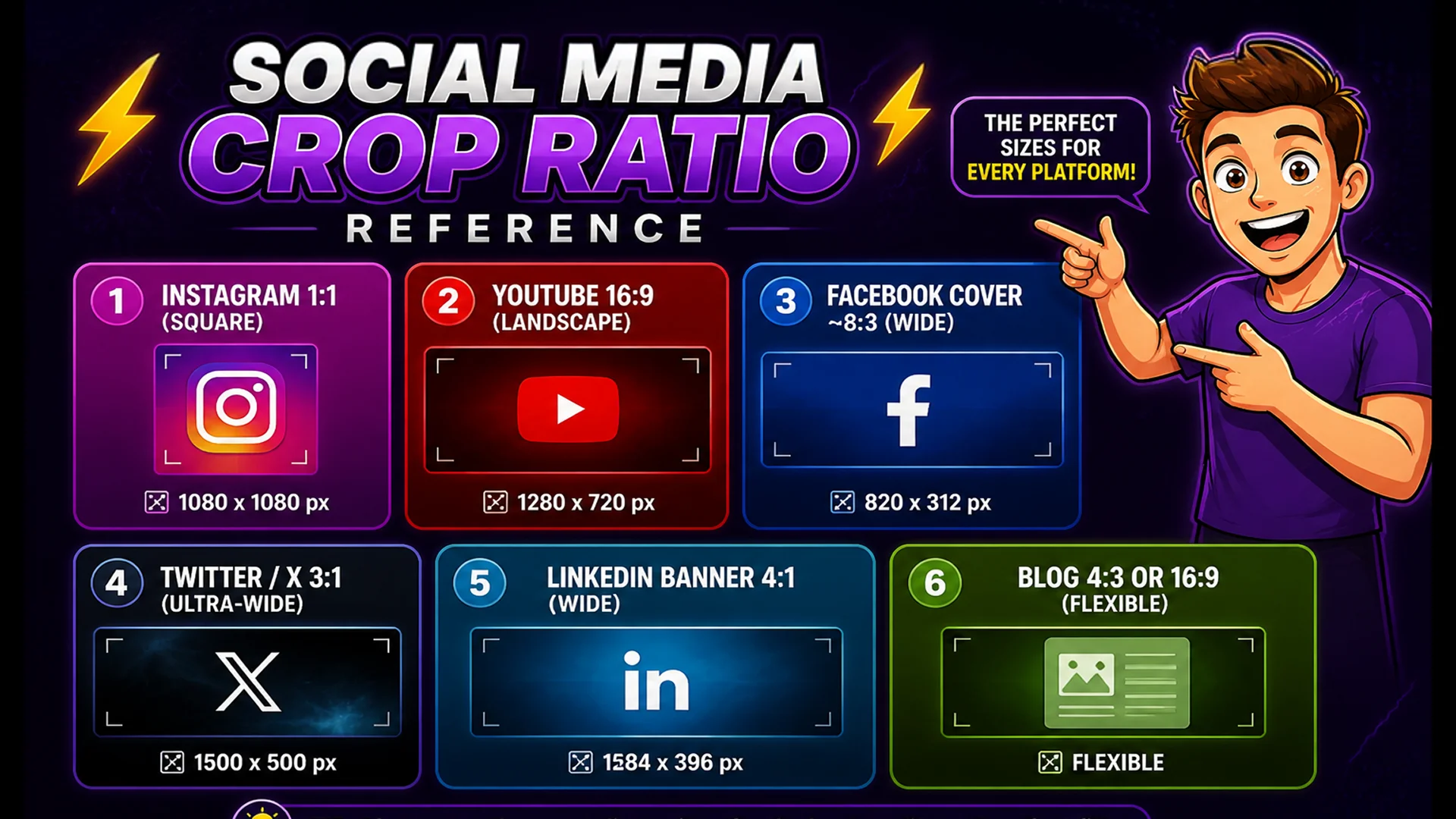
Different platforms have specific aspect ratio requirements that determine how images display without letterboxing or cropping: Instagram posts and profile photos require 1:1 (square). YouTube thumbnails and video covers use 16:9. Facebook cover photos use 820x312 (approximately 8:3). Twitter/X header images use 1500x500 (3:1). LinkedIn banner images use 1584x396 (4:1). Standard blog featured images typically use 16:9 or 4:3.
The Image Cropper includes presets for the most common social media and web ratios. Select a preset and the crop selection automatically constrains to that ratio, making it easy to produce correctly proportioned images for any platform without calculating pixel math.
Your Images Stay on Your Device
The Image Cropper uses the HTML5 Canvas API to perform cropping locally in your browser. The crop operation draws the selected portion of the image onto a new Canvas and exports it. No image data is transmitted to any server — the entire operation happens on your device in milliseconds.
Related Image Tools
Image Resizer — resize cropped images to exact pixel dimensions. Image Compressor — reduce file size after cropping for web delivery. Image Rotator — rotate images before cropping to fix orientation. Favicon Generator — generate favicon sets from a cropped square image.
Final Thoughts
Image cropping is a daily task for designers, content creators, and marketers preparing images for different platforms and contexts. Having a visual crop tool in the browser eliminates the overhead of opening a desktop image editor for simple crop operations.
Open the Image Cropper and crop your next image to the exact dimensions you need in under 30 seconds.