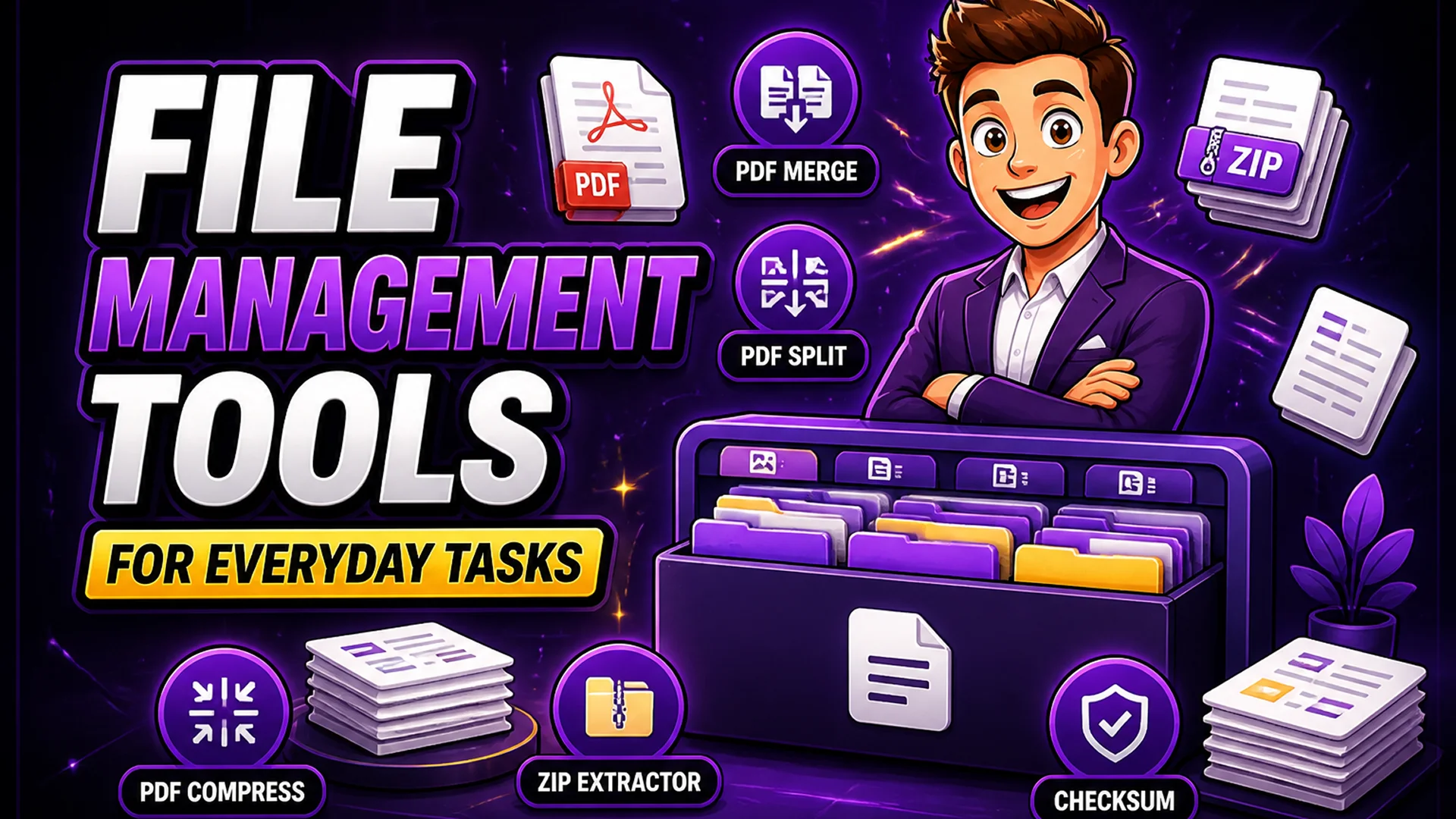
File Management Tools for Everyday Tasks
Merge PDFs, split documents, extract ZIP files, and verify file integrity with browser-based file utilities.
File Tasks That Require No Software Installation
Everyday file management — combining PDF reports, splitting a large document into sections, verifying a downloaded file's integrity, extracting a ZIP archive — has traditionally required dedicated software: Adobe Acrobat Pro for PDFs, WinZip or 7-Zip for archives, command-line tools for checksums. Each piece of software means an installation, license, and maintenance overhead.
Modern browsers can handle all of these tasks directly, with no installation and no file uploads to external servers. Toolsnests file management tools process everything locally in your browser — your files stay on your device from start to finish. Here is a detailed guide to each tool and the real-world scenarios where they save significant time.
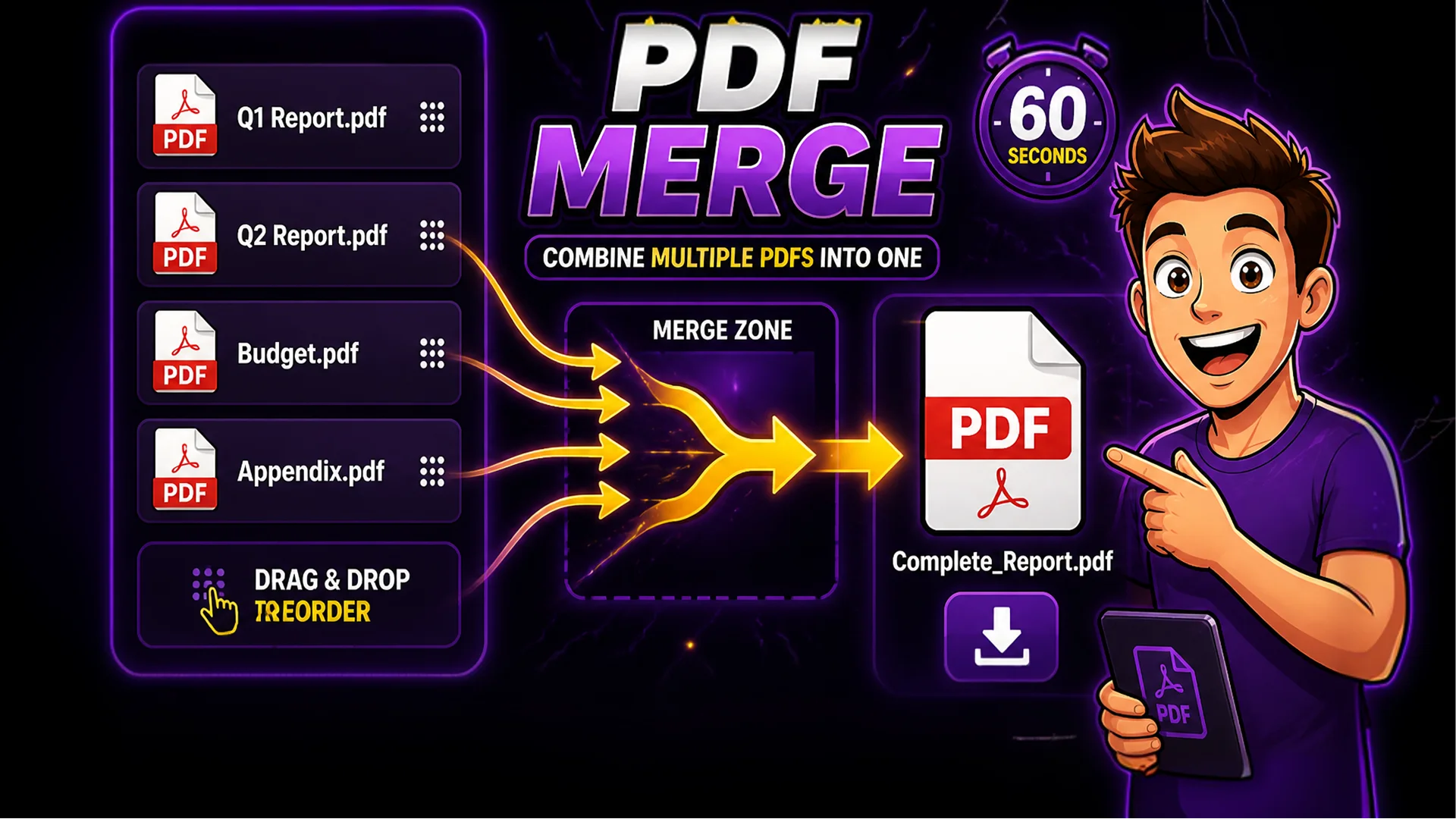
PDF Merge — Combine Multiple Documents Instantly
The PDF Merge tool lets you drag and drop multiple PDF files, arrange them in the desired order with drag-and-drop reordering, and merge them into a single document. There is no limit to the number of files you can merge in a single operation.
People regularly merge 20 to 50 PDFs at once: assembling quarterly reports from department sections, combining scanned contract pages, creating portfolios from individual project PDFs, or consolidating insurance documents before submission. The tool preserves all original formatting, embedded links, and bookmarks from each source PDF. The entire operation — drag in files, reorder, click merge, download — takes under 60 seconds regardless of how many PDFs or total pages are involved.
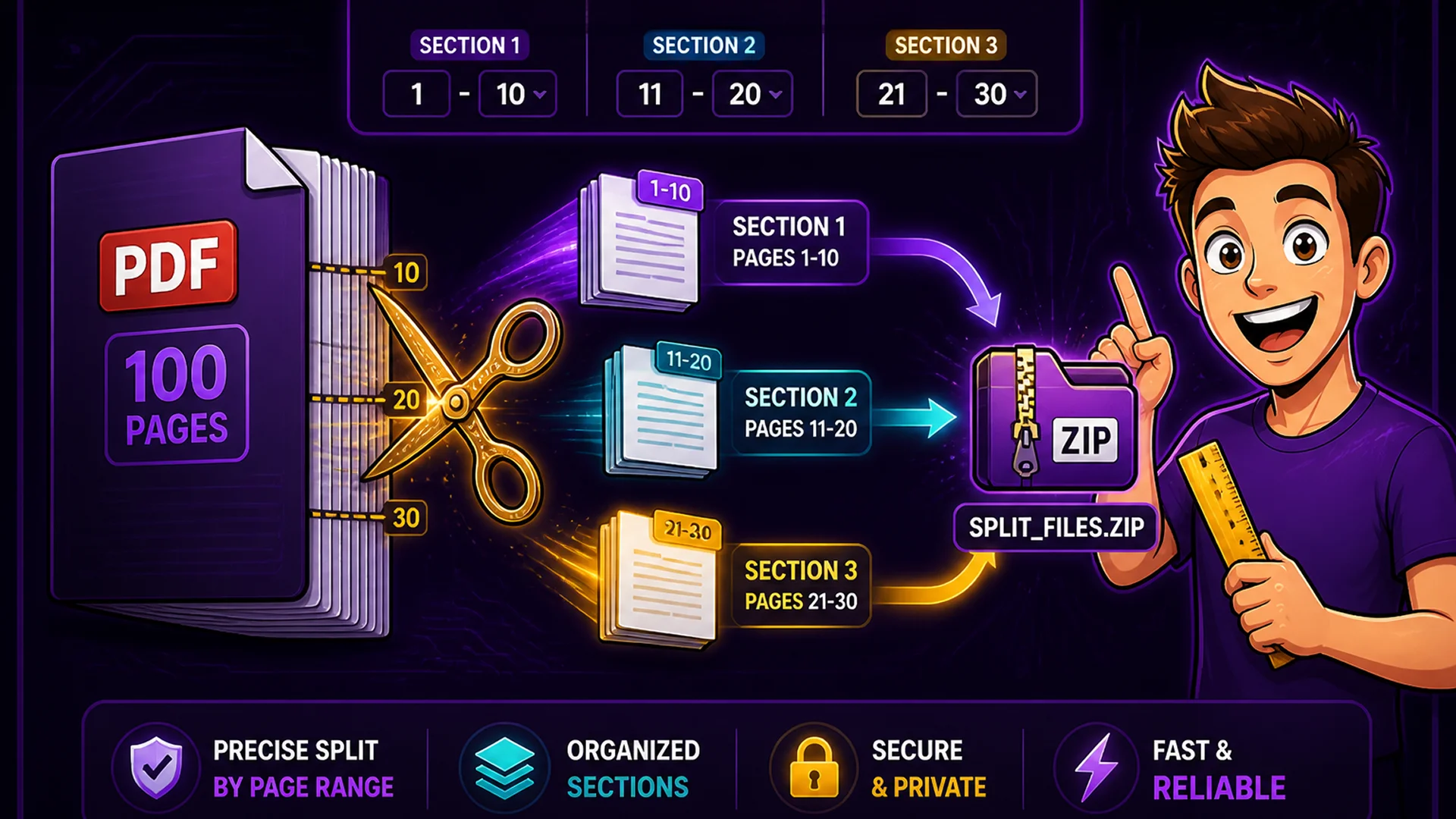
PDF Split — Extract Pages and Create Sub-Documents
The PDF Split tool extracts specific pages or page ranges from a PDF and saves them as separate files. Split by individual pages, page ranges (pages 15–22), fixed intervals (every 5 pages), or extract every page as a separate single-page PDF.
Real-world scenarios: extracting a specific chapter from a scanned technical manual to share with a colleague, separating an invoice from a multi-document batch scan, distributing individual sections of a training manual to different teams, or breaking a 100-page product catalog into category sections for regional sales teams. The split output downloads as a ZIP containing all extracted documents, named by page range.
PDF Compressor — Reduce File Size for Email and Portals
PDFs containing many high-resolution scanned images commonly reach 50–200 MB. The PDF Compressor reduces file size by optimizing embedded images and content streams, often achieving 50–80% reductions on scan-heavy documents.
Essential for email attachments with 25 MB limits, government portal uploads with file size restrictions, and sharing large documents with recipients on slow connections. The compressor preserves text content, internal links, and document structure — only the image data is optimized.
ZIP Extractor — Browse and Extract Archives Without Software
The ZIP Extractor lets you browse the contents of any ZIP archive like a file explorer, download individual files selectively, or extract everything at once with a single Download All button.
Particularly useful on managed work devices (where you cannot install software), shared computers, or when you receive a ZIP but only need one specific file from it. Instead of installing 7-Zip or requesting IT to install archive software, open the browser, drag the ZIP in, and navigate its contents. For archives with dozens or hundreds of files, Download All extracts everything simultaneously.

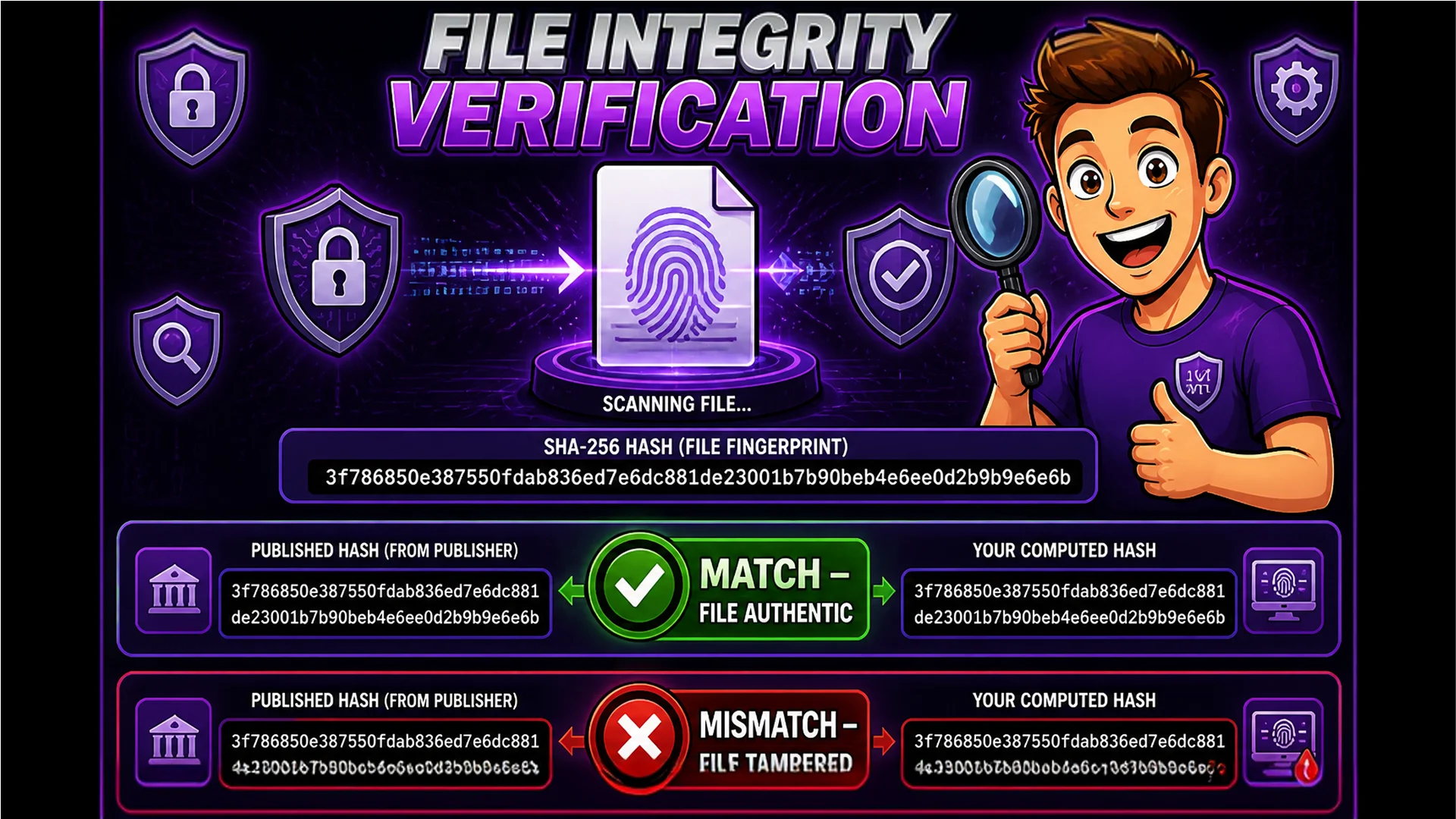
File Checksum Generator — Verify Download Integrity
When you download software, ISO images, or important files, publishers typically provide a checksum alongside the download link. A checksum is a cryptographic fingerprint of the original file — if a single byte is corrupted or tampered with during download, the checksum will not match. The File Checksum Generator computes MD5, SHA-1, SHA-256, and SHA-512 hashes for any file using the Web Crypto API built into modern browsers.
Essential for verifying OS ISO downloads, confirming software packages have not been tampered with before installation, and complying with data integrity requirements in regulated industries. Drop multiple files at once — the tool generates checksums for each file simultaneously, efficient when verifying batches of downloaded packages.
Bulk File Renamer — Organize Files with Consistent Naming
The Bulk File Renamer applies consistent naming patterns to any collection of files: sequential numbering, date stamps, prefix and suffix text, custom separators, and original filename preservation as part of the new name.
Use it for organizing downloaded files before archiving, standardizing naming conventions across a project, preparing files for upload to systems with specific naming requirements, and applying descriptive names to files before publishing. Works across all file types — documents, images, videos, and data files alike.
Real-World File Management Workflows
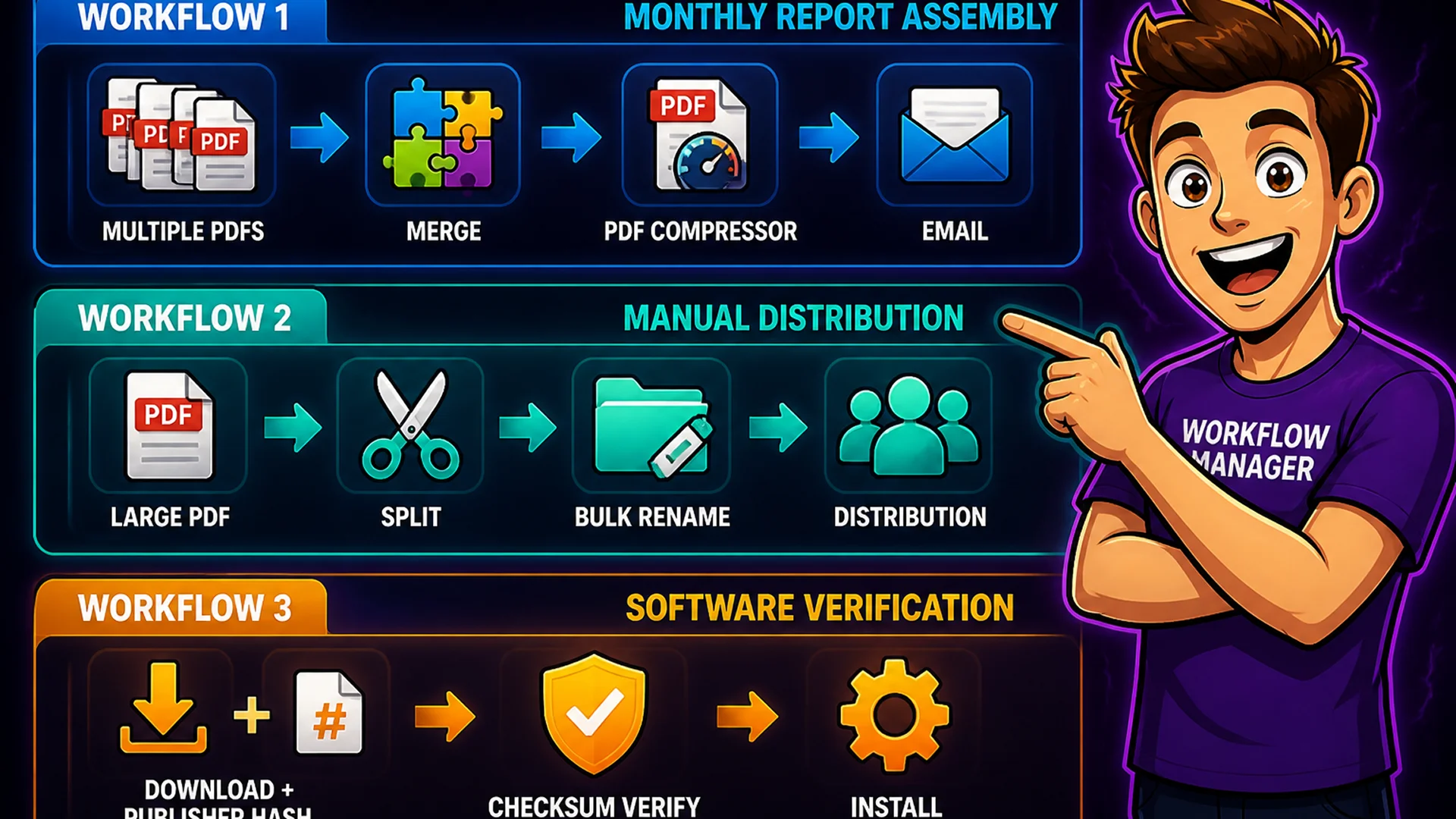
Here are complete multi-tool workflows: Assembling a monthly report — collect PDFs from all departments, use PDF Merge to combine them in order, then use PDF Compressor to reduce the combined file before emailing. Distributing a training manual — use PDF Split to separate the manual into topic sections, then use Bulk File Renamer to apply clear descriptive names before distributing. Verifying a software package — download the software and the publisher's SHA-256 checksum, run File Checksum Generator on the downloaded file, compare the two values before installing.
Each workflow replaces a desktop software install or a server-side upload service, keeping your files private while completing the task faster.
Final Thoughts
File management tasks do not require dedicated software when a modern browser handles them just as effectively — and more privately. Toolsnests file utilities cover the most common document and archive tasks with zero upload required.
Start with the PDF Merge tool the next time you need to combine documents — you will have a merged PDF in under 60 seconds without installing anything.