HEIC to JPG — Free & Private
Convert iPhone HEIC photos to JPG, PNG or WebP in bulk, bursts and Live Photos included. Runs in your browser, so your photos are never uploaded.
Convert HEIC to JPG in Seconds
To convert HEIC to JPG for free, open the Toolsnests HEIC to JPG converter, drop in your iPhone photos (or a whole folder), choose JPG, PNG or WebP, and download the results one by one or as a single ZIP. The conversion runs entirely in your browser, so your photos are never uploaded to a server.
If you have ever emailed an iPhone photo to a Windows user, tried to upload one to a job portal, or attached it to a form that only accepts JPG, you have met the HEIC problem. This guide explains what HEIC is, why so many websites still reject it, and how to convert it without installing anything.
What Is a HEIC File (and Why Does My iPhone Use It)?
HEIC is Apple's flavour of HEIF, the High Efficiency Image File Format. Strictly speaking it is a container rather than a single image: the same ISO media family as MP4, holding frames compressed with HEVC (H.265). iPhones have saved photos as HEIC by default since iOS 11 because HEVC compression produces files roughly half the size of a JPG of similar visual quality. On a phone that takes thousands of pictures, that saves a lot of storage.
Because it is a container, one HEIC file can hold things a JPG cannot: several frames (bursts and Live Photo stills), depth maps for Portrait mode, and higher bit-depth colour. The trade-off is compatibility. HEVC is patent-encumbered, so Windows charges separately for the codec, most Linux desktops ship without it, and many websites simply refuse the upload.
Why Convert HEIC to JPG?
JPG is still the universal language of photos. Converting makes sense whenever the person or system on the other end is not an Apple device:
- Websites and forms reject HEIC: many upload fields for job applications, visas, marketplaces and CMS platforms accept only JPG or PNG.
- Windows and older software struggle: Windows needs a paid codec extension to open HEIC, and many older editors cannot open it at all.
- Sharing is smoother: JPG opens on every phone, laptop, smart TV and photo-printing kiosk.
- Editing and printing: most print shops and design tools expect JPG or PNG.
How to Convert HEIC to JPG on Toolsnests (Step by Step)
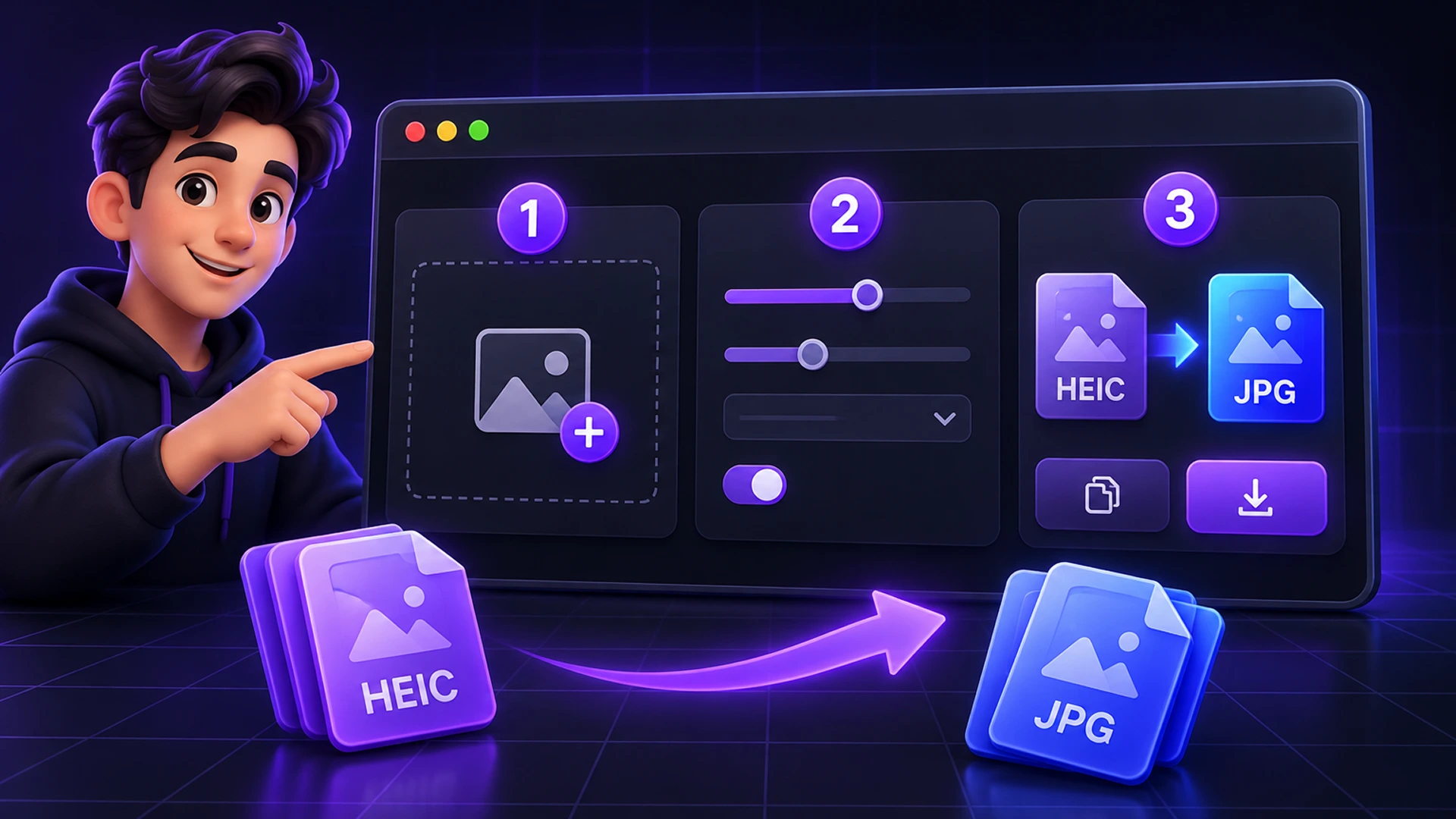
- Open the HEIC to JPG converter.
- Drop your .heic or .heif photos onto the page. You can also drop a whole folder or a ZIP of photos.
- Under "Convert to", choose JPG for maximum compatibility, PNG for a lossless copy, or WebP for smaller files on websites.
- Set the quality. The default is 90%, which is visually indistinguishable from the original in normal viewing; lower it if you need smaller files.
- Download each converted photo, or click "Download all as ZIP".
Bursts, Live Photos and Misnamed Files
A single HEIC file can contain several frames. Instead of keeping the first frame and silently dropping the rest, the converter outputs every frame as its own numbered file, so a burst or Live Photo gives you all of its pictures.
Files are also identified by their actual bytes, not their extension. Phones and messaging apps often rename HEIC photos to .jpg without converting them, which is why a ".jpg" sometimes refuses to open. If the contents are HEIC, the tool converts it whatever the file is called.
HEIC vs JPG vs PNG vs WebP: Which Format Should You Choose?
Pick the output based on where the photo is going next. When in doubt, choose JPG.
| Format | Best for | File size | Transparency |
|---|---|---|---|
| JPG | Sharing, uploads, printing | Medium | No |
| PNG | Screenshots, graphics, further editing | Large | Yes |
| WebP | Websites and blogs | Small | Yes |
| HEIC | Storing photos on Apple devices | Smallest | Yes |
How to Stop Your iPhone Saving Photos as HEIC
If you constantly need JPGs, change the camera format: go to Settings → Camera → Formats and choose "Most Compatible". New photos will be saved as JPG. The catch is that they take more space, and existing photos stay HEIC. Many people keep "High Efficiency" on and convert only the photos they need to share.
You can also set Settings → Photos → Transfer to Mac or PC to "Automatic", so photos are converted when copied over a cable.
Your Photos Stay on Your Device
Most online HEIC converters upload your photos to their servers. Toolsnests decodes HEIC in your browser with libheif compiled to WebAssembly, then re-encodes the result locally, so private photos of family, documents or ID cards never leave your computer or phone. It also works on slow connections, because there is nothing to upload.
Photos can contain hidden location data. Before sharing publicly, check them with the EXIF Viewer and strip GPS with the Image Metadata Remover.

HEIC to JPG: Frequently Asked Questions
Is the HEIC to JPG converter free?
Yes. It is free, with no sign-up, no watermark and no daily limit.
Does converting HEIC to JPG reduce quality?
Slightly, because JPG and WebP are lossy and the HEIC was already compressed. At 90% quality the difference is invisible in normal viewing. Choose PNG if you need a pixel-exact copy, at a much larger file size.
Can I convert HEIC to JPG on Windows without installing software?
Yes. Open the converter in Chrome, Edge or Firefox and convert in the browser; no codec pack is needed.
Can I convert many HEIC photos at once?
Yes. Drop as many files, folders or ZIPs as your device memory allows and download them together as one ZIP.
Are my photos uploaded anywhere?
No. Decoding and re-encoding both happen locally in your browser.
Related Tools
- Image Converter: convert between PNG, JPG, WebP and more.
- Image Compressor: shrink converted JPGs for email or the web.
- Image Resizer: resize to exact dimensions for forms and portals.
- SVG to PNG: turn vector graphics into images that open anywhere.
Final Thoughts
HEIC is great for saving space on your iPhone, but JPG is still what everything else opens. Keep your originals, convert only what you need to share, and do it privately in your browser. Convert your first batch now with the free HEIC to JPG converter.