Resize Images Online Instantly (Free, Bulk & Secure)
Resize images online in seconds with our free tool. We'll show you how to resize one image or many, and your data is always safe.
Resize images online in seconds
Resizing a photo should take seconds, not minutes. Whether you're preparing assets for a website, sizing thumbnails for social media, or shrinking screenshots for a deck, you want a tool that opens, resizes, and downloads — without an account, install, or upload queue.
Browser-based resizers do exactly that: the picture is processed on your device using HTML5 Canvas, so there's nothing to upload and nothing to wait for. Drop the file in, type the new width and height, and the resized image is ready to download.
Toolsnests is built around that single idea — a clean, distraction-free interface focused on getting one job done quickly and privately.
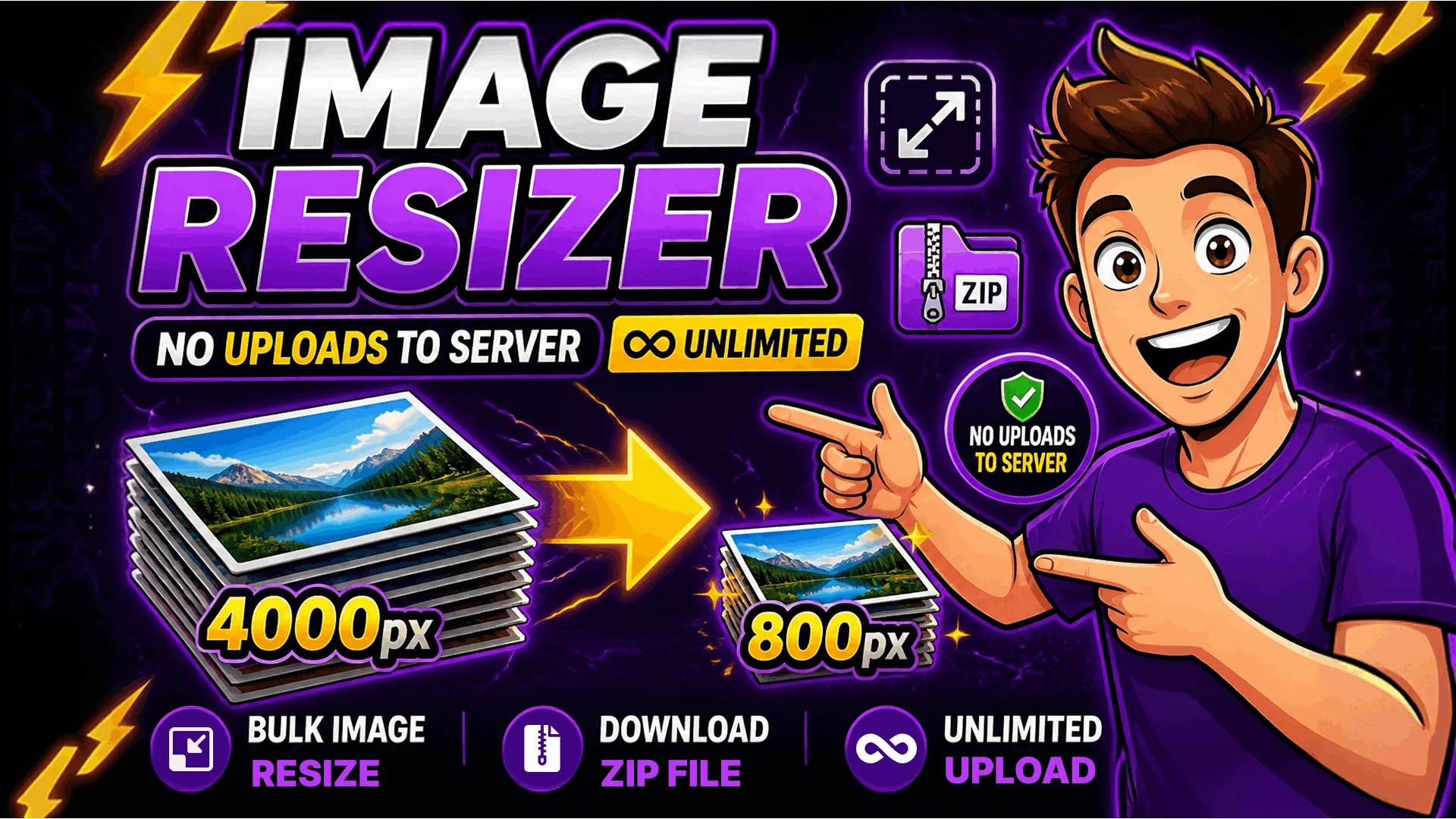
What is an Image Resizer?
An image resizer is a tool that changes the width and height of a picture without opening a full editor like Photoshop. You pick the new dimensions, the tool re-samples the pixels, and you download the result.
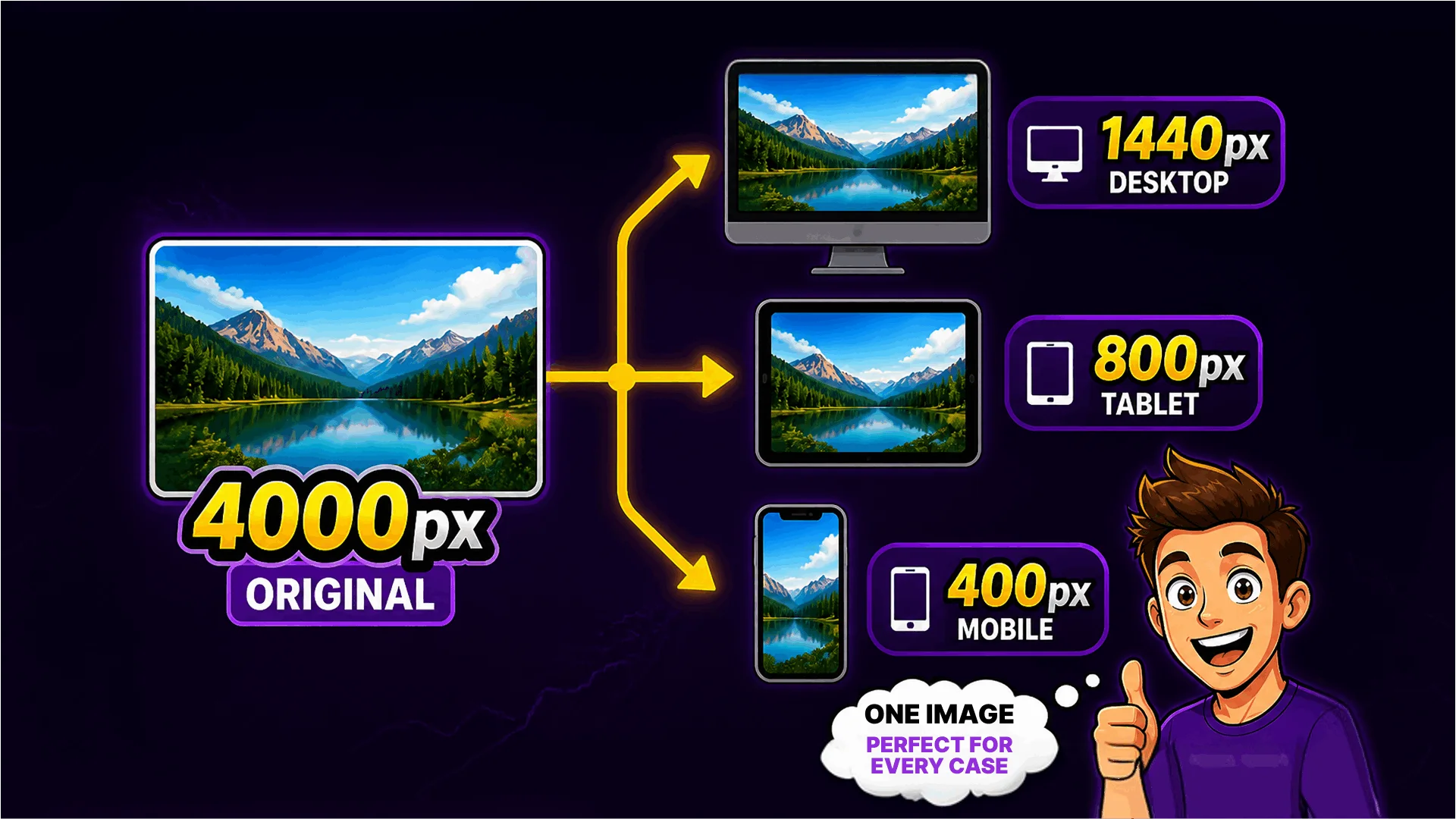
It's useful any time a platform expects a specific size: a 1080×1080 square for Instagram, a 1200×630 Open Graph banner for social previews, or a 1920px-wide hero image for a homepage. Instead of cropping by eye in a desktop app, you set the exact dimensions and the resizer produces the right output in one step.
How to resize an image on Toolsnests
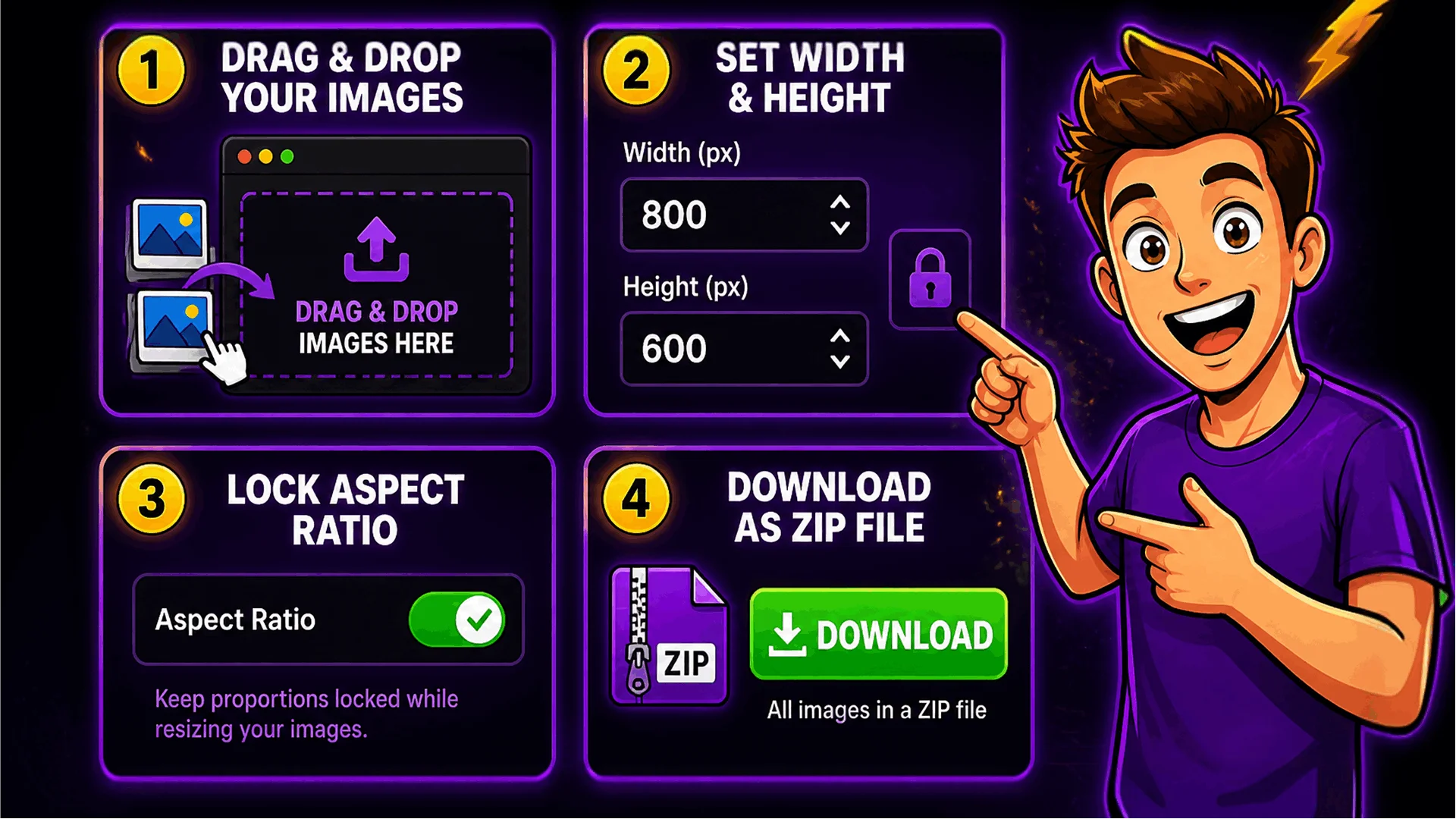
There's no learning curve. The whole flow takes under a minute:
Step 1: Open the tool at Image Resizer.
Step 2: Drag and drop a single image, multiple images, or even a ZIP archive — the folder structure inside the ZIP is preserved in the final output.
Step 3: Keep the aspect ratio locked, or enter a custom width and height.
Step 4: Click Resize. Download the result instantly, or grab every resized image at once as a ZIP.
Bulk image resizing
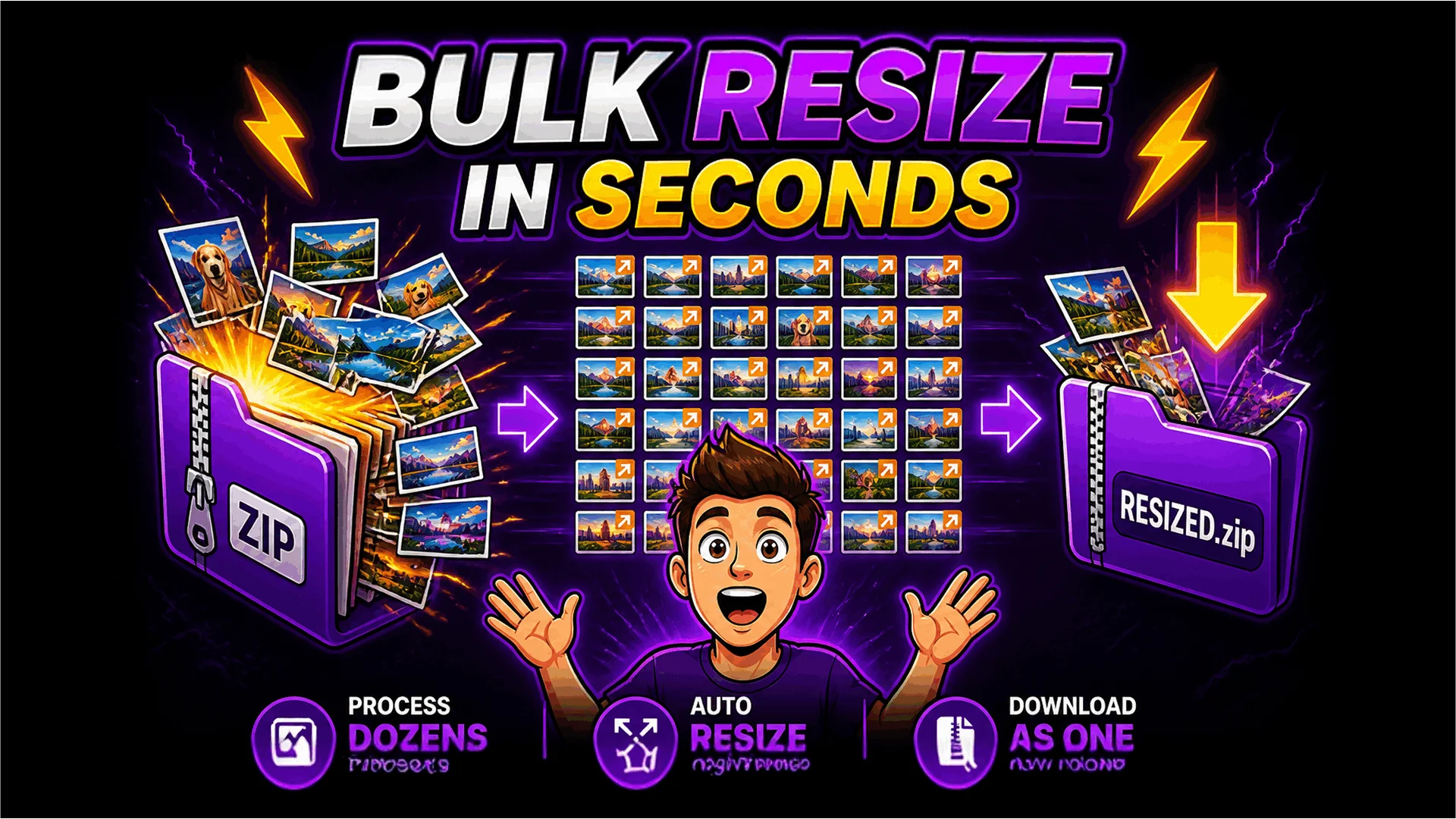
Resizing dozens of photos one by one is painful. That's exactly why bulk mode exists: upload many images at once, apply the same dimensions to every one, and let the tool process them in parallel.
It's especially useful for designers, web developers, and eCommerce store owners who need consistent image sizes across product galleries, thumbnails, and CDN folders. Standardising sizes manually takes hours; doing it in a single batch takes seconds.
Toolsnests lets you drop in whole folders (zipped or unzipped) and outputs a single ZIP with every image resized to the same target dimensions.
Keep image quality while resizing
A common worry is whether resizing destroys image quality. The short answer: downsizing usually keeps quality intact, while upsizing can introduce blur if it isn't handled properly.
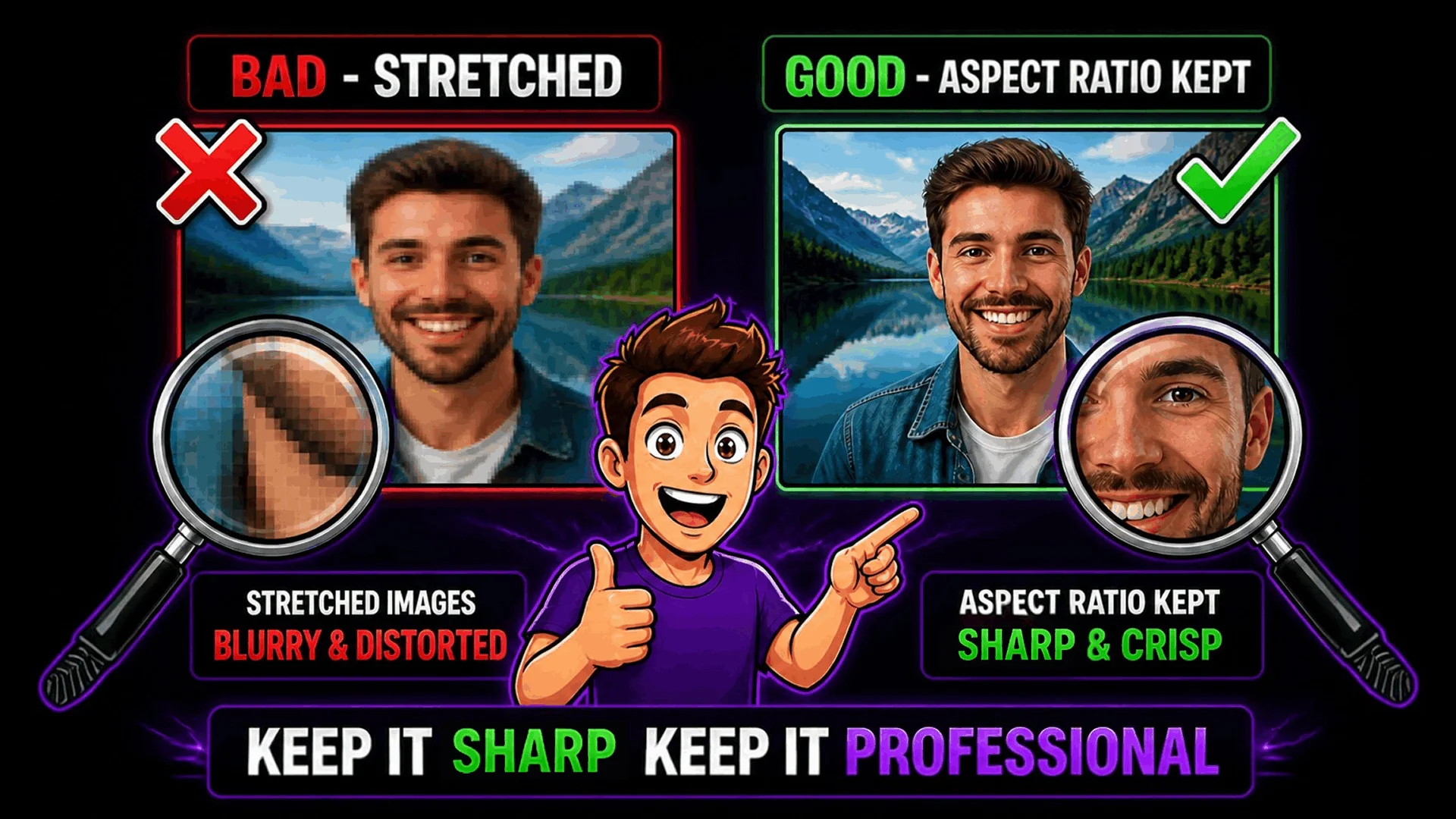
Good resizers protect quality two ways: they preserve the aspect ratio so the image isn't stretched or squashed, and they use a bicubic or Lanczos sampling pass instead of nearest-neighbour scaling. That's why a dedicated resizer produces a cleaner result than manually dragging corners in a word processor or slide deck.
Your photos stay private
Most online image tools quietly upload your file to their server, process it there, and send the result back. That means your image is on someone else's machine — even if just for a few seconds — and may be retained in logs or temp folders longer than the privacy policy admits.
Toolsnests works differently. The resizing runs entirely in your browser, using HTML5 Canvas. Your file never leaves your device — no upload, no server storage, no analytics on the image content.
That matters most when you're handling client photos, identity documents, or anything else you wouldn't want sitting on a third-party server.
Other tools you might need
Resizing is usually one step in a larger workflow. Depending on the project, you'll also want to compress for faster page loads, or convert between formats for better browser support.
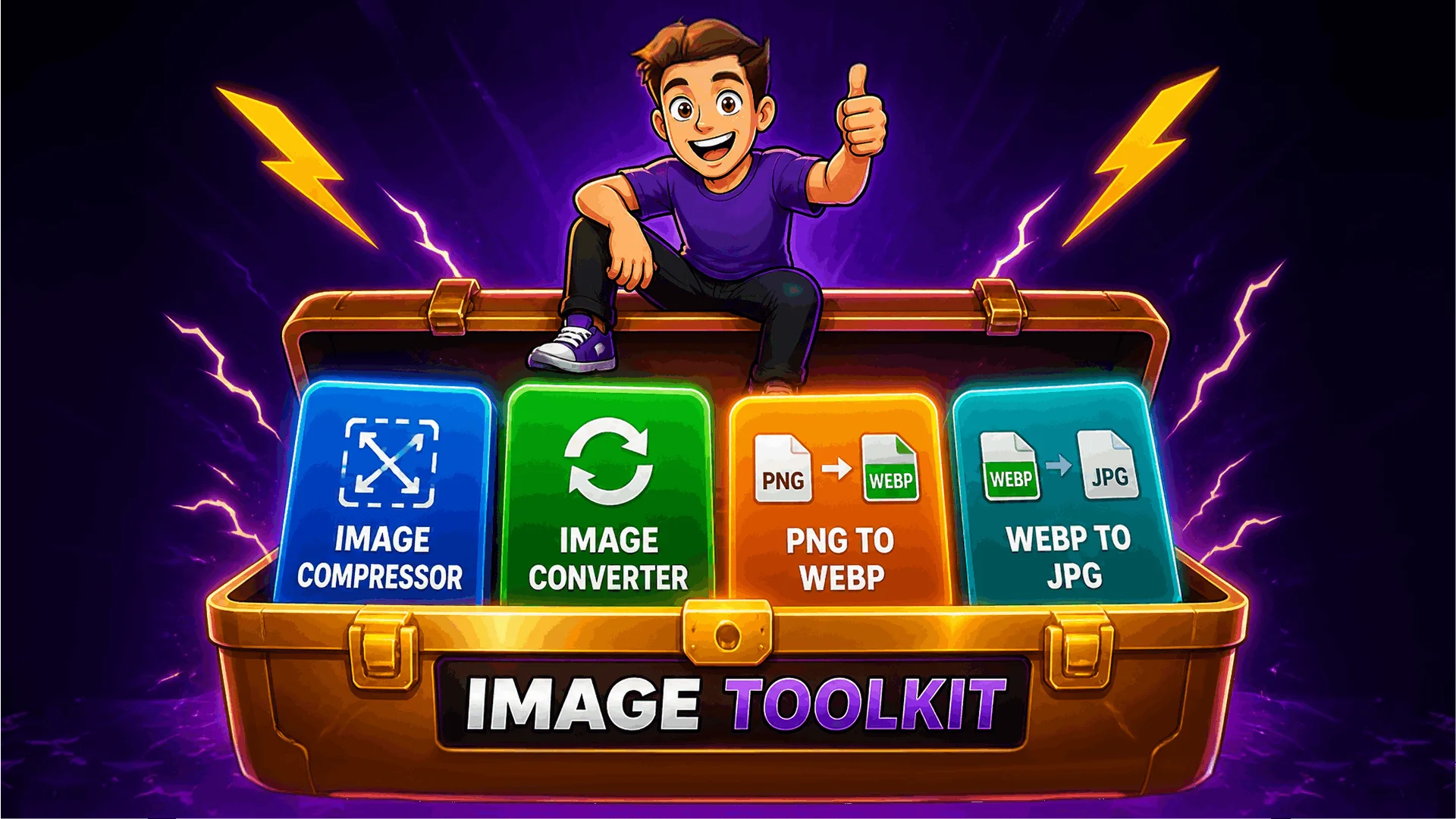
Tools that pair naturally with the Image Resizer:
Image Compressor reduce file size without visible quality loss
Image Converter convert between PNG, JPG, WebP, and more
PNG to WebP Converter smaller files for faster web pages
WebP to JPG Converter convert back to the universally supported JPG format
Chaining these together lets you fully optimize images for quality, file size, and cross-browser compatibility in one session.
Why use Toolsnests?
Plenty of online image resizers exist, but most fall into one of two traps: they cram in dozens of features that get in the way of the actual job, or they're slow because every action round-trips to a server.
Toolsnests is built around the opposite trade-off — one job, done fast. No login, no ads in the way, no upload spinner. Just a clean interface that resizes the image on your device the moment you click the button.
Whether you're resizing one screenshot or a folder of two hundred product photos, the workflow stays the same: drop, dimensions, download.

Final Thoughts
Resizing images is something most people do every week, and it shouldn't get in the way of the actual work.
Using a quick, browser-based tool like Toolsnests - Image Resizer, you may quickly resize photos, simply manage large tasks, and fully secure your data.
Once you switch to a browser-based tool that runs in seconds and keeps your files on your device, the old install-and-upload workflow is hard to go back to.