Image to PDF Converter — Free & Private
Combine JPG, PNG, WebP and GIF images into one PDF in the order you choose, with A4, Letter or image-sized pages and no quality loss.
Turn Images Into a PDF in Seconds
To convert images to PDF, open the Toolsnests Image to PDF converter, drop in your JPG, PNG, WebP or GIF files, put them in order, choose the page size, orientation and margins, and click Create PDF. JPG and PNG images are embedded without re-compression, so there is no quality loss, and nothing is uploaded.
When You Need to Combine Images Into a PDF
- Combine phone photos of a multi-page document into one file.
- Submit receipts or ID scans as a single upload.
- Make a simple PDF portfolio of designs or photos.
- Turn a set of screenshots into one shareable document.
How Image to PDF Works (and Why Quality Is Kept)
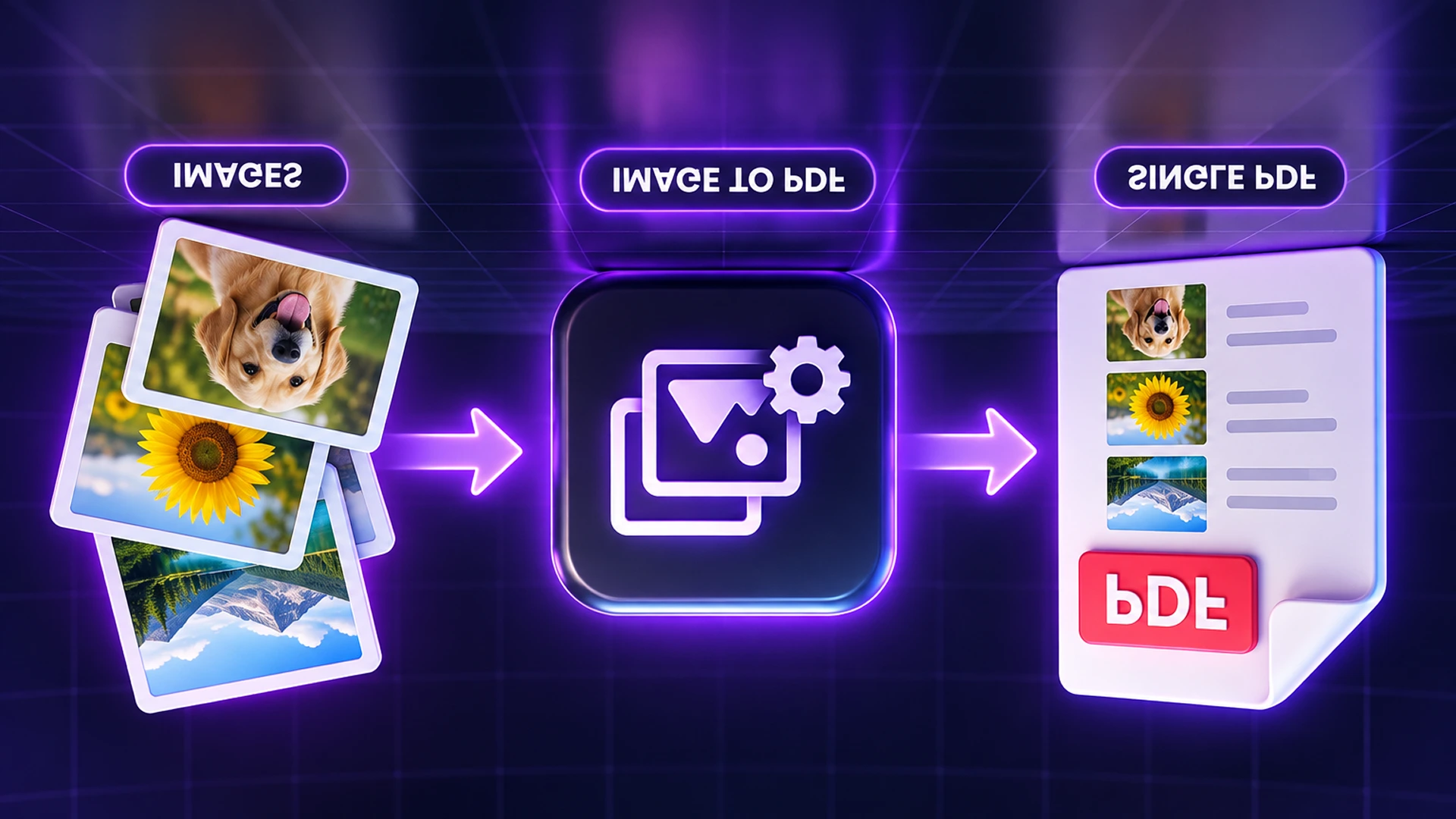
JPG and PNG files are placed into the PDF exactly as they are, without re-compression. Other formats your browser can open (WebP, GIF, BMP and more) are converted to PNG first, which is lossless. Each image gets its own page, scaled to fit inside the margins, centred, and kept in proportion.
You can use a standard paper size (A4, Letter, Legal, A3 or A5) in portrait, landscape, or an orientation matched to each image, or make every page exactly the image's size.
How to Convert Images to PDF on Toolsnests (Step by Step)
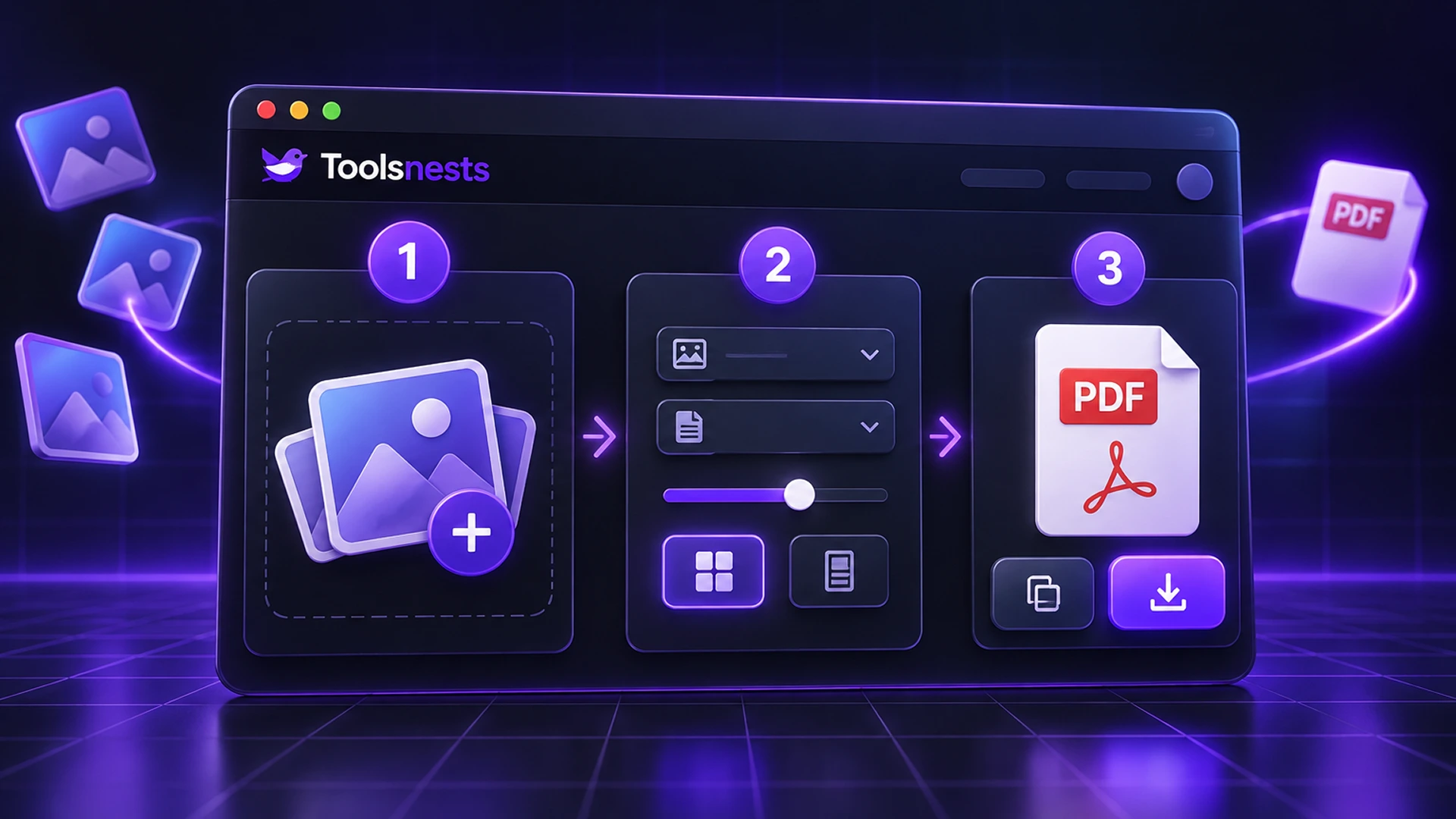
- Open Image to PDF.
- Drop your images or a folder onto the page.
- Rearrange the order with the arrows next to each image.
- Choose the page size, orientation and margins.
- Turn on "One PDF per image" if you want separate files (delivered as a ZIP).
- Click Create PDF and download the result.
Page Sizes at a Glance
| Size | Millimetres | Typical use |
|---|---|---|
| A4 | 210 × 297 | Most of the world: forms, documents |
| US Letter | 216 × 279 | US and Canada documents |
| US Legal | 216 × 356 | Contracts and legal forms |
| A3 | 297 × 420 | Posters and drawings |
| A5 | 148 × 210 | Booklets and flyers |
| Image size | Matches each image | Portfolios and screenshots |
Tips for the Best Results
- Need a small file for an upload portal? Resize the photos first with the Image Resizer, or compress the finished PDF with Compress PDF to Target Size.
- Crop phone photos to the edges of the page with the Image Cropper before converting.
- iPhone photos in HEIC? Convert them with HEIC to JPG first.
- Use "orientation matched to each image" when you mix portrait and landscape photos.
Your Images Stay on Your Device
Photos of IDs, receipts and signed documents are personal. The PDF is assembled in your browser, so the images are never uploaded or stored anywhere.

Image to PDF: Frequently Asked Questions
Is Image to PDF free?
Yes. No sign-up, no watermark and no page limit.
Does it reduce image quality?
No. JPG and PNG images are embedded unchanged; other formats are converted losslessly to PNG.
Can I change the page order?
Yes. Use the arrows next to each image before creating the PDF.
Can each image become its own PDF?
Yes. Turn on "One PDF per image" to get a ZIP of separate PDFs.
Are my images uploaded?
No. The PDF is created locally in your browser.
Related Tools
- Extract Images from PDF: get the original images back out of a PDF.
- PDF to Image: render PDF pages as images.
- Sign PDF: add your signature to the finished document.
Final Thoughts
One tidy PDF beats a dozen loose photos. Order your images, pick a page size, and create the file privately in your browser with the free Image to PDF converter.