Image to Text — Free & Private
Extract text from photos, screenshots and scans with OCR that runs in your browser. Fifteen languages, editable output and confidence scores.
Extract Text From Any Image
To convert an image to text, open the Toolsnests Image to Text (OCR) tool, drop in a photo or paste a screenshot with Ctrl+V, choose the language in the image, and copy or download the recognised text. Recognition runs in your browser with Tesseract compiled to WebAssembly, so the image never leaves your device.
OCR (optical character recognition) is what turns pixels that look like letters into text you can edit, search and paste. It is the fastest way to get words out of a receipt, a slide shared as a picture, a scanned page or a photo of a sign.
What Is Image to Text (OCR) and When Do You Need It?
An image of text is just coloured pixels; your computer has no idea it contains words. OCR finds the lines of text, splits them into characters, and matches each one against a trained language model. The output is plain text you can edit.
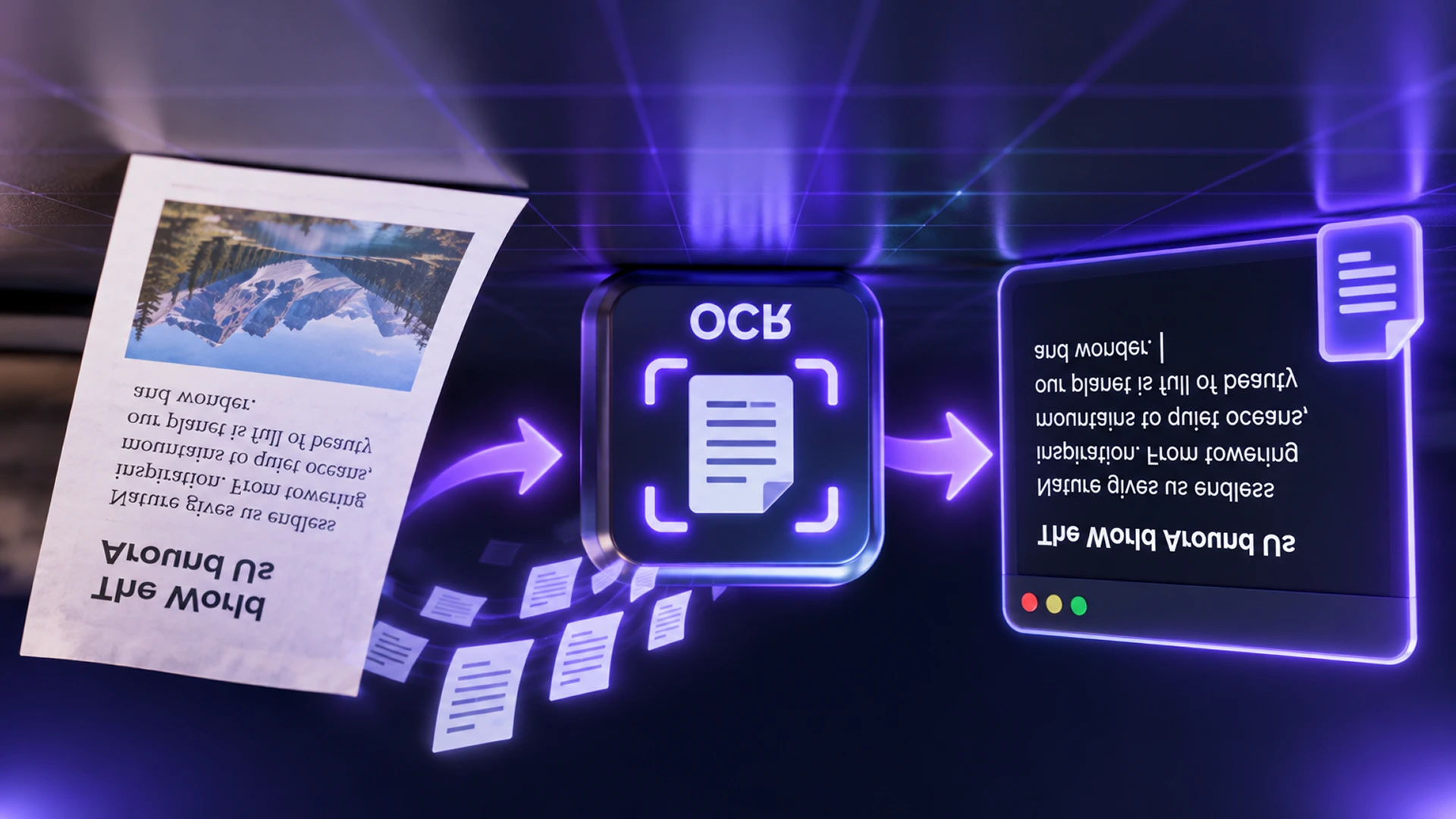
- Copy text out of a screenshot instead of retyping it.
- Get the figures off a photographed receipt or invoice.
- Extract the words from a slide or diagram shared as an image.
- Read text from a photo so you can paste it into a translator.
- Pull text from a batch of scanned pages at once.
JPG to Text, PNG to Text and Screenshots
The format of the image matters less than its sharpness. JPG photos from a phone camera work well when they are in focus and evenly lit; heavy JPEG compression can blur small letters, so use the original photo rather than one that has been forwarded through a messaging app several times. PNG screenshots are usually the easiest case, because the text is perfectly sharp and high-contrast.
If you mostly grab text from your screen, the dedicated Screenshot to Text tool is built around pasting from the clipboard. For scanned PDFs, use PDF OCR to extract the text, or the Searchable PDF (OCR) tool to keep the PDF and add a searchable text layer.
How to Convert an Image to Text on Toolsnests (Step by Step)
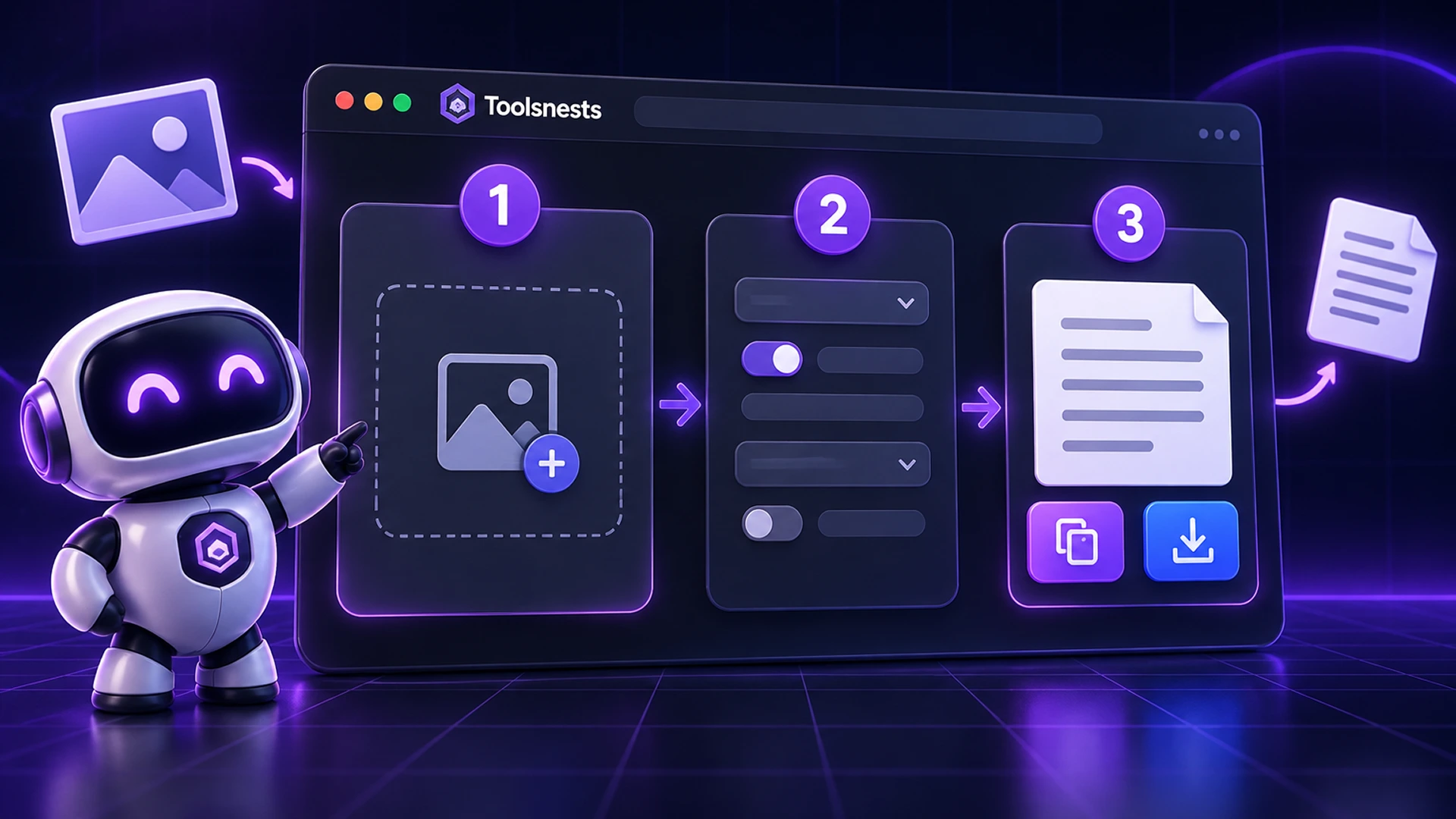
- Open Image to Text (OCR).
- Drop in one or more images, a whole folder, or paste a screenshot with Ctrl+V.
- Under "Languages in the document", select only the languages actually present. Fifteen are available.
- Leave "Rejoin wrapped lines into paragraphs" on for prose; turn it off for lists, tables or addresses where line breaks matter.
- Wait for recognition. The first run downloads the language model (about 10–15 MB), which is then cached.
- Correct any mistakes directly in the editable text box, then copy, "Copy all", or download the text.
Batch Recognition and Confidence Scores
You can drop many images at once; the tool reuses the same recognition worker for every file in the batch, so later images are faster than the first. Each result shows a confidence percentage: Tesseract's own average certainty across the recognised words.
Treat that figure as a proofreading guide. Below about 80%, check numbers and names carefully; below 60%, treat the result as a rough draft. OCR tends to fail by inventing plausible-looking text rather than leaving gaps, so the score is worth reading.
Troubleshooting Poor OCR Results
OCR is far more sensitive to focus, skew and contrast than to resolution. A sharp, square, well-lit photo at a modest size beats a large blurry one every time.
- Straighten the page and fill the frame. Rotate the image first with the Image Rotator if it is sideways.
- Avoid shadows and glare across the text.
- Crop out everything that is not text with the Image Cropper.
- Do not select extra languages "just in case". Each one adds characters the recogniser can confuse, which usually lowers accuracy.
- Handwriting is not supported reliably. Tesseract is trained on printed type.
100% Private: Recognition Happens in Your Browser
The language model is downloaded once from a public CDN, but your image is never transmitted. That matters when the thing you are reading is a payslip, a contract, an ID card or a medical letter: exactly the documents you should not hand to a free online OCR service.

Image to Text: Frequently Asked Questions
Is Image to Text free?
Yes. There is no sign-up, no watermark and no page limit.
Are my images uploaded to a server?
No. Recognition runs locally in your browser. Only the language model is downloaded, once.
Which languages are supported?
Fifteen languages are available. Select only the ones in your image for the best accuracy.
Can it read handwriting?
Not reliably. It is designed for printed text, including photographs of printed text.
What is the difference between Image to Text and Screenshot to Text?
Both use the same OCR engine. Image to Text is for photos and batches of files; Screenshot to Text is streamlined for pasting what is on your screen.
Related Tools
- Screenshot to Text: paste a screen capture and grab its text.
- PDF OCR: extract text from scanned PDFs.
- Color Palette Extractor: pull the colours out of an image instead of the words.
- Watermark Remover: clean up an image before you reuse it.
Final Thoughts
Retyping text from a picture is a waste of time. Pick the right language, give the recogniser a sharp and straight image, and proofread anything below 80% confidence. Try it now with the free Image to Text (OCR) tool.