Free Online Markdown Editor with Live Preview
Write and preview Markdown online with a live side-by-side preview. Supports tables, code blocks, task lists, and GitHub Flavored Markdown.
Write Documentation and README Files Without a Local Server
Markdown has become the de facto standard for developer documentation. README files on GitHub, documentation sites built with MkDocs or Docusaurus, wiki entries in Notion and Confluence, blog posts in headless CMS systems — all use Markdown as their primary authoring format. Writing Markdown without seeing the rendered output is like writing HTML without a browser: possible, but inefficient and error-prone.
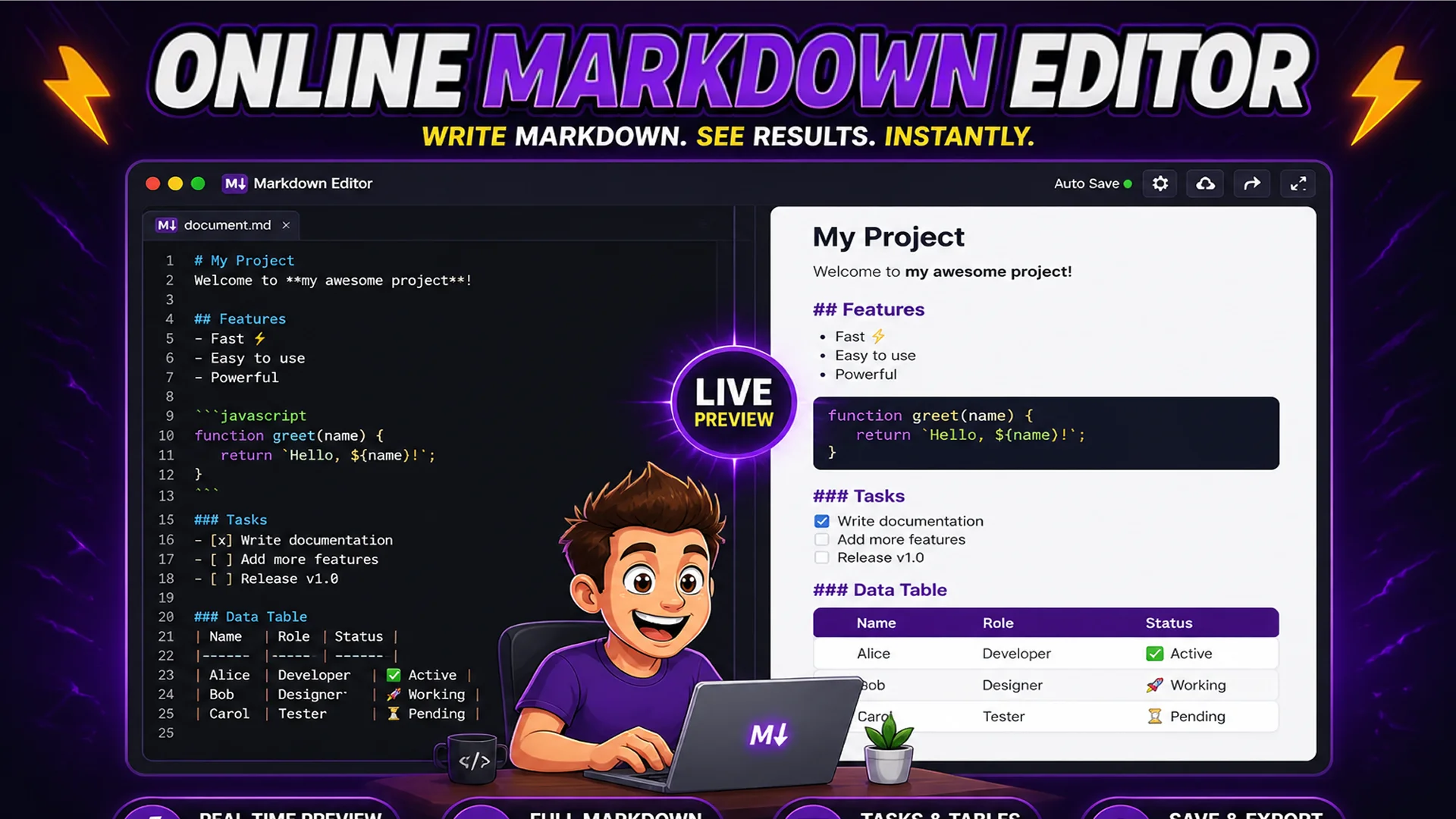
The Toolsnests Markdown Editor provides a split-pane interface with Markdown input on the left and live HTML rendering on the right. The preview updates on every keystroke, so you see exactly how your formatting will look as you write — without setting up a local development server, installing a dedicated desktop app, or uploading files to a cloud editor.
What Is Markdown?
Markdown is a lightweight markup language that uses plain text formatting syntax to indicate document structure. Created by John Gruber in 2004, it was designed to be readable as plain text while converting naturally to HTML. A heading is indicated by # (one through six # characters for h1 through h6). Bold text uses **double asterisks**. Links use [link text](URL) syntax. Code blocks use triple backticks.
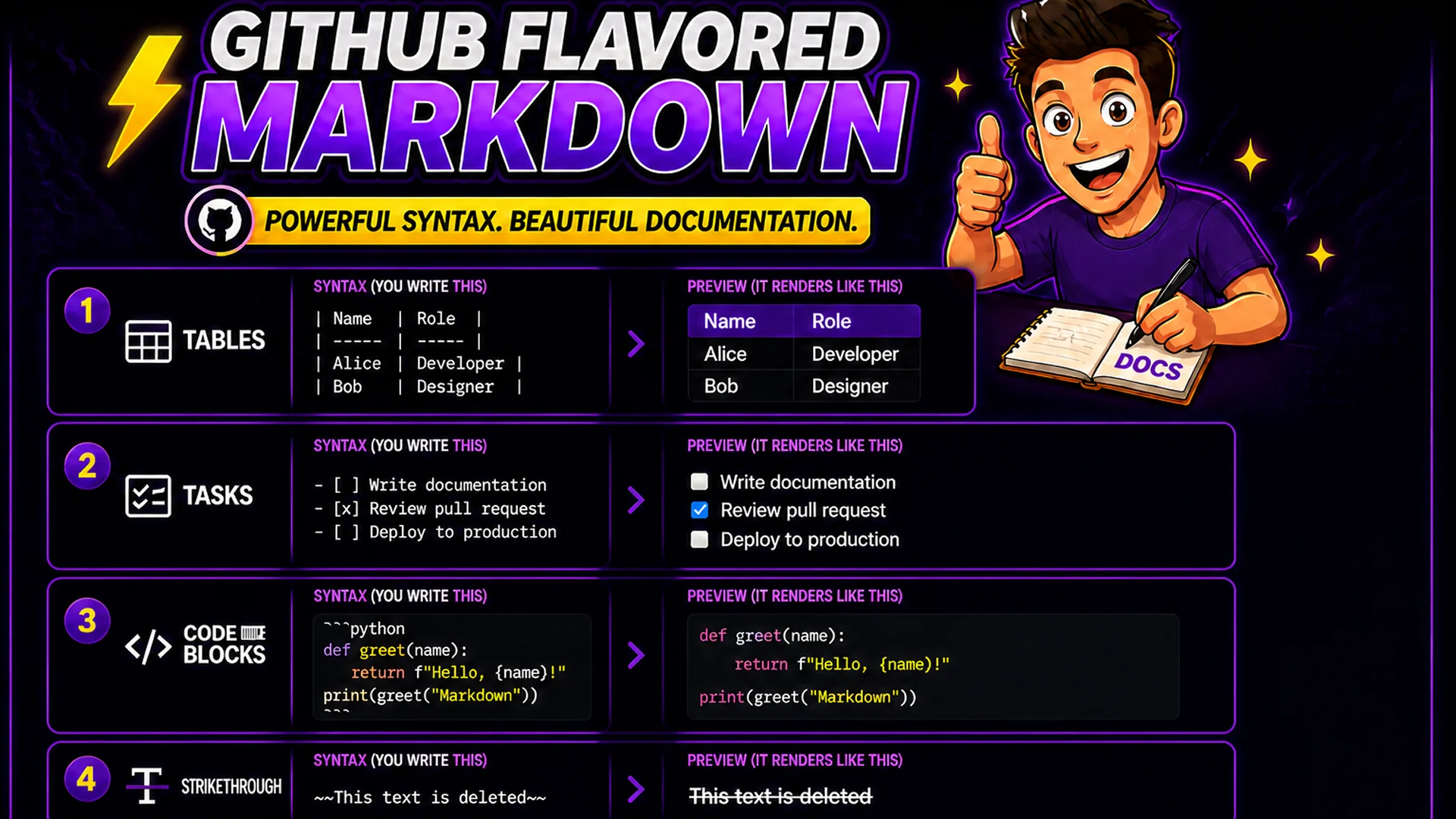
CommonMark (commonmark.org) is the standardized specification for Markdown, resolving the many ambiguities in the original implementation. GitHub Flavored Markdown (GFM) extends CommonMark with tables, task lists (- [ ] syntax), strikethrough (~~text~~), and fenced code blocks with language-specific syntax highlighting. The Toolsnests editor supports both.
How to Use the Toolsnests Markdown Editor
Open the Markdown Editor — no login, no installation.
The interface opens with a split view: Markdown input on the left, rendered HTML preview on the right. Type or paste your Markdown and the preview updates in real time. Switch between split view, editor-only, and preview-only layouts using the toolbar. Use the format toolbar to insert common Markdown syntax without typing it manually. Copy the rendered HTML output with one click, or download your content as a .md file.
GitHub Flavored Markdown Features
Tables: create properly formatted Markdown tables using | pipe | syntax — the editor renders them as styled HTML tables with correct alignment. Task lists: use - [ ] for unchecked and - [x] for checked items — rendered as interactive checkboxes in the preview. Fenced code blocks: wrap code with triple backticks and specify a language identifier (```javascript, ```python, ```bash) for syntax-highlighted code blocks.
Strikethrough: wrap text in ~~double tildes~~ for strikethrough formatting. Auto-linking: bare URLs in Markdown text are automatically rendered as clickable hyperlinks. These extensions cover the full GitHub Flavored Markdown specification, making the editor suitable for writing any README, wiki entry, or GitHub Issue template.
Use Cases: When to Use the Markdown Editor
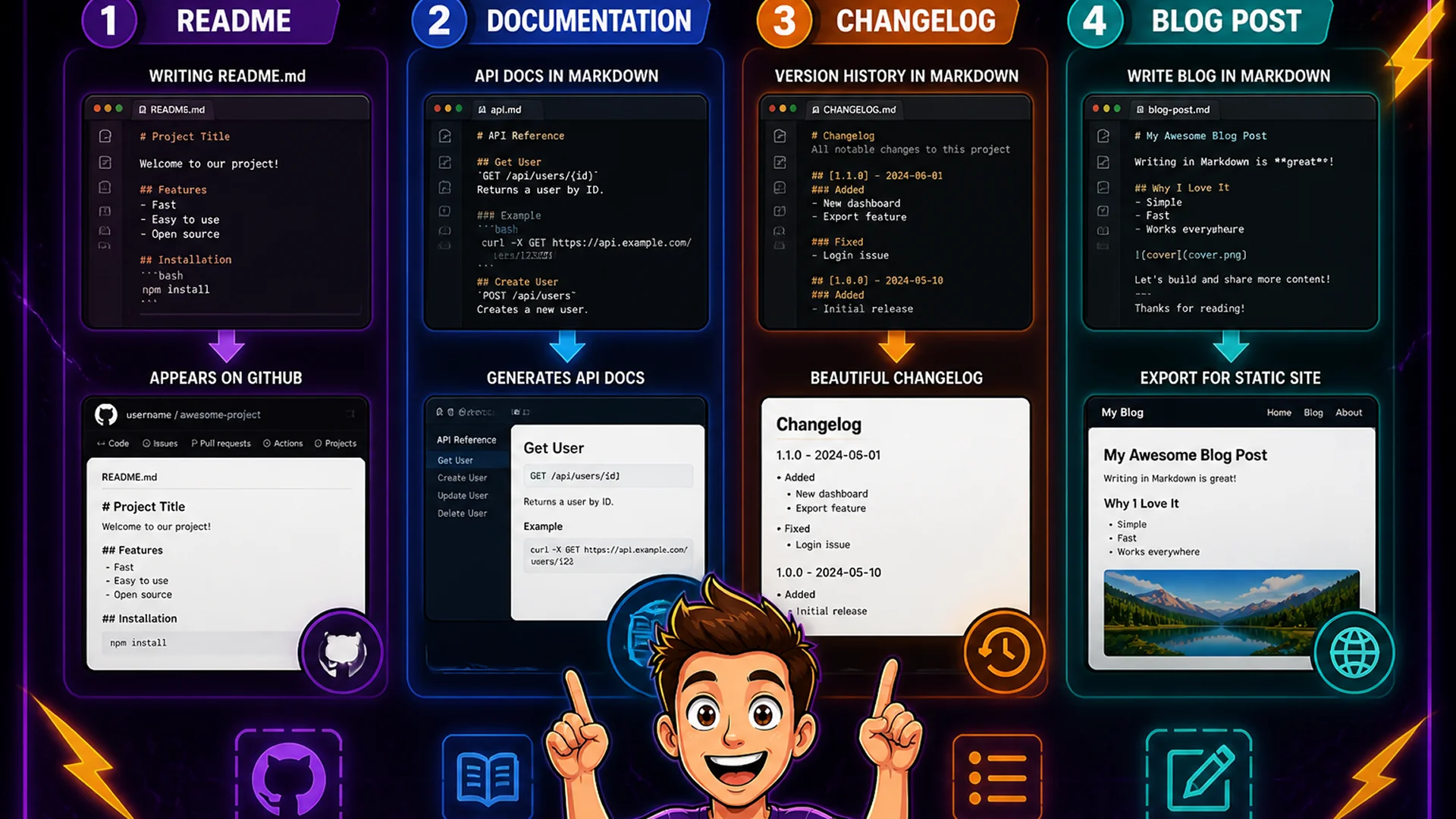
README files: draft and preview your project's README before pushing to GitHub — see exactly how the formatted result looks without running git commands. API documentation: write endpoint descriptions, request/response examples, and code samples with syntax highlighting. Changelog entries: structure version history with proper heading hierarchy, bullet points, and code references. Blog post drafts: many static site generators (Jekyll, Hugo, Gatsby) use Markdown for blog posts — draft and preview before importing.
Internal wiki pages: draft documentation for Notion, Confluence, or any Markdown-compatible wiki system. Email drafts with structured content: some email platforms accept Markdown — preview the formatted result before converting to HTML for sending.
Related Writing and Developer Tools
Text Case Converter — convert headings between Title Case, sentence case, and other formats. Character Counter — count words and estimate reading time for documentation. Text Diff Checker — compare Markdown file versions to see what changed.
Final Thoughts
Markdown is the language of developer documentation, and a live-preview editor that requires no setup is an essential tool for anyone who writes READMEs, documentation, or Markdown-based blog posts regularly.
Open the Markdown Editor and start writing — the live preview makes Markdown authoring faster and more accurate than writing blind.