Strong Password Generator — Free, Secure & Private
Generate strong, random passwords instantly. Customize length, character sets, and complexity. No account needed, passwords never sent to any server.
Why Password Strength Is Your First Line of Defense
The average person has over 100 online accounts. Using the same password across multiple accounts, or using predictable passwords based on personal information, are the two most common causes of account compromise. Credential stuffing attacks — where attackers use breached username/password lists from one site to try to access other sites — succeed specifically because people reuse passwords.
A strong password is at least 16 characters long, contains uppercase and lowercase letters, numbers, and symbols, and is completely random — not based on words, names, dates, or any pattern a person might guess. Generating truly random passwords consistently, at the right length and complexity for each account, is not something humans do reliably. It is exactly what a password generator is for.
What Makes a Password Genuinely Strong?
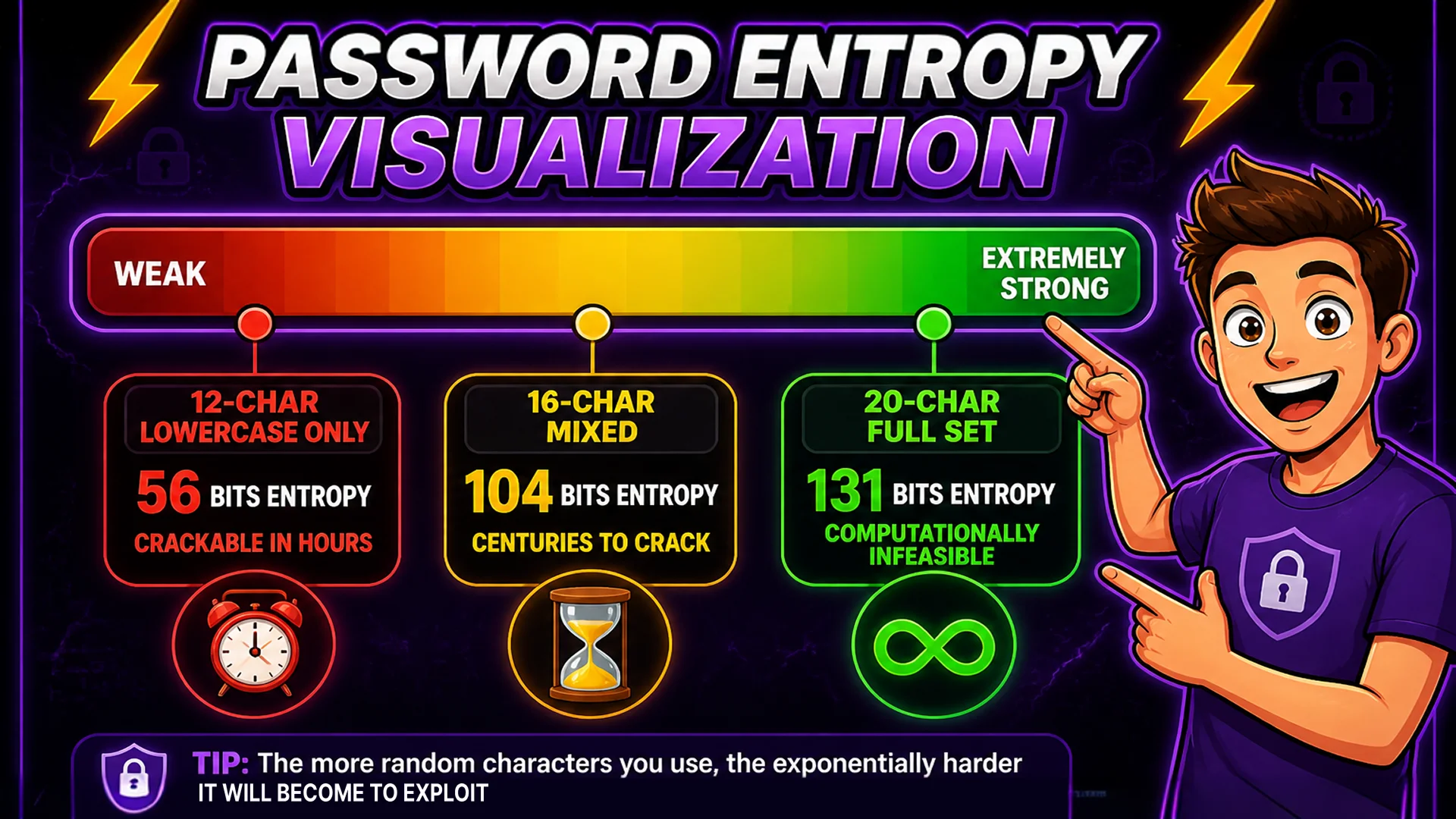
Password strength is measured by entropy — the number of bits of randomness a password contains. A 12-character password using only lowercase letters has about 56 bits of entropy. The same length using mixed case, numbers, and symbols has about 79 bits. A 20-character password with the full character set has about 131 bits of entropy — enough to make brute-force attacks computationally infeasible for the foreseeable future.
For most accounts, 16 characters with mixed case, numbers, and symbols (approximately 104 bits of entropy) is considered strong by current security standards. For high-value accounts — banking, email, password managers — 20+ characters is advisable. The Toolsnests Password Generator lets you configure exact length and character sets to match any security requirement.
How to Generate a Password on Toolsnests
Open the Password Generator — no account, no installation.
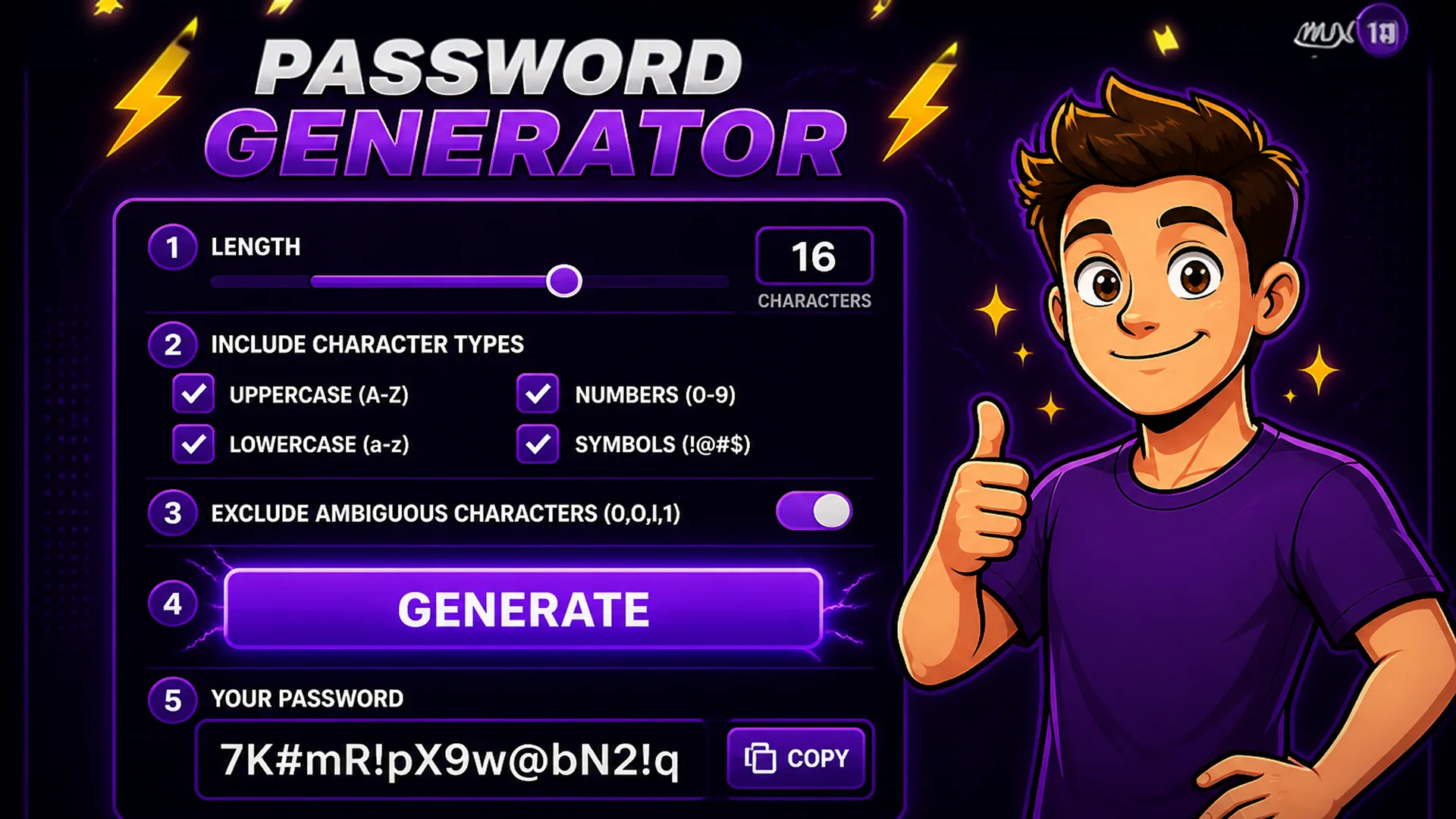
Step 1: Set the password length using the slider — from 8 to 128 characters. Step 2: Choose which character sets to include: uppercase letters (A–Z), lowercase letters (a–z), numbers (0–9), and symbols (!@#$%^&*). Step 3: Optionally exclude ambiguous characters (0, O, l, 1) that look similar in certain fonts. Step 4: Click Generate. Step 5: Copy the password with one click. Click Generate again for a new password — each one is independently random.
You can generate multiple passwords for different accounts in rapid succession. Each generation produces a completely new random result.
Cryptographically Secure Random Generation
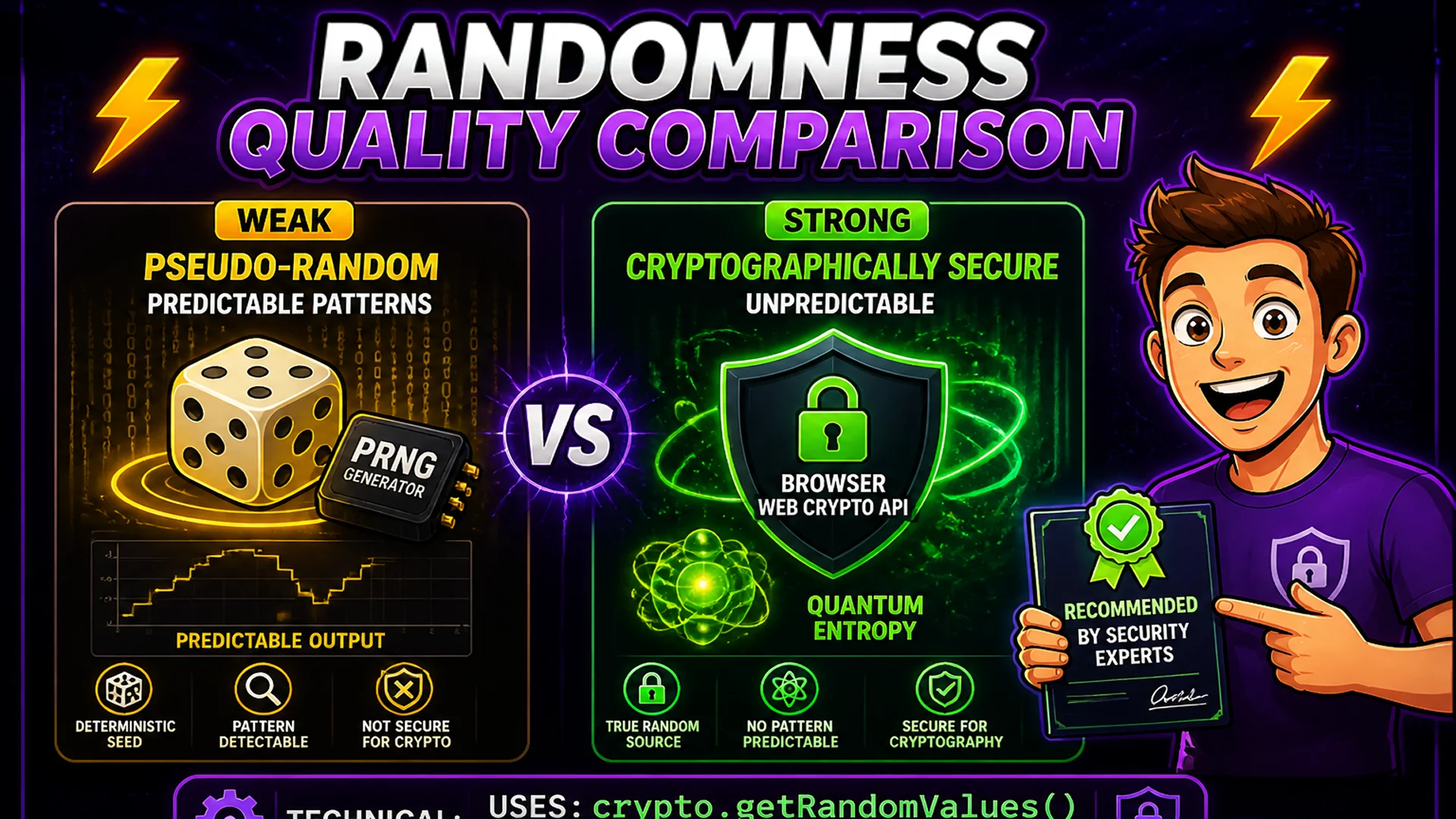
The quality of randomness matters for password security. A password generated using a weak pseudo-random number generator (PRNG) may have patterns that are theoretically predictable. The Toolsnests Password Generator uses the Web Crypto API's getRandomValues() function — the same cryptographic random number generator used by browsers for TLS session keys and other security-critical operations. This guarantees cryptographically strong randomness, not just pseudo-randomness.
The entire generation process runs in your browser's JavaScript engine. No password you generate is ever transmitted to any server — not even Toolsnests's own servers. The password exists only in your browser tab, in your clipboard after you copy it, and wherever you store it.
Where to Store Your Generated Passwords
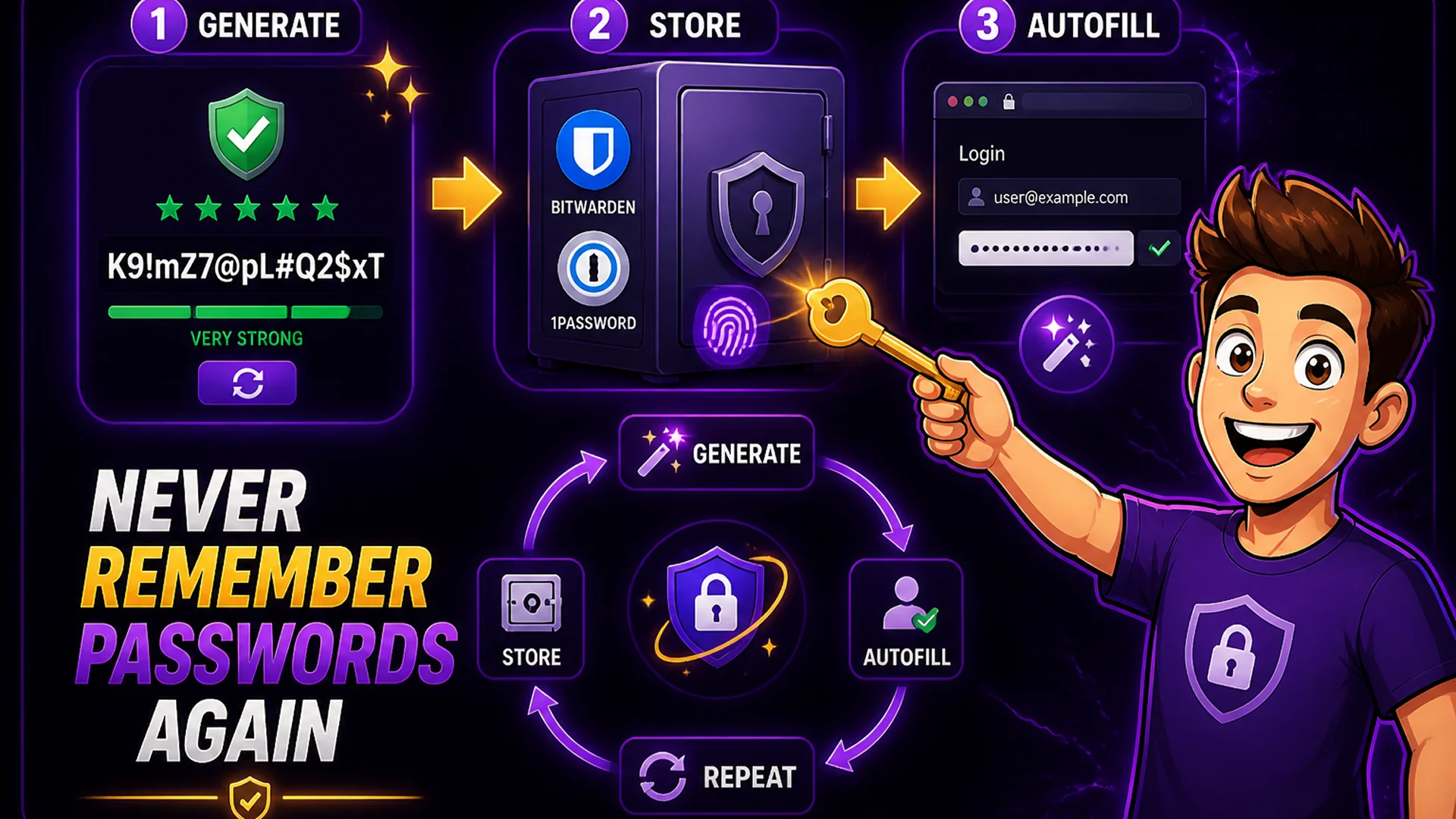
A strong password is only useful if you can retrieve it when needed. Storing strong passwords requires a password manager — software that encrypts your passwords locally (or in a zero-knowledge cloud vault) and fills them in automatically when you log into websites.
Recommended password managers include Bitwarden (open-source, free tier), 1Password, and Dashlane. All support browser extensions for autofill. Generate strong passwords with Toolsnests, store them in your password manager, and never reuse or remember individual passwords manually.
Related Security Tools
Base64 Encoder — encode credentials and binary data for API authentication headers. File Checksum Generator — verify file integrity with SHA-256 and other cryptographic hashes. QR Code Generator — generate QR codes for sharing URLs and other data securely.
Final Thoughts
Password security is one of the highest-leverage security improvements any individual or organization can make. Using strong, unique, random passwords for every account — generated by a tool that uses cryptographic randomness and never transmits what it generates — is the foundation of good security hygiene.
Generate your next password with the Password Generator — strong, private, and ready in under a second.