PDF to Word — Free & Private
Convert a PDF into an editable Word document with headings, paragraphs and lists rebuilt. What converts well, what does not, and how to handle scans.
Convert PDF to Word Without Uploading It
To convert a PDF to Word, open the Toolsnests PDF to Word converter, drop in your PDF, optionally enter a page range, and download the editable .docx file. Headings, paragraphs and lists are rebuilt so the document is easy to edit, and the conversion runs in your browser, so the file never leaves your device.
That last point matters for this conversion more than most. The PDFs people need to edit are usually contracts, reports and statements: exactly the documents you should not upload to an unknown converter.
Why Converting PDF to Word Is Harder Than It Looks
A PDF carries no document structure. There is no heading element, no paragraph and no list inside it, only glyphs placed at coordinates with a font size. So converting PDF to Word is a reconstruction problem, not a translation problem.
The Toolsnests converter reads each page's text fragments, groups them into lines by position, and works out the body font size as the size carrying the most text in the document. Short lines set noticeably larger become real Word headings (Heading 1, 2 and 3), so the navigation pane works in the finished file. Bulleted and numbered lines become real Word lists, and wrapped lines are rejoined into their paragraphs.
How to Convert PDF to Word on Toolsnests (Step by Step)
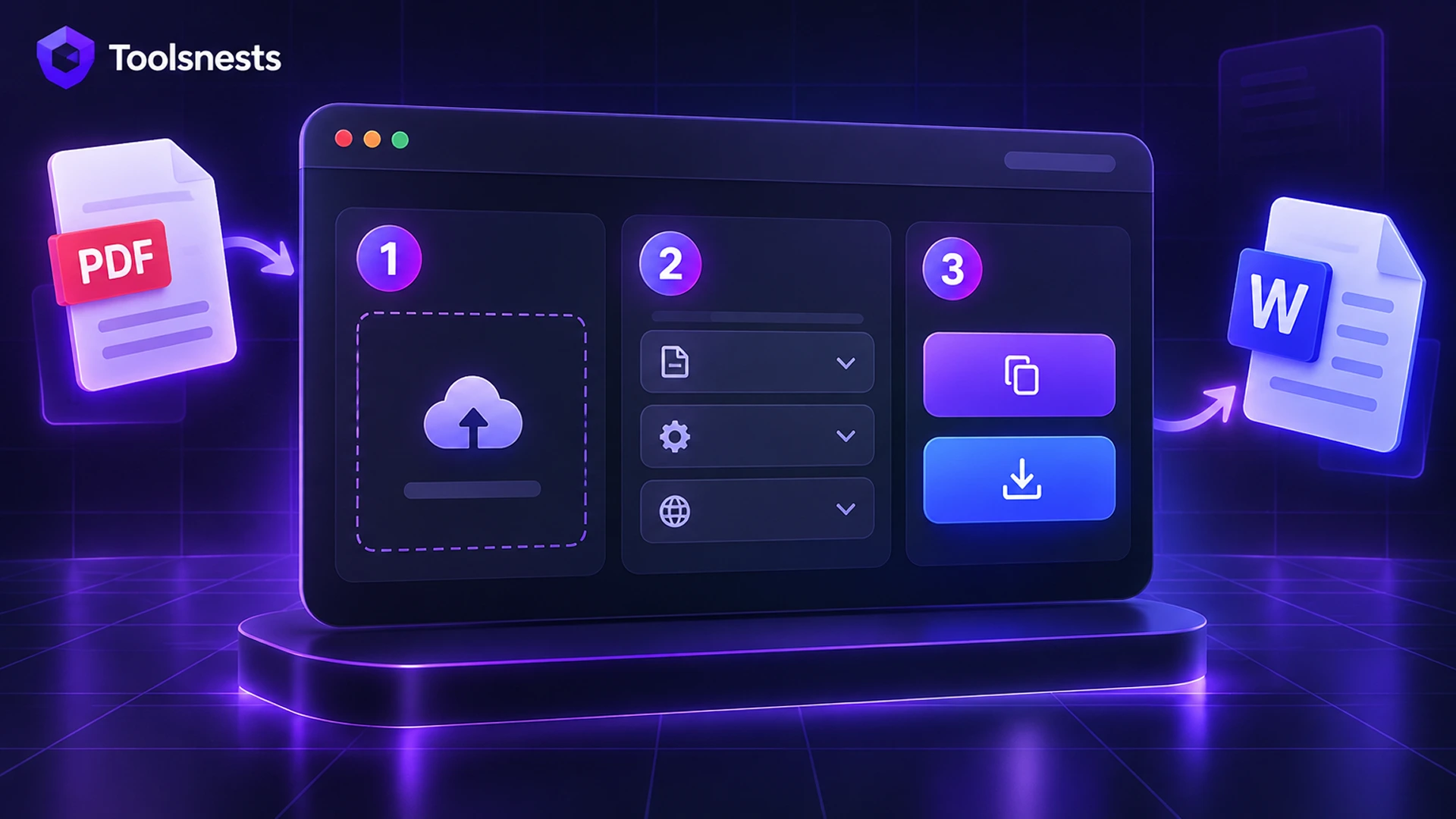
- Open PDF to Word.
- Drop one or more PDF files, a folder, or a ZIP onto the page.
- Optionally type a page range in "Pages (blank for all)", for example 1-3, 7.
- Wait for the conversion; progress shows for each file.
- Download each .docx, or click "Download all as ZIP".
- Open the file in Microsoft Word, Google Docs, LibreOffice Writer or Apple Pages.
What Converts Well and What Does Not
No converter can honestly promise a pixel-perfect Word copy of a PDF, because the original layout model is not stored in the file. Here is what to expect:
| Content | Result in Word |
|---|---|
| Body text | Faithful, reflowed into paragraphs |
| Headings | Real Heading 1–3 styles, detected from font size |
| Bulleted and numbered lists | Real Word lists |
| Tables | Text in the right order, but as paragraphs, not a Word table |
| Multi-column layouts and exact spacing | Approximate |
| Scanned pages | No text (the page is an image); you need OCR first |
Converting Scanned PDFs
A scanned PDF is a picture of a page with no text layer, so there is nothing to extract. The converter detects this and tells you, instead of handing back an empty document. Run the file through Searchable PDF (OCR) first to add a text layer, or use PDF OCR to pull the text out directly.
Tips for the Best Results
- Convert only the pages you need with the page range; smaller jobs are faster and cleaner.
- If a heading was missed, apply the Heading style in Word. The rest of the structure stays intact.
- For data tables, try PDF to Excel instead, which is built to keep rows and columns.
- If you only need the words, PDF Text Extractor gives you plain text.
Your Files Stay on Your Device
The PDF is parsed with pdf.js and the .docx is built with the docx library, both inside your browser tab. Contracts, medical records and financial statements never leave your device, and nothing is stored after you close the page.

PDF to Word: Frequently Asked Questions
Is PDF to Word free?
Yes. No sign-up, no watermark and no file limit.
Are my files uploaded to a server?
No. The conversion runs entirely in your browser.
Will the formatting be identical to the PDF?
No. The text and structure (headings, paragraphs, lists) are faithful, but exact spacing, multi-column layouts and complex tables are approximate.
Can I convert several PDFs at once?
Yes. Drop several files or a folder and download all the .docx files as one ZIP.
Which apps can open the file?
It is a standard .docx, so Microsoft Word, Google Docs, LibreOffice Writer, Apple Pages and any other Word-compatible editor.
Related Tools
- Word to PDF: turn the edited document back into a PDF.
- PDF to Image: export pages as images.
- PDF/A Converter & Validator: create archive-safe PDFs.
Final Thoughts
When you no longer have the source file, a good reconstruction is the next best thing. Convert privately, check headings and tables, and you will have an editable document in minutes. Try the free PDF to Word converter.