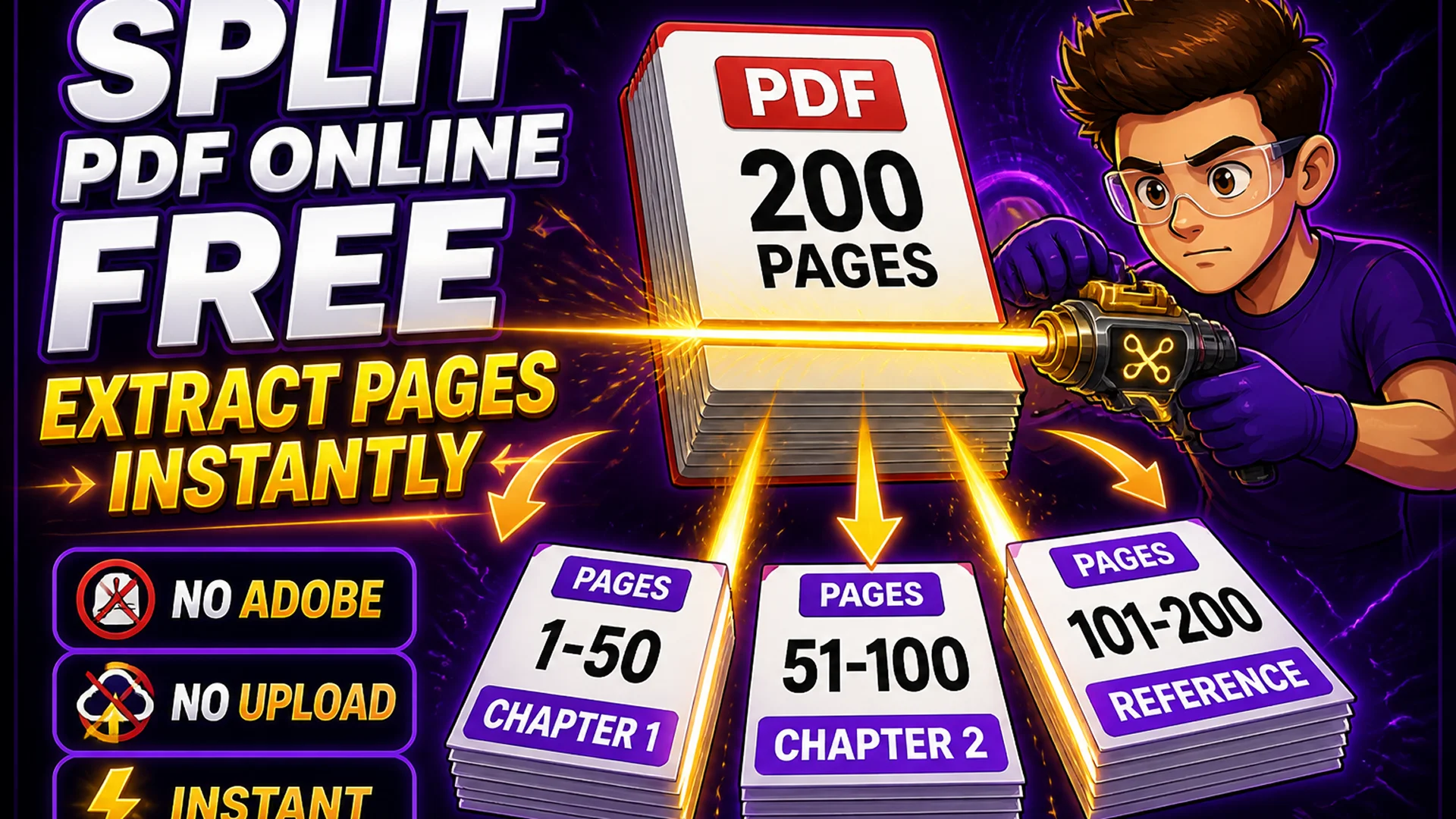
Split PDF Online Free — Extract Pages Instantly
Split a PDF into multiple files or extract specific pages online for free. No upload, no account, no watermarks. Works entirely in your browser.
Extract Exactly the Pages You Need from Any PDF
Large PDF files are often the wrong unit of information sharing. A 200-page technical manual contains a chapter that one colleague needs. A scanned multi-document batch contains a specific invoice that needs to be filed separately. A comprehensive report has a financial summary section that only finance team members should receive. In all these cases, you need to split the PDF — extracting only the relevant pages.
Splitting PDFs traditionally required Adobe Acrobat Pro or uploading files to a service that processes them on a remote server. The Toolsnests PDF Split tool extracts any combination of pages from any PDF, entirely in your browser, with no file upload and no account required.
What Is PDF Splitting?
PDF splitting is the process of extracting a subset of pages from a source PDF and saving them as one or more separate PDF files. Unlike merging, which combines files, splitting divides one document into parts. The source PDF is not modified — you always work from the original and produce new output files.
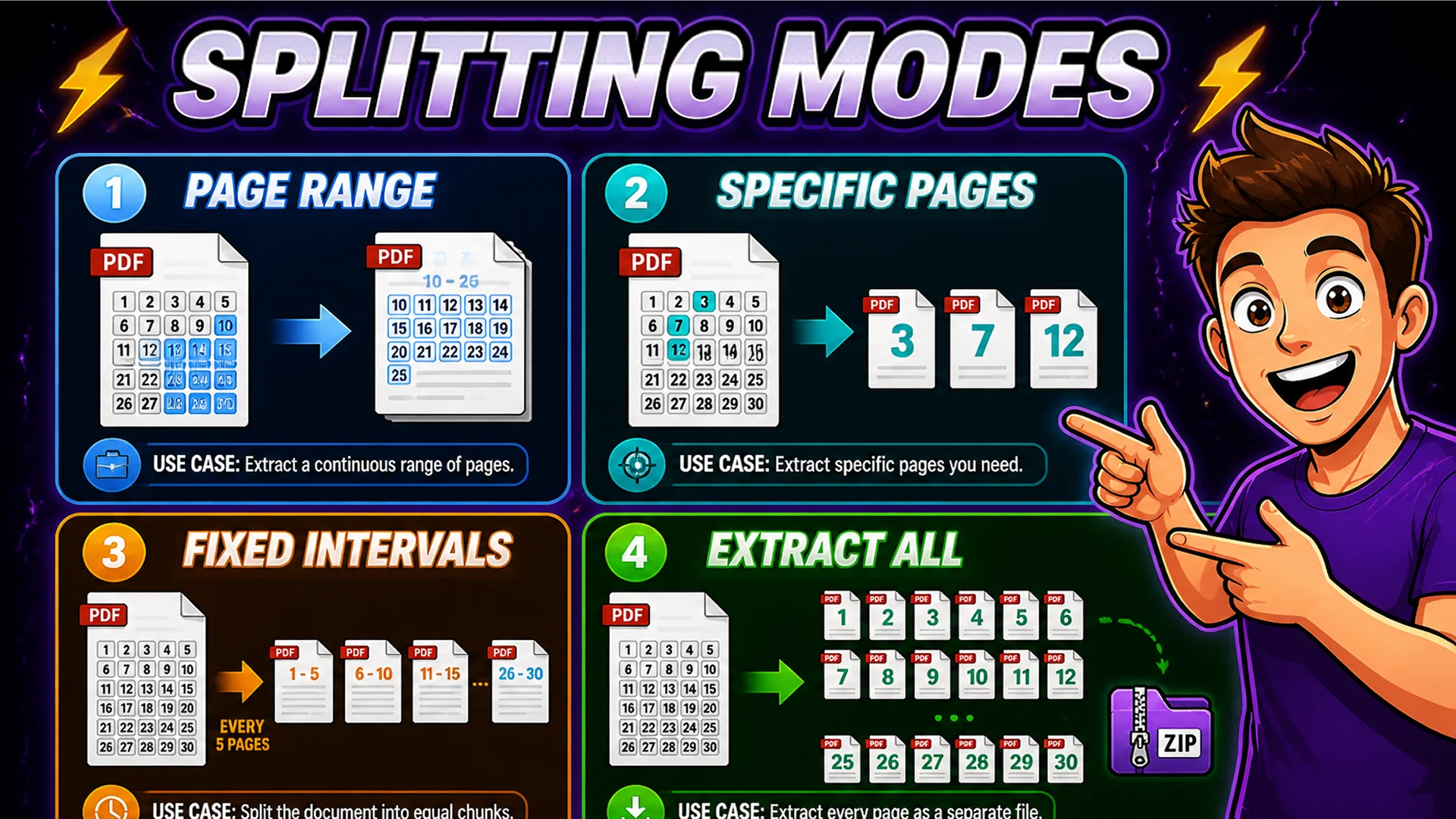
Splitting modes include: extracting a specific page range (pages 10–25), extracting individual pages (page 3, page 7, page 12), splitting at a fixed interval (every 5 pages, creating equal-size chunks), or splitting every page into individual single-page PDF files. Each mode serves different use cases.
How to Split a PDF on Toolsnests
Open the PDF Split tool — no login, no installation.
Step 1: Drag and drop your PDF file or click to browse and select it. Step 2: The tool shows the total page count of your document. Step 3: Choose your split mode — extract a page range, select specific pages, split every N pages, or extract all pages individually. Step 4: Specify your page selection. Step 5: Click Split. Step 6: Download the extracted files — multiple files download as a ZIP containing each extracted PDF, named by page range.
Real-World Splitting Scenarios
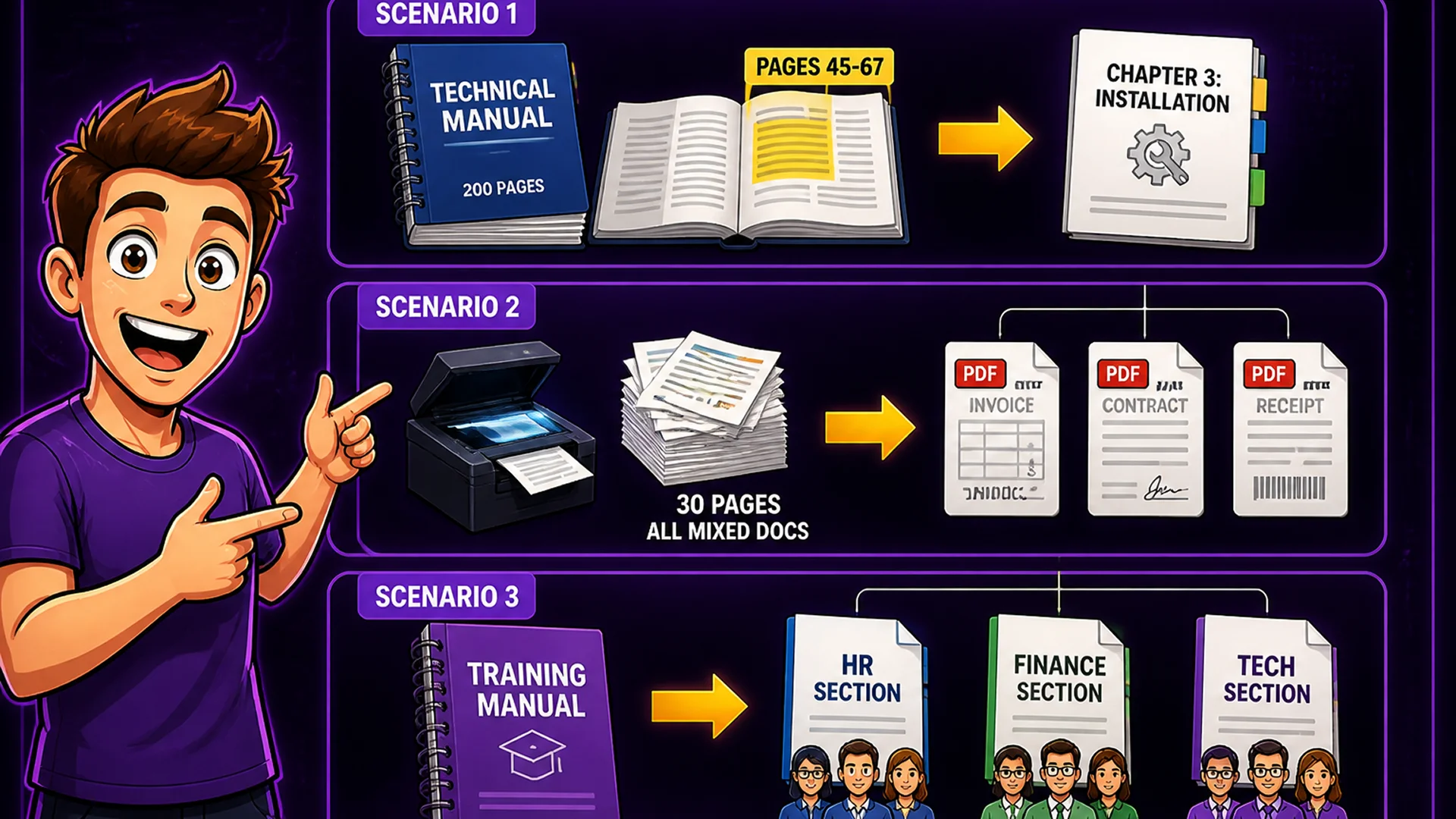
Extracting a chapter from a technical manual: set the page range to the chapter's start and end pages, click Split, and share just that chapter with the colleague who needs it. Separating a batch scan: a scanner produces a single PDF of 30 pages where each page is a different document — use Extract All Pages to get 30 individual single-page PDFs. Distributing a training manual by section: enter the page ranges for each section, split, and distribute each section to the appropriate team.
Splitting a large PDF before attaching it to email: a 50-page report exceeds an email attachment limit — split it into 10-page chunks and send each chunk as a separate attachment. Creating individual invoice files from a batch invoice run: if your accounting software generates all monthly invoices as one PDF, split each invoice into its own file for individual distribution.
Privacy: Your PDFs Never Leave Your Browser
PDF files frequently contain confidential information. The Toolsnests PDF Split tool uses pdf-lib, a pure JavaScript PDF library that runs entirely in your browser's JavaScript engine. When you click Split, the extraction happens locally on your device — no data is transmitted to any server.
You can confirm this with your browser's Network tab. During the split operation, you will see zero upload requests. Close the browser tab and all file data is cleared from memory. The privacy guarantee is architectural, not a policy promise.
Related PDF and File Tools
PDF Merge — combine multiple PDFs into one document with drag-and-drop reordering. PDF Compressor — reduce the file size of extracted PDFs for email or portal uploads. Bulk File Renamer — rename the extracted PDF files with consistent naming conventions.
Final Thoughts
PDF splitting is a frequent need in document-heavy workflows, and it should not require expensive software or uploading confidential files to external servers. The Toolsnests PDF Split tool handles any splitting scenario in your browser — privately, instantly, and free.
Open the PDF Split tool and extract exactly the pages you need in under a minute.