Convert SVG to Android Vector Drawable Online — Free
Convert SVG to Android Vector Drawable XML online for free. Paste code, upload single or multiple files, import folders or ZIPs, trace PNG/JPEG, and preview the result.
What Is an Android Vector Drawable?
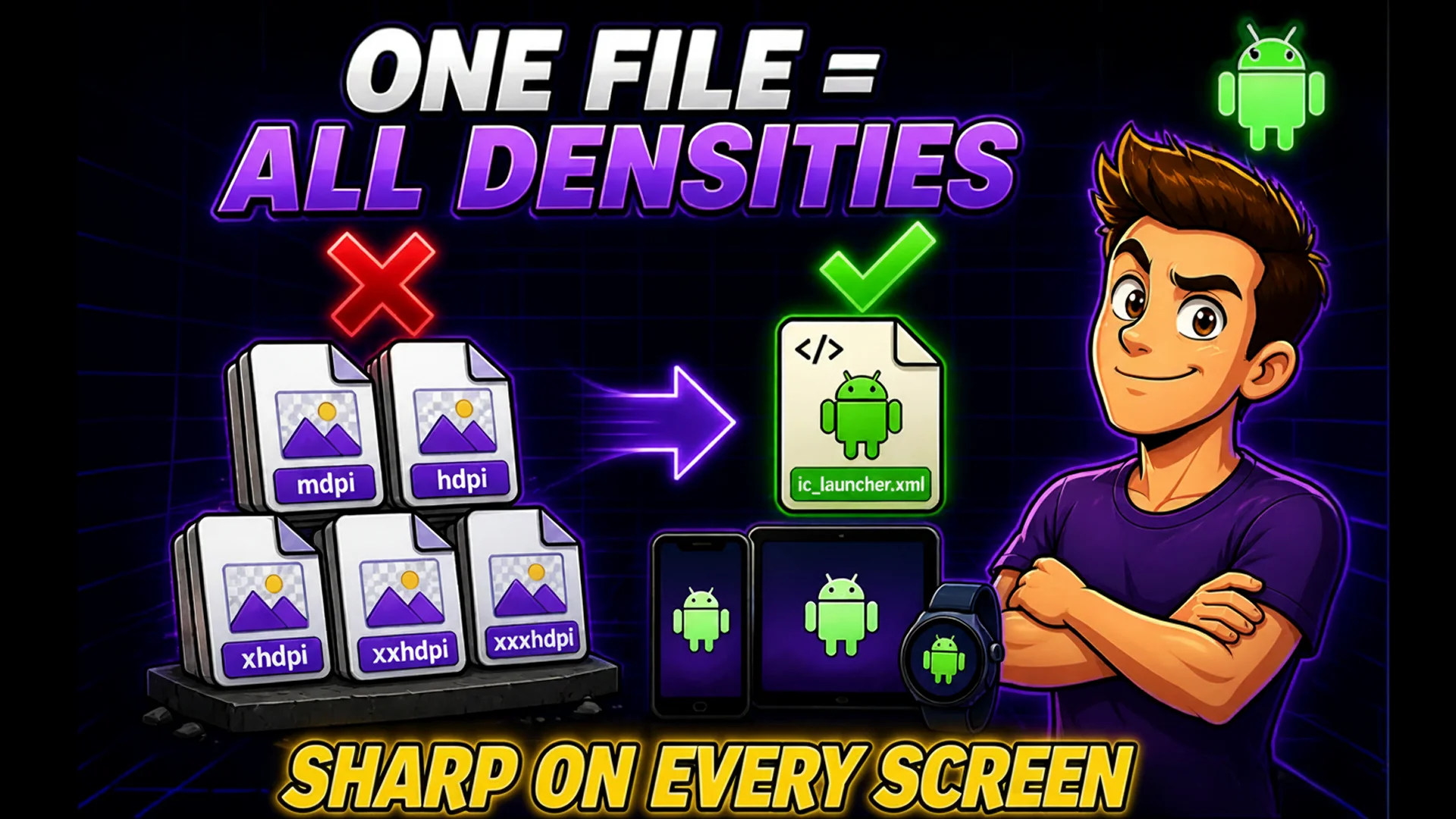
A Vector Drawable is Android's native XML format for scalable vector graphics. Instead of shipping multiple raster PNGs at mdpi, hdpi, xhdpi, xxhdpi, and xxxhdpi densities, you ship one <vector> element that defines paths, fills, strokes, and gradients mathematically — so it renders perfectly sharp on every screen, from a 1x watch face to a 4x flagship phone, while keeping your APK small.
The catch is that Android's VectorDrawable format only understands a subset of SVG, and its attribute names differ from SVG's. A path's d attribute becomes android:pathData, fill becomes android:fillColor, and fill-rule becomes android:fillType. Converting by hand is tedious and error-prone, which is exactly what the SVG to Vector Drawable tool automates.
Why Convert SVG to Vector Drawable Instead of Using PNGs
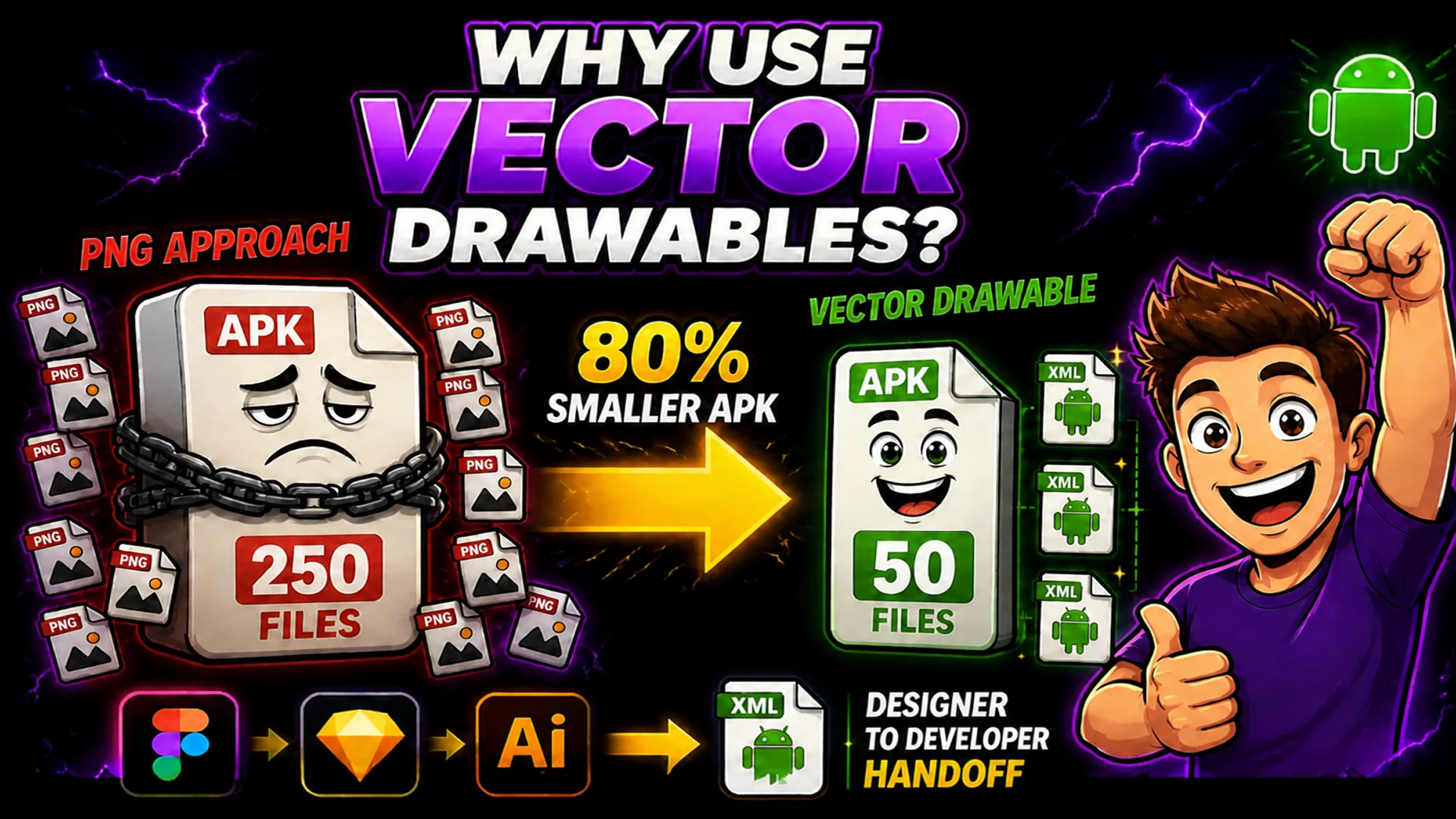
Vector Drawables reduce app size and maintenance. One XML file replaces five PNG variants per icon, so an app with 50 icons drops from 250 image files to 50 XML files. They also stay crisp at any size — perfect for icons that appear at different dimensions across a layout — and they can be tinted, animated, and themed at runtime without re-exporting assets.
Designers almost always hand off icons as SVG from Figma, Sketch, or Illustrator. Converting those SVGs to Vector Drawables is the standard bridge between the design and Android development workflows — the same way the Favicon Generator bridges a source image to web favicon formats.
How to Convert SVG to Vector Drawable on Toolsnests
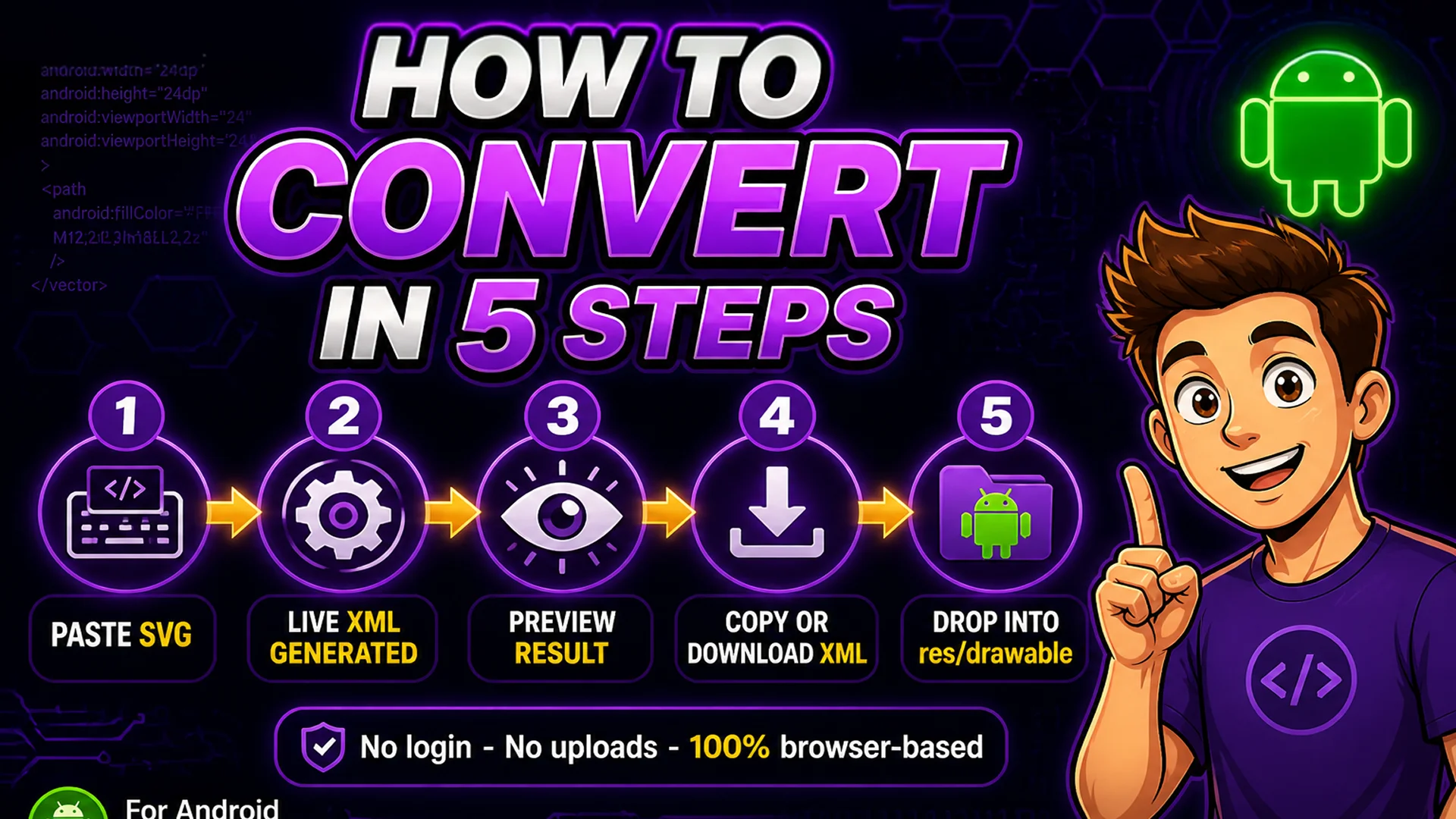
Open the SVG to Vector Drawable tool — no login, no installation, and nothing is uploaded to a server.
Step 1: Paste your SVG markup into the input area, or upload an .svg file. Step 2: The Vector Drawable XML is generated live as you type. Step 3: Compare the Original and Vector Drawable previews on transparent, black, or white backgrounds to confirm the result renders correctly. Step 4: Copy the XML with one click, or download it as a ready-to-use .xml drawable resource. Step 5: Drop the file into your project's res/drawable folder and reference it as @drawable/your_icon.
Batch Convert: Multiple Files, Folders, and ZIP Archives
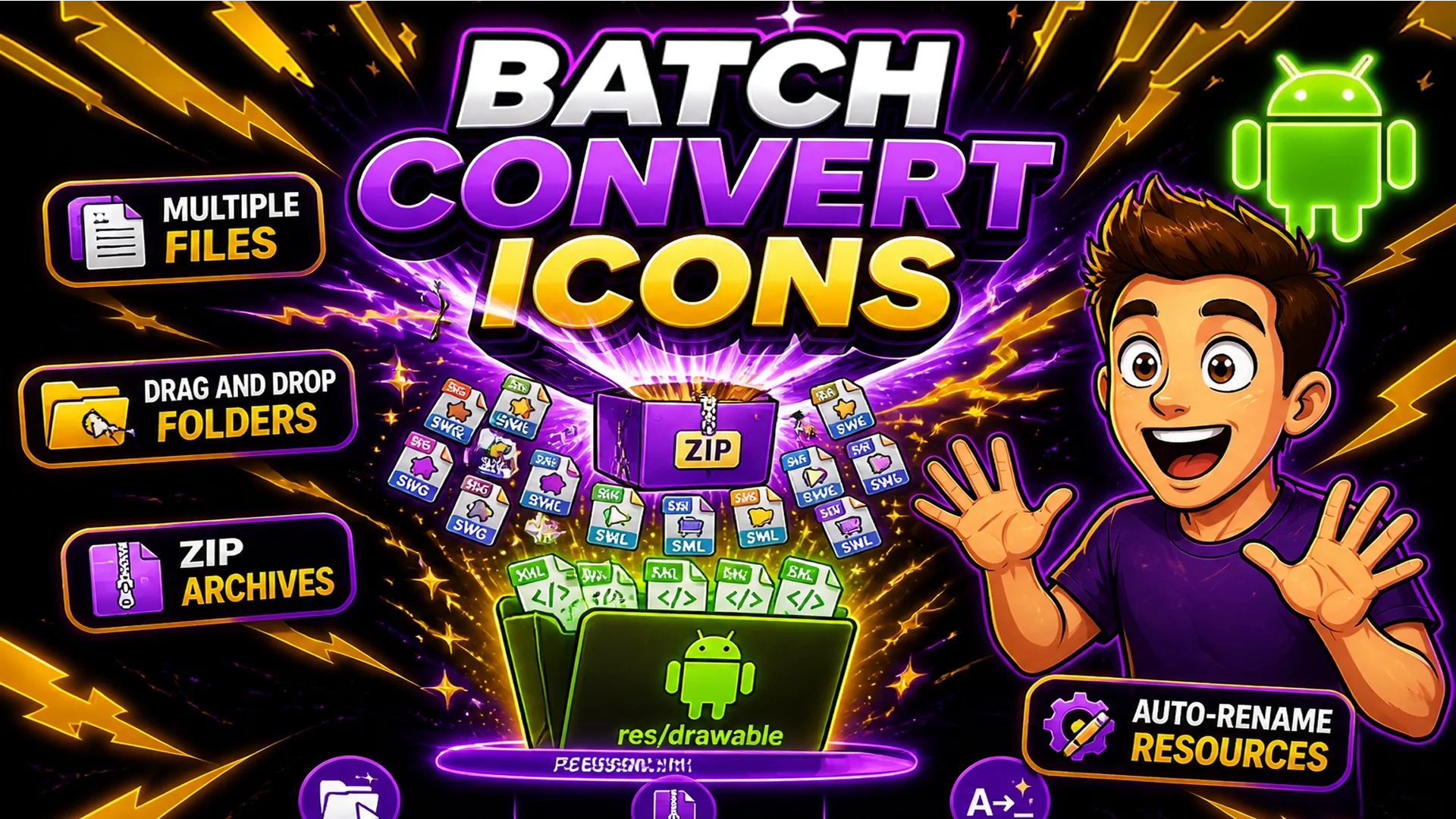
Most projects have dozens of icons, so the Batch tab accepts multiple files at once, an entire dropped folder, or a ZIP archive. The original folder structure is preserved in the output, so a nested icons/navigation/home.svg becomes icons/navigation/home.xml in the downloaded ZIP — ready to drop straight into your resource directories.
Batch jobs run in the background through the Processing manager, so you can keep working — or even switch to another tool like the Image Resizer — while your icons convert. An optional 'Sanitize Android resource names' toggle automatically renames files to valid drawable resource names (lowercase letters, digits, and underscores only), turning Arrow-Left (1).svg into arrow_left_1.xml.
Gradients, Fill Types, and SVG Features to Watch
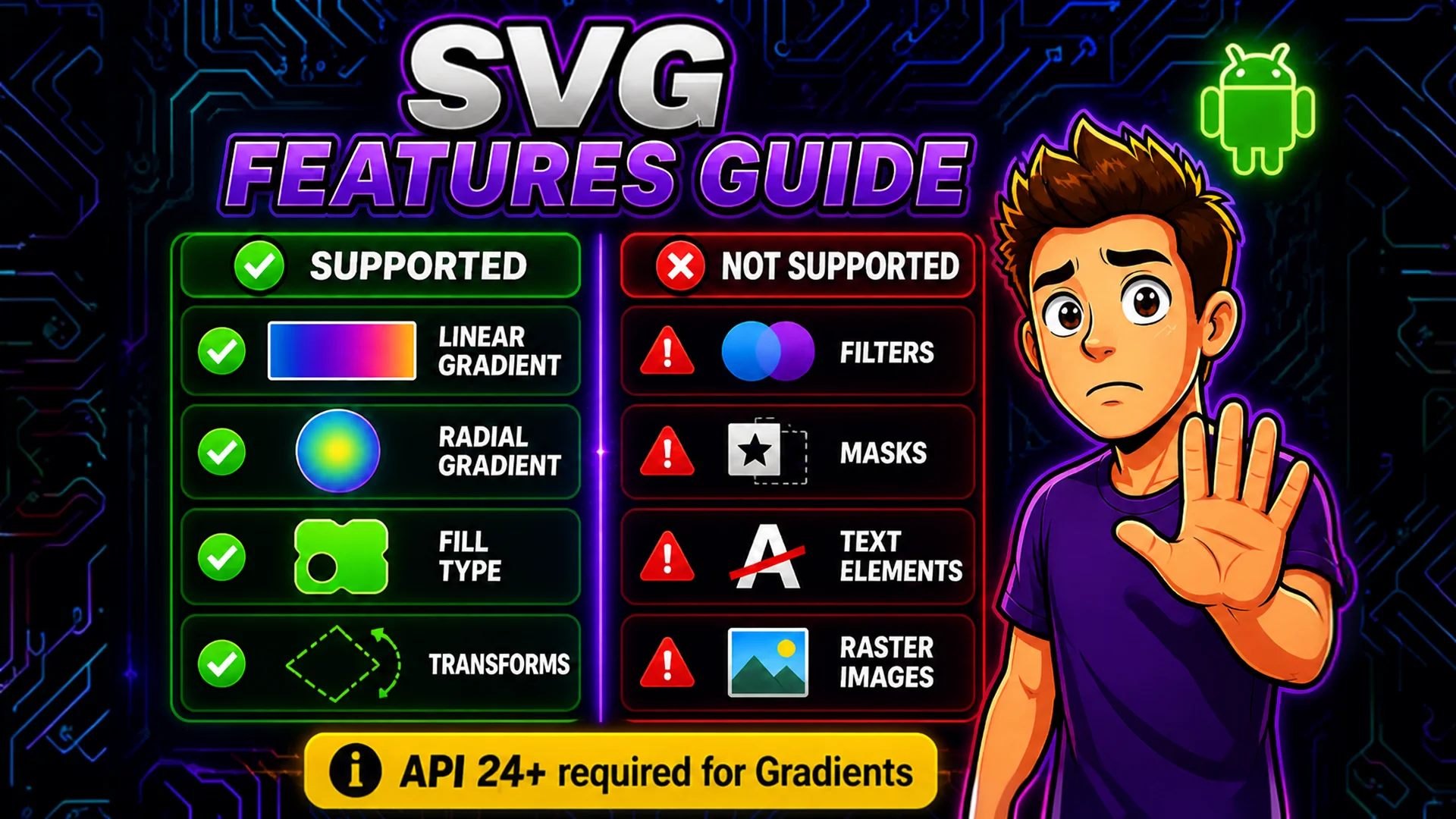
The converter handles the features that matter: linear and radial gradients are emitted as aapt:attr gradient blocks (supported on API 24+), the SVG fill-rule maps to android:fillType (nonZero or evenOdd), and transforms are baked into path data so groups render identically. The 'Fix fill type' option forces an explicit fillType on every path, which keeps compound shapes with holes rendering consistently across Android versions.
Some SVG features have no Vector Drawable equivalent — filters, masks, patterns, <text>, and embedded raster images. Rather than fail silently, the tool flags these with a clear warning so you can flatten or simplify the source SVG before converting. For best results, outline text to paths and expand any complex strokes in your design tool first.
Turning PNG and JPEG Images into Vector Drawables
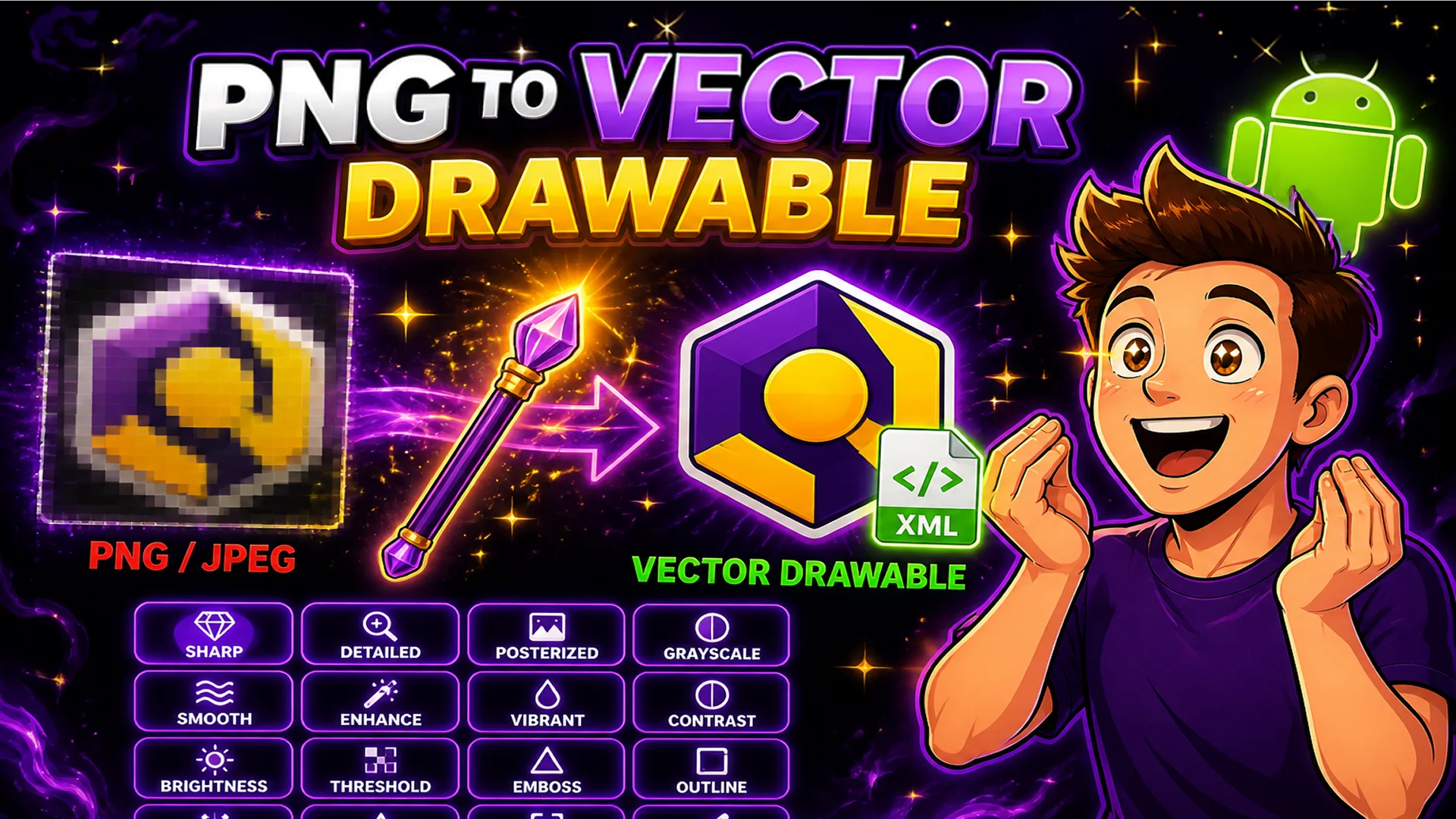
Sometimes you only have a raster logo. The tool can trace PNG, JPEG, GIF, BMP, and WebP images into vectors first, then convert them to Vector Drawables — all in the browser. Sixteen tracer presets (from sharp and detailed to posterized and grayscale) let you balance fidelity against path complexity.
Tracing works best on flat, logo-style images with solid colors and clean edges; photographs produce thousands of paths and are not a good fit. When you need to change formats rather than vectorize, reach for the Image Converter instead.
Related Developer Tools
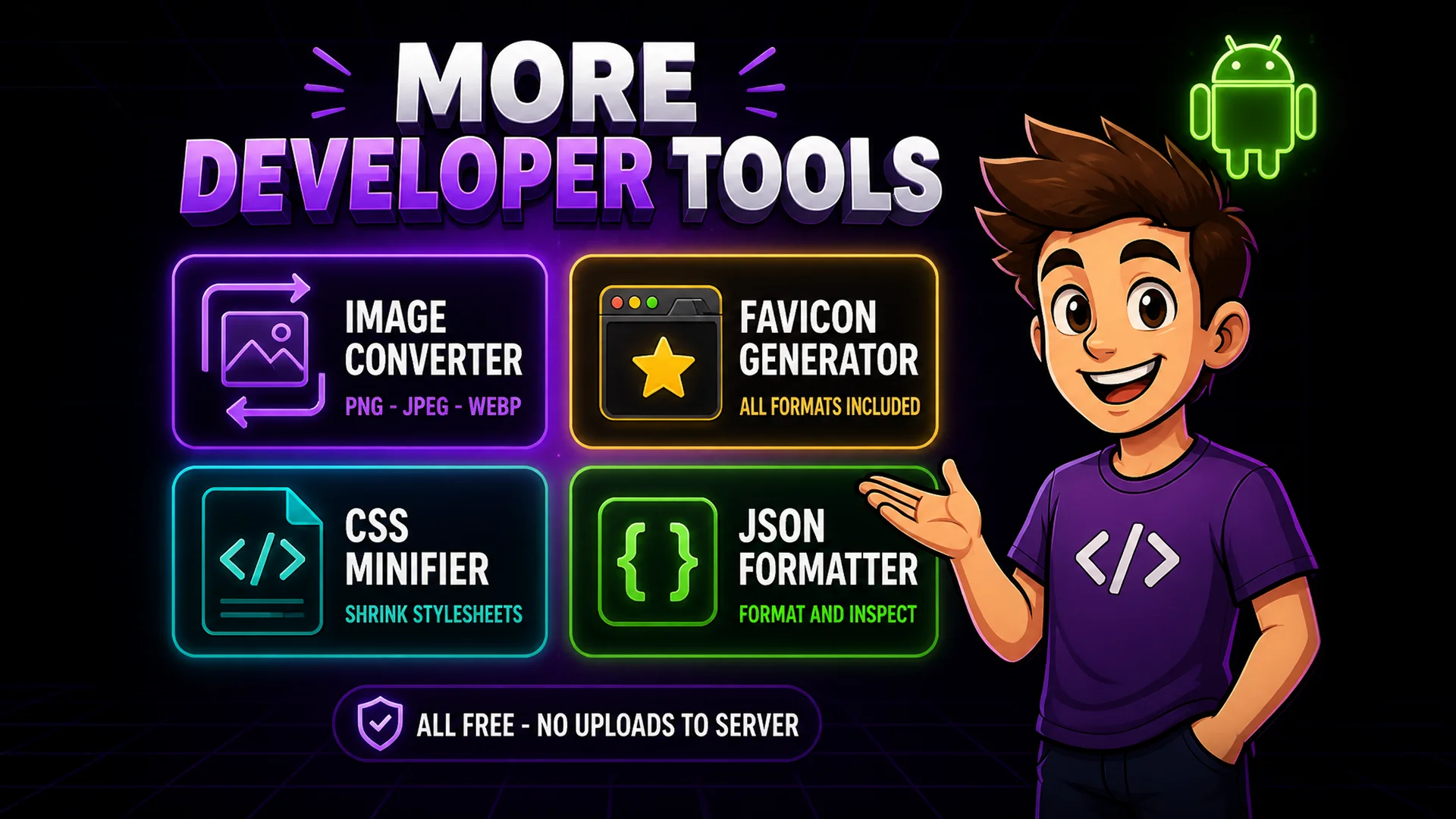
Image Converter — convert between PNG, JPEG, WebP, and more before vectorizing. Favicon Generator — turn one source image into a complete favicon set. CSS Minifier — shrink stylesheets for production. JSON Formatter — format and inspect the JSON your app consumes.
Final Thoughts
Converting SVG to Android Vector Drawable shrinks your app, keeps icons razor-sharp at every density, and connects the designer-to-developer handoff with a single step. With paste, batch, folder, and ZIP import — plus raster tracing and live previews — you can convert one icon or an entire icon set in seconds, entirely in your browser.
Open the SVG to Vector Drawable tool, paste an icon, and watch the Vector Drawable XML appear instantly.